オートメーションを使って動画を再生リストに整理する方法
Fireworkビジネスポータルのオートメーション機能を使って、再生リストへ動画を一括で追加・削除する方法です。


注意:このオートメーション機能を使用するには、Fireworkビジネスポータルアカウントの管理者権限が必要です。
作成時に動画を再生リストへ自動追加する
ステップ1
Fireworkビジネスポータルにアクセスします。
ステップ2
「チャンネル」ヘッダーの下から、オートメーションを作成したいチャンネルをクリックします。
ステップ3
ページ右上の稲妻アイコンをクリックします。
ステップ4
「オートメーションを作成」をクリックします。

ステップ5
「オートメーション名」フィールドにタイトルを入力し、「次へ」をクリックします。
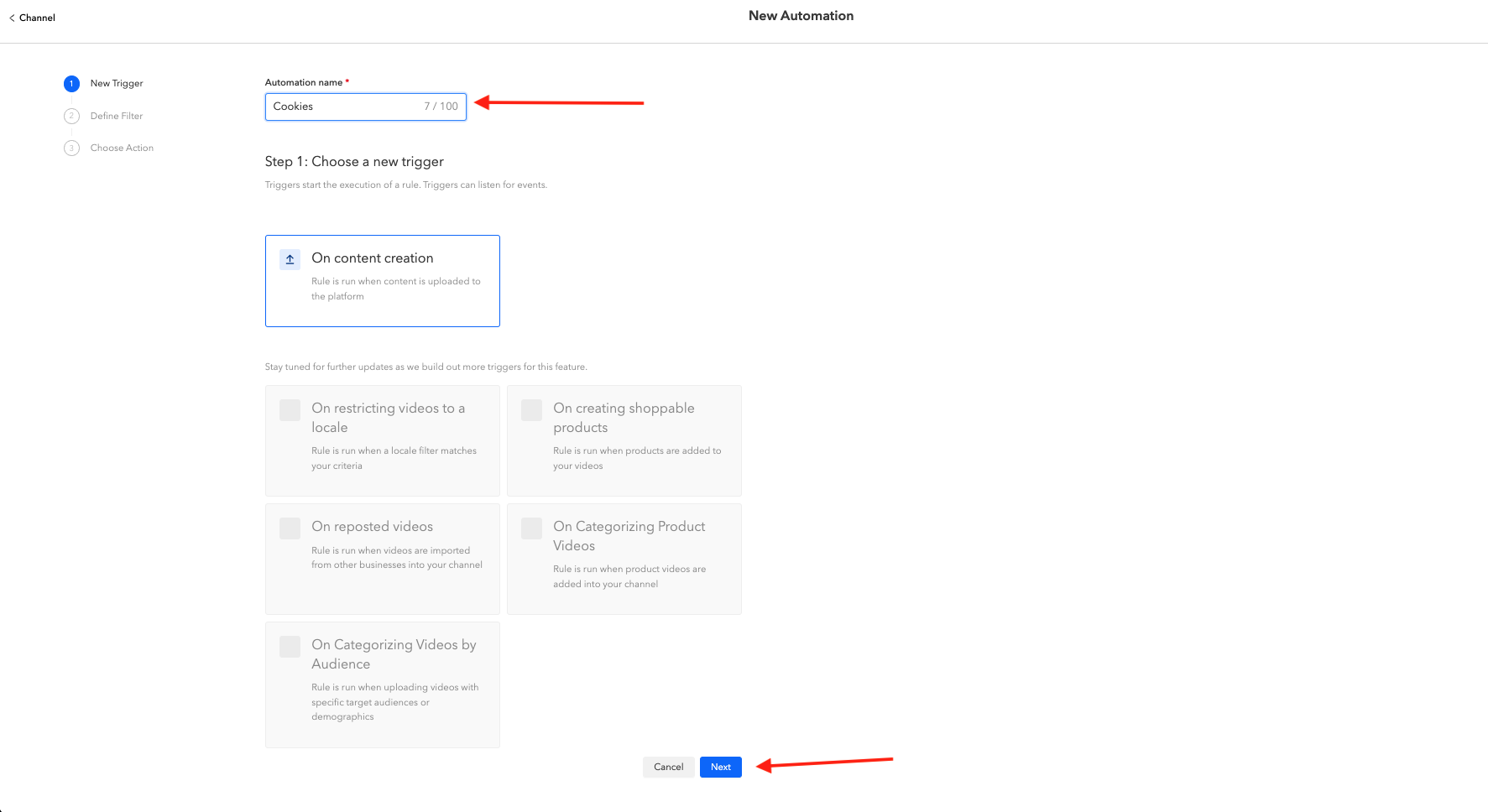
ステップ6
選択したキャプションまたはハッシュタグの動画を再生リストに振り分けるトリガールールを設定します。
- 「すべて」または「いずれか」の条件を満たす必要があるかを選択します。
- 最大10件の「キャプション」または「ハッシュタグ」を選択します。
- キャプションまたはハッシュタグが指定の値を「含む」か「等しい」かを選択します。
- フィールドにキャプションまたはハッシュタグを入力します。
「次へ」をクリックします。
ステップ7
トリガールールに基づいて動画を追加したい再生リストを選択し、「作成」をクリックします。

ステップ8
作成したオートメーションは、「アクティブ」列で自動的に「オン」になります。
「今すぐ実行」をクリックすると、新しいオートメーションを実行できます。
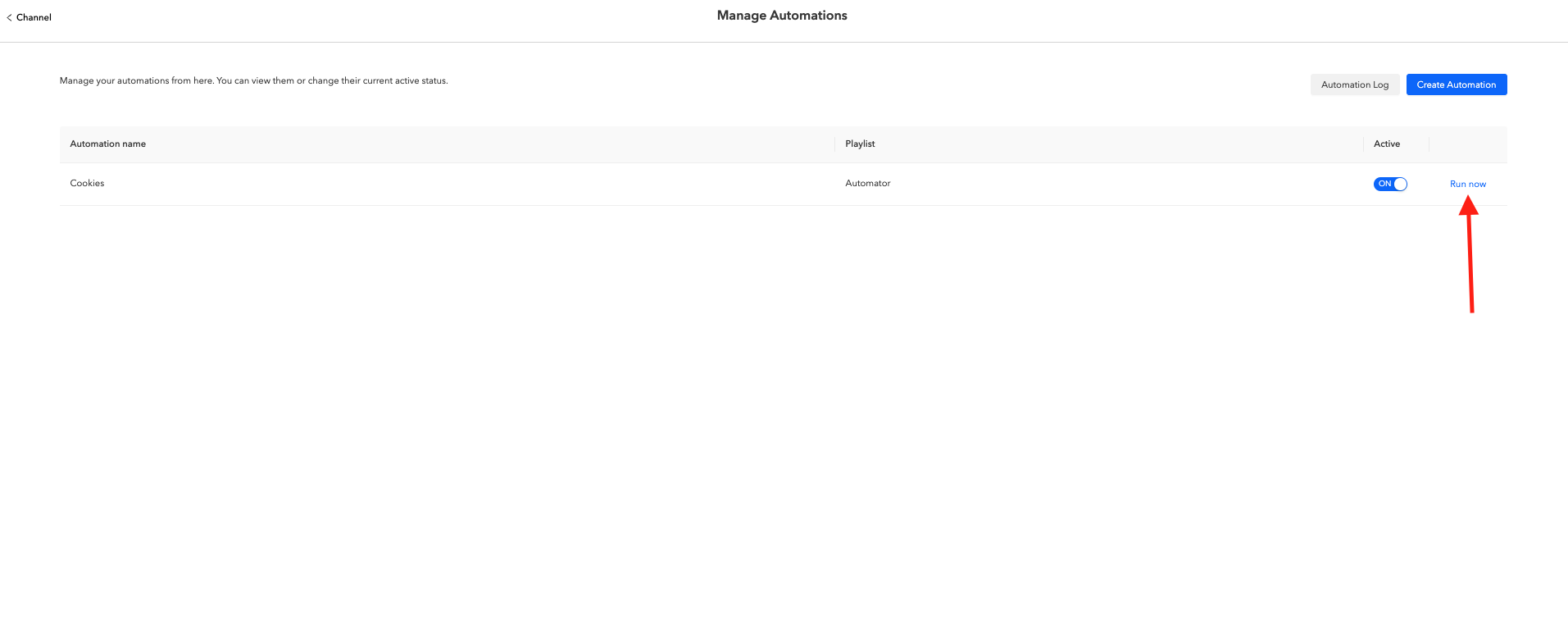
現在Fireworkライブラリにある動画、および今後アップロードされる動画のうち、トリガールールの条件を満たすものが、選択した再生リストに追加されます。
新しい動画は自動的に再生リストの先頭に追加されます。
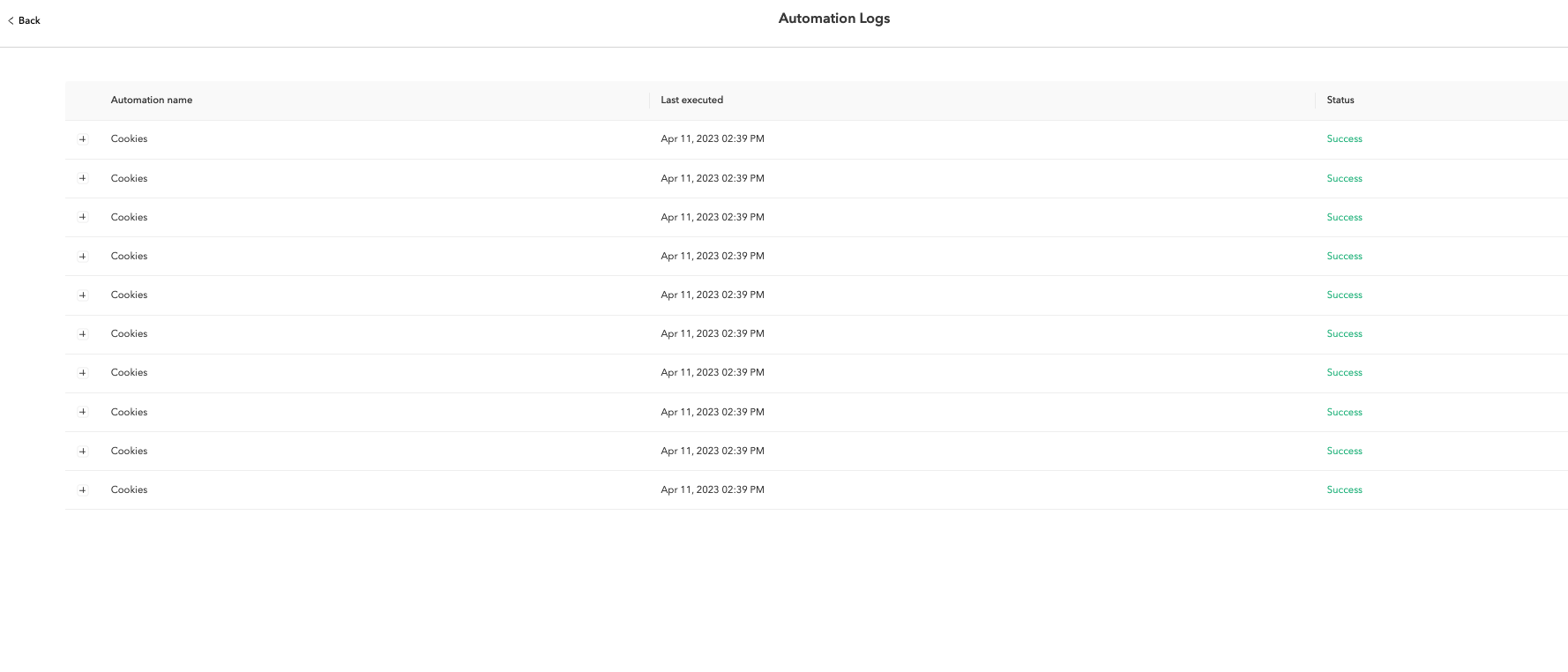
オートメーションが正常に実行されたかを確認するには、ページ右上の「稲妻アイコン」から「オートメーションを管理」、「オートメーションログ」の順にクリックします。
正常に実行された場合、ステータスが緑色で「成功」と表示されます。
指定した日時に動画を再生リストへ追加・削除する
動画のアップロード時に再生リストへ追加する方法のほかに、指定した日時に動画を再生リストへ追加または削除するようスケジュール設定することもできます。
ステップ1
ページ右上の「稲妻アイコン」をクリックし、「オートメーションを作成」をクリックします。
ステップ2
「オートメーション名」フィールドにタイトルを入力します。
ステップ3
「スケジュールされた日時」を選択し、動画を再生リストへ追加または削除したい日時を選択します。

ステップ4
選択したキャプションまたはハッシュタグの動画を再生リストに振り分けるトリガールールを設定します。
- 「すべて」または「いずれか」の条件を満たす必要があるかを選択します。
- 最大10件の「キャプション」または「ハッシュタグ」を選択します。
- キャプションまたはハッシュタグが指定の値を「含む」か「等しい」かを選択します。
- フィールドにキャプションまたはハッシュタグを入力します。
「次へ」をクリックします。

ステップ5
「再生リストに追加」または「再生リストから削除」を選択します。
ステップ6
動画を追加または削除したい再生リストを選択し、「作成」をクリックします。

設定したフィルターに応じて、選択した日時に動画が指定の再生リストへ追加または削除されます。
特定のオートメーションをオフにするには、「稲妻アイコン」をクリックし、「オートメーションを管理」から「アクティブ」列のトグルを「オフ」に切り替えます。
