Process a Refund in Magento
Learn how to issue a refund using Magento
These steps will cover:
1) How to find the Stripe URL under a Magento Order, to issue the refund via your Stripe account.
2) For offline payments, the last section will showcase how to manually issue a Credit Memo to refund a Magento Order.
Process a Refund for an Online Order with Stripe
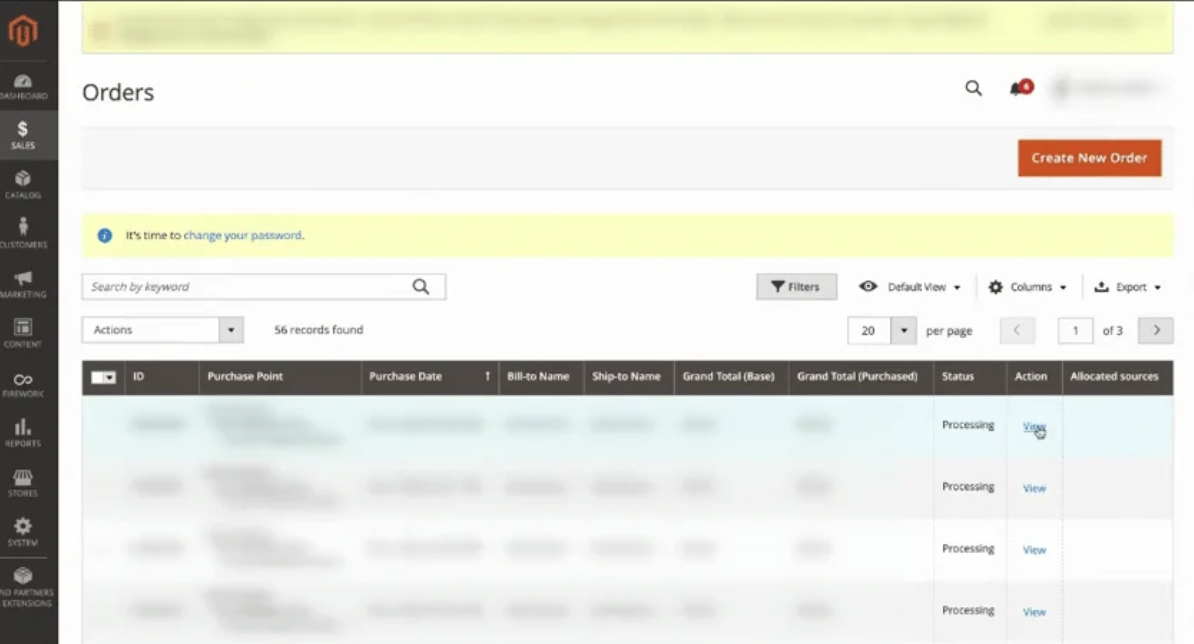
- From your Magento dashboard, in the navigation menu on the left side of the page, click Sales | Orders.
- All Orders processed on your website will appear here.[IMAGE: processing-a-refund-in-magento__001__Process_a_Refund_in_Magento_15e9bd.gif | src: https://cdn.prod.website-files.com/66a003afc59794bcf70c2b34/69cecd6cd606d6db5e6ef892_processing-a-refund-in-magento__001__Process_a_Refund_in_Magento_15e9bd.gif | alt: Process a Refund in Magento]
- Next to the order you want to refund, click View in the Action column.
[IMAGE: processing-a-refund-in-magento__002__Process_a_Refund_in_Magento1_6b565e.gif | src: https://cdn.prod.website-files.com/66a003afc59794bcf70c2b34/69cecd6dfdffd8be9ab9bca5_processing-a-refund-in-magento__002__Process_a_Refund_in_Magento1_6b565e.gif | alt: Process a Refund in Magento1] - Scroll down to the payment details. You’ll see the Firework payment URL and the Stripe payment URL at the bottom of the page.
- Copy the Stripe Payment Details URL and to then paste in your browser to navigate to your Stripe account to process the refund.
- In your Stripe dashboard, click Refund at the top right. Verify the refund amount and select a reason for the refund in the drop-down menu. Then, click the Refund button.
[IMAGE: processing-a-refund-in-magento__003__Process_a_Refund_in_Magento2_ccc399.gif | src: https://cdn.prod.website-files.com/66a003afc59794bcf70c2b34/69cecd6efdffd8be9ab9bd4b_processing-a-refund-in-magento__003__Process_a_Refund_in_Magento2_ccc399.gif | alt: Process a Refund in Magento2] - In your timeline, you’ll see “Successfully refunded” payment once completed.
Note: Refunds take 5-10 days to appear on a customer’s statement.
If you see “Partial refund” in gray next to the refund amount, this is the refunded amount less transaction costs.
Process a Refund in Magento for Offline Payment
- Click Credit Memo at the top of the order page.
- Click the Refund Offline button at the bottom-right of the page.
[IMAGE: processing-a-refund-in-magento__004__Process_a_Refund_in_Magento3_45507c.gif | src: https://cdn.prod.website-files.com/66a003afc59794bcf70c2b34/69cecd6e99eeca51a2c8f704_processing-a-refund-in-magento__004__Process_a_Refund_in_Magento3_45507c.gif | alt: Process a Refund in Magento3]
Whatever you type in the Credit Memo Comments box will be emailed to the customer. This is a great place to add the Transaction ID, for example. Select the checkbox next to Append Comments to have additional comments emailed to the customer.