Host Tablet Dashboard
Learn from industry experts how to moderate a livestream using the Host Tablet Dashboard

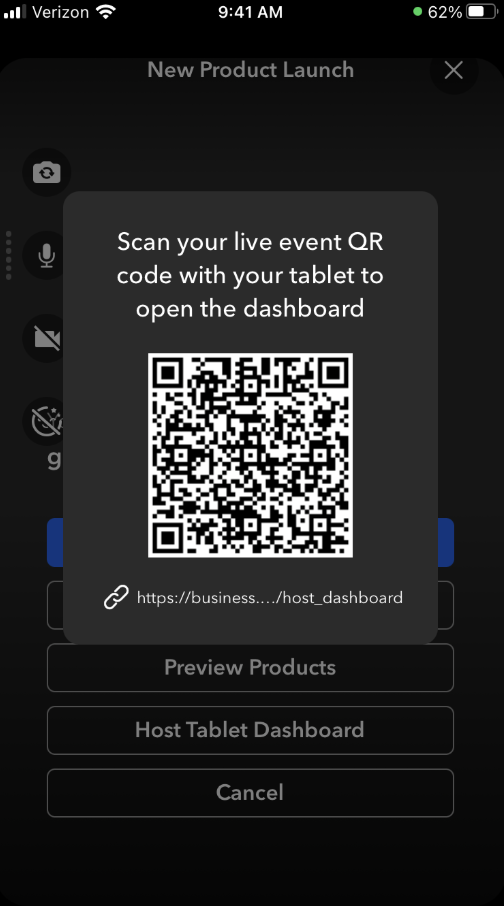
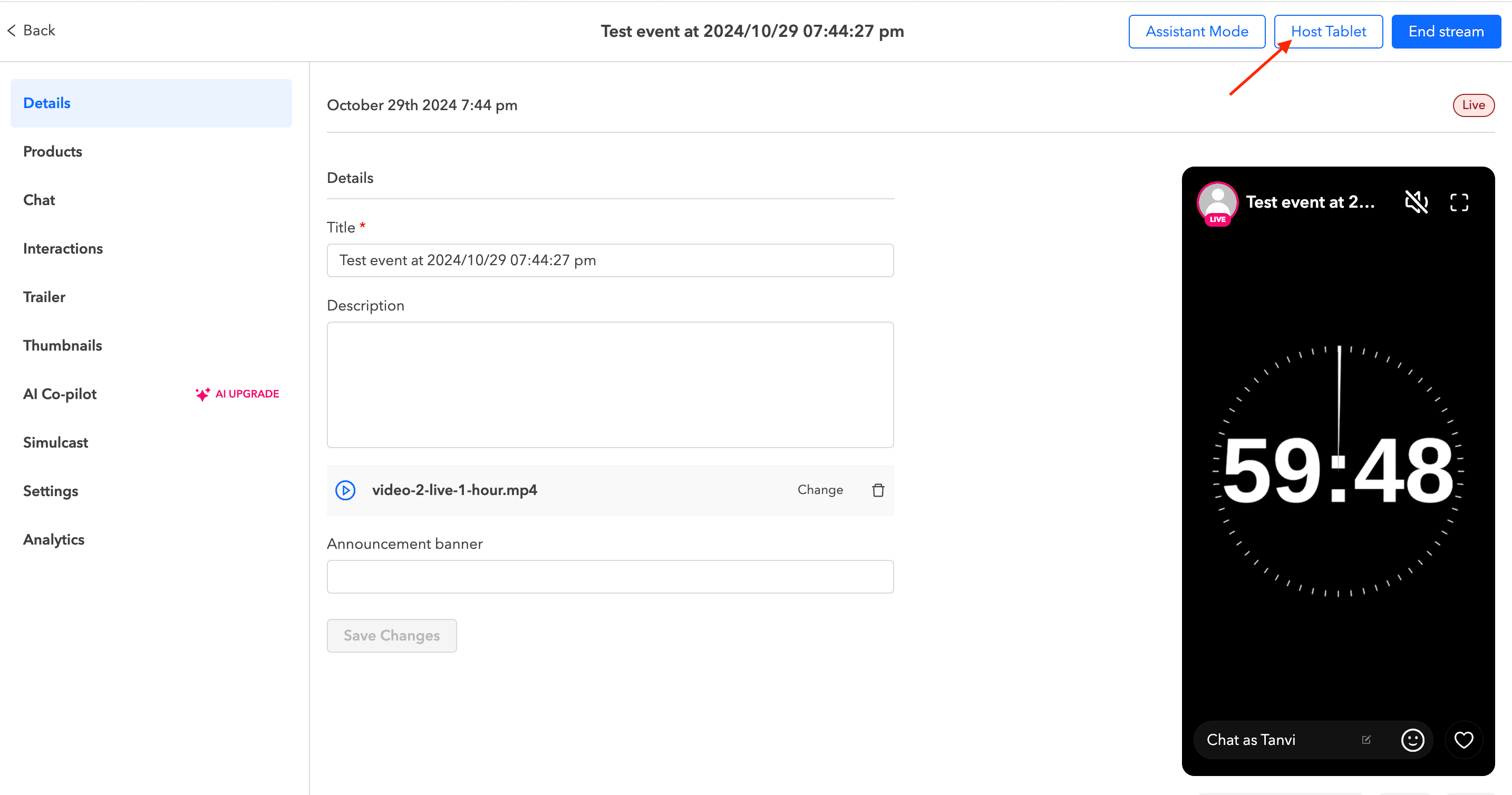
To launch the Host Tablet Dashboard, users can select Host Tablet Dashboard and scan the QR code that is generated by the Firework Camera App or select Host Tablet Dashboard from the Event Overview page in the Business Portal.
The Host Tablet Dashboard will automatically open after the QR code is scanned. If you haven't logged in previously with your device, you will need to login using your Firework credentials.
Now that you've launched the Host Tablet Dashboard, let's talk about how to use it!
Manage Activity Panel
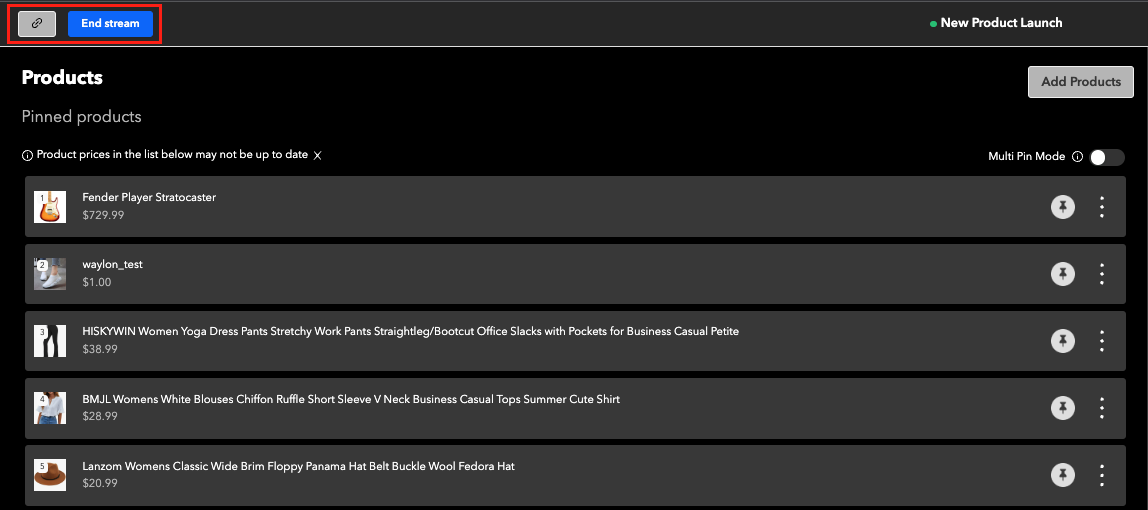
Think of this feature as your control center. Share or end your stream to the left and keep tabs on your viewership to the right.
To the left:
- Select

- to share the event.
- Select

- to end the event at any time.
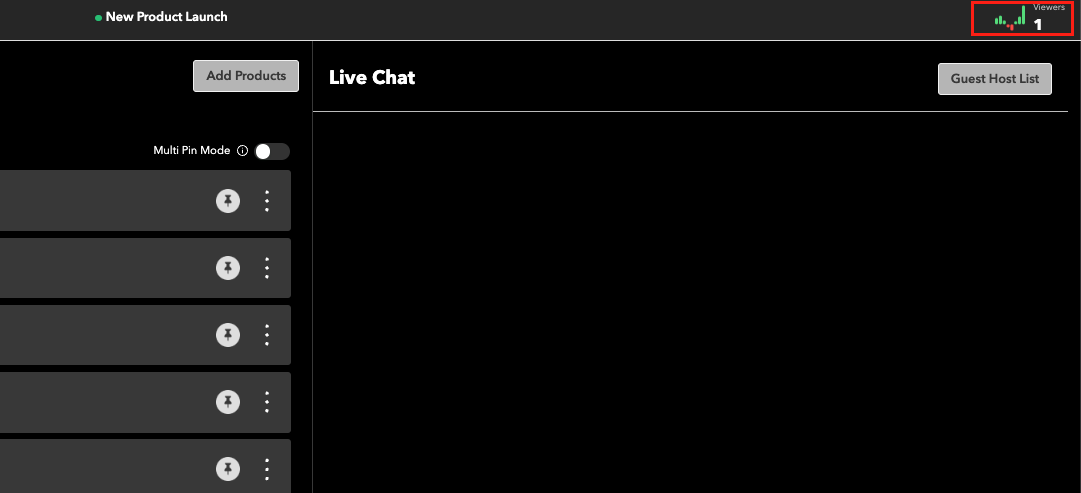
To the right:
- You'll see the number of viewers watching your event
Manage Products
The products that you added before the event will appear on the left side of the dashboard. During the event, you can pin, add, remove, and mark products as sold out.
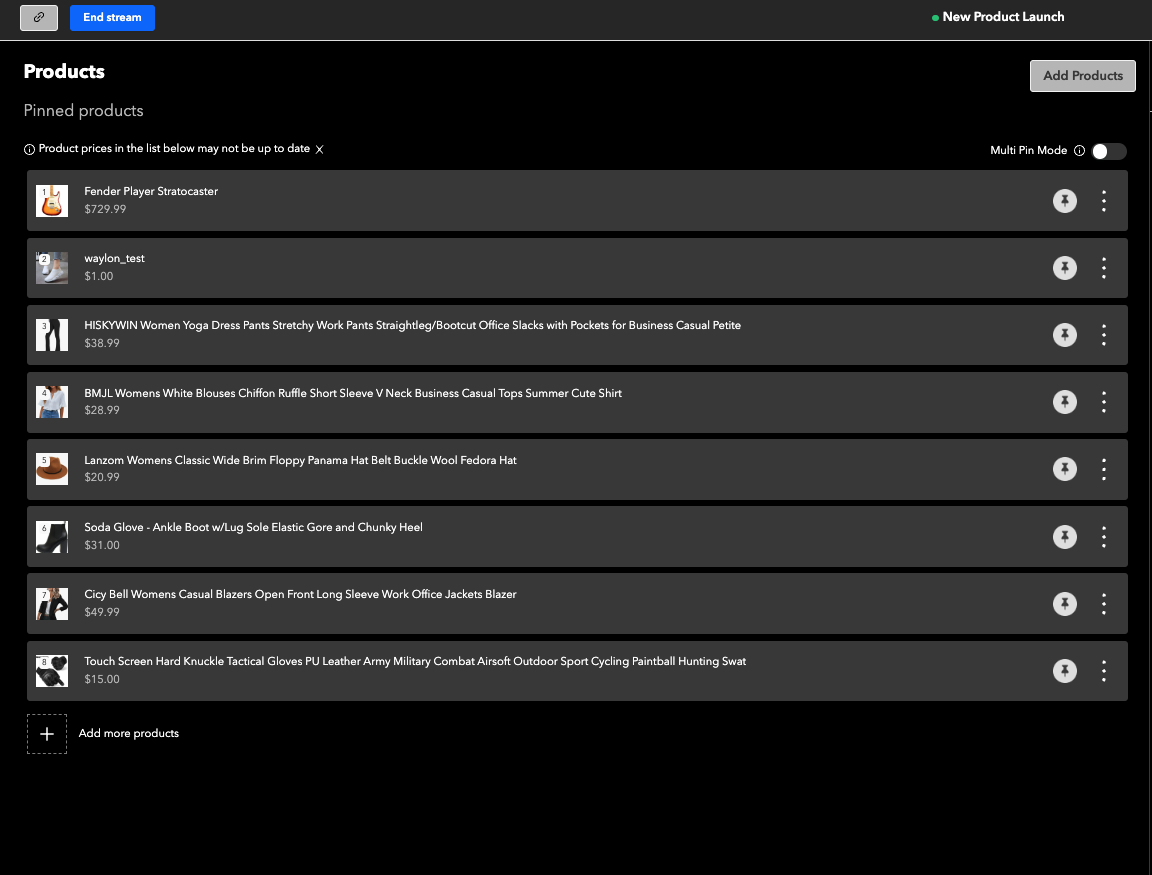
- Select the

- icon to pin that product on the stream.
- Select the

- icon to Mark as Sold Out.
- Toggle On

- to pin up to 3 products on your event.
- Select
- or

- to add more products from your store.
Launch Interactions
The interactions that you added prior to the start of your event, will be ready for use once you go live. Pin a question or launch an poll to increase engagement with your viewers.
- Choose the Interaction tab to pin questions or initiate polls/giveaways throughout your event. Additionally, you can enhance engagement by clicking on + Add more interactions to introduce new interactive elements.
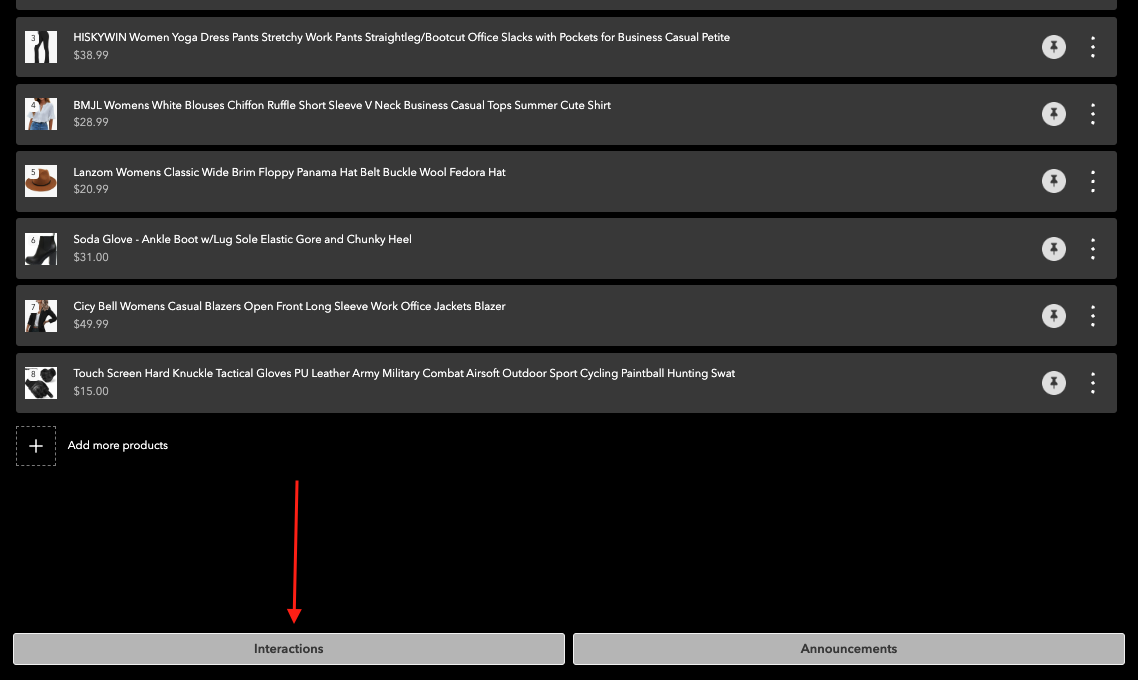
- As a Moderator, you will see the number of responses to questions and poll results in realtime.
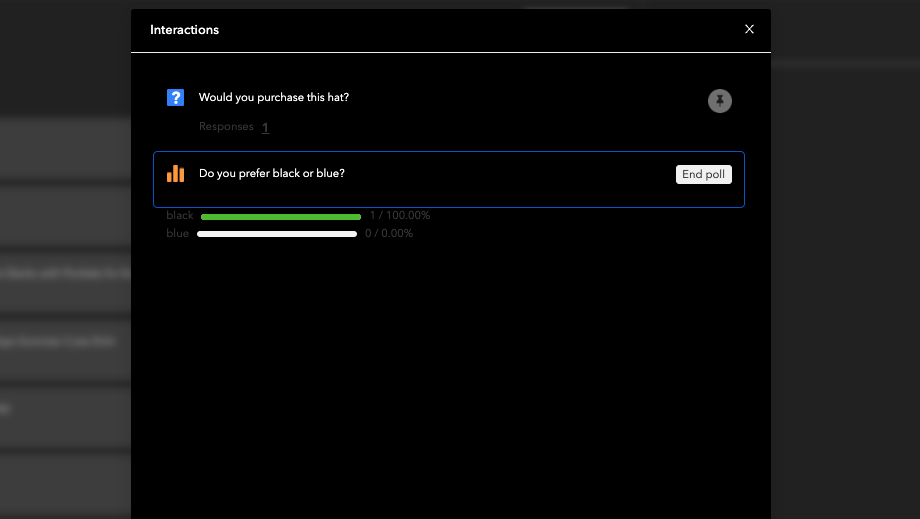
- Select the

- icon to remove the Question from the stream.
- Select

- to end the poll.
Launch Announcements
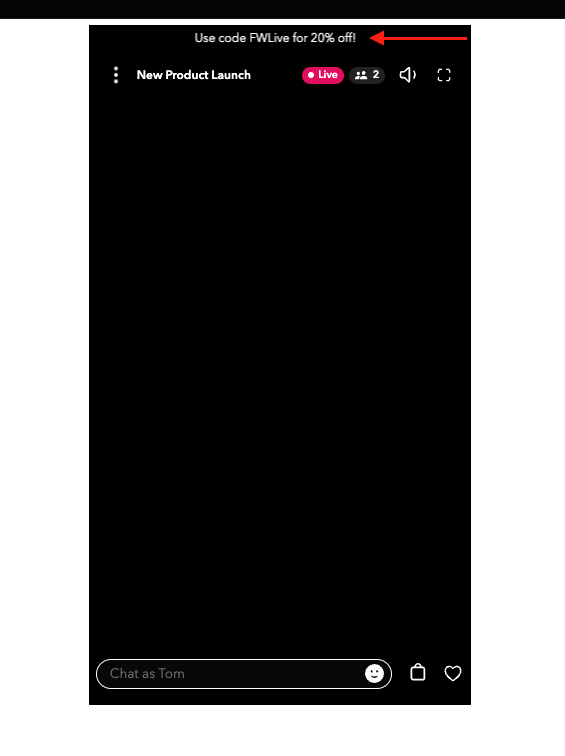
Announcements can be used for discount codes, general announcements, etc. and will run across the top of the livestream until it is removed from the dashboard. Remove it by deleting the text.
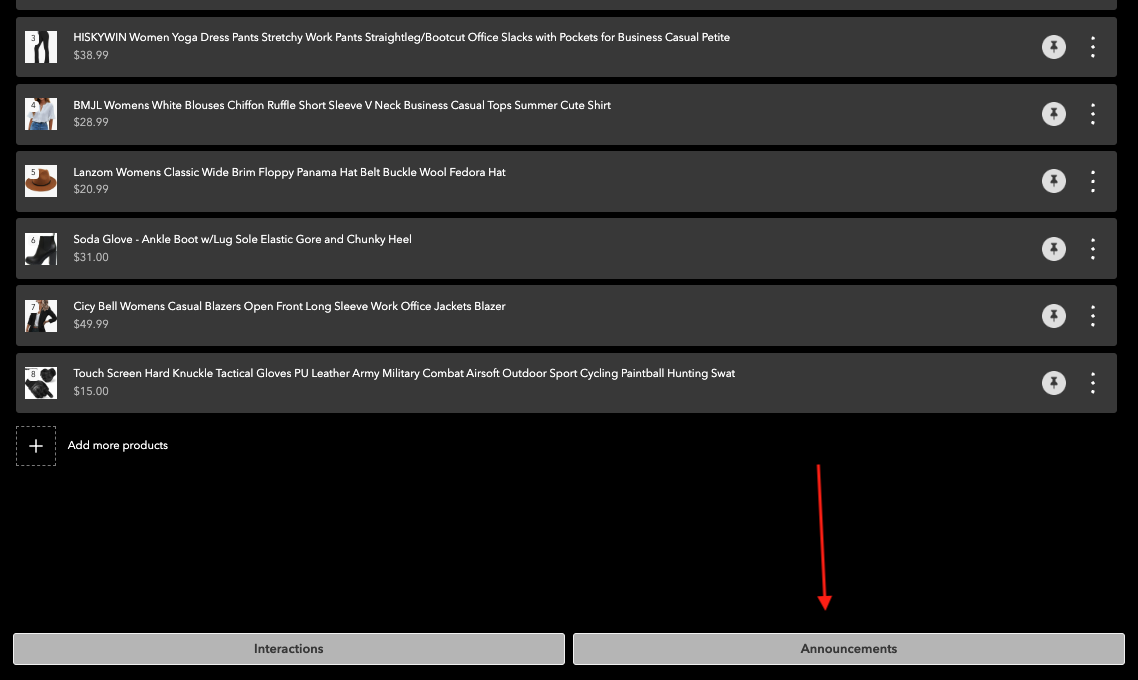
- Enter your announcement and select Save to launch.
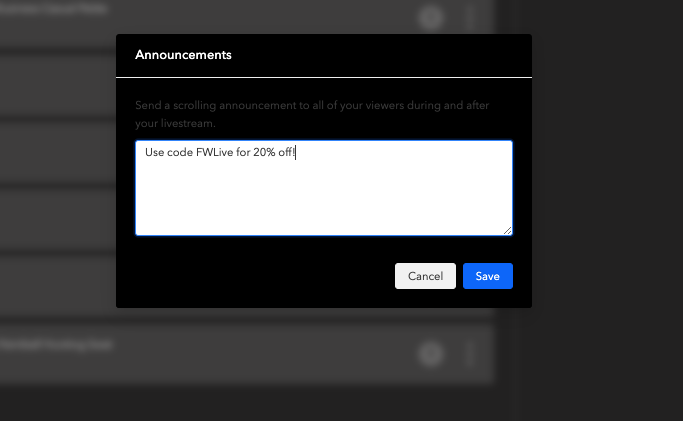
- Once launched, Announcements will run across the top of the stream for all of your viewers during and after your Livestream.
Moderate the Chat
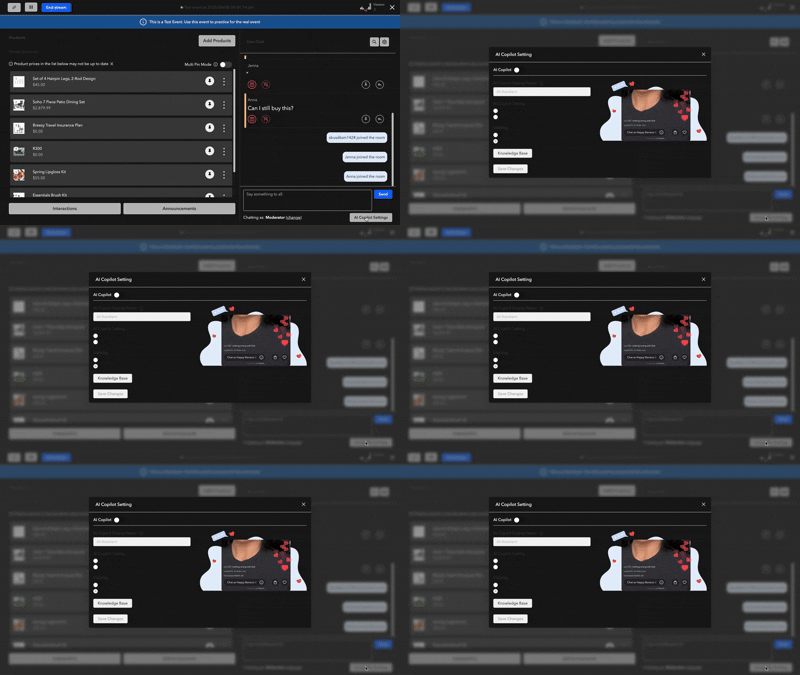
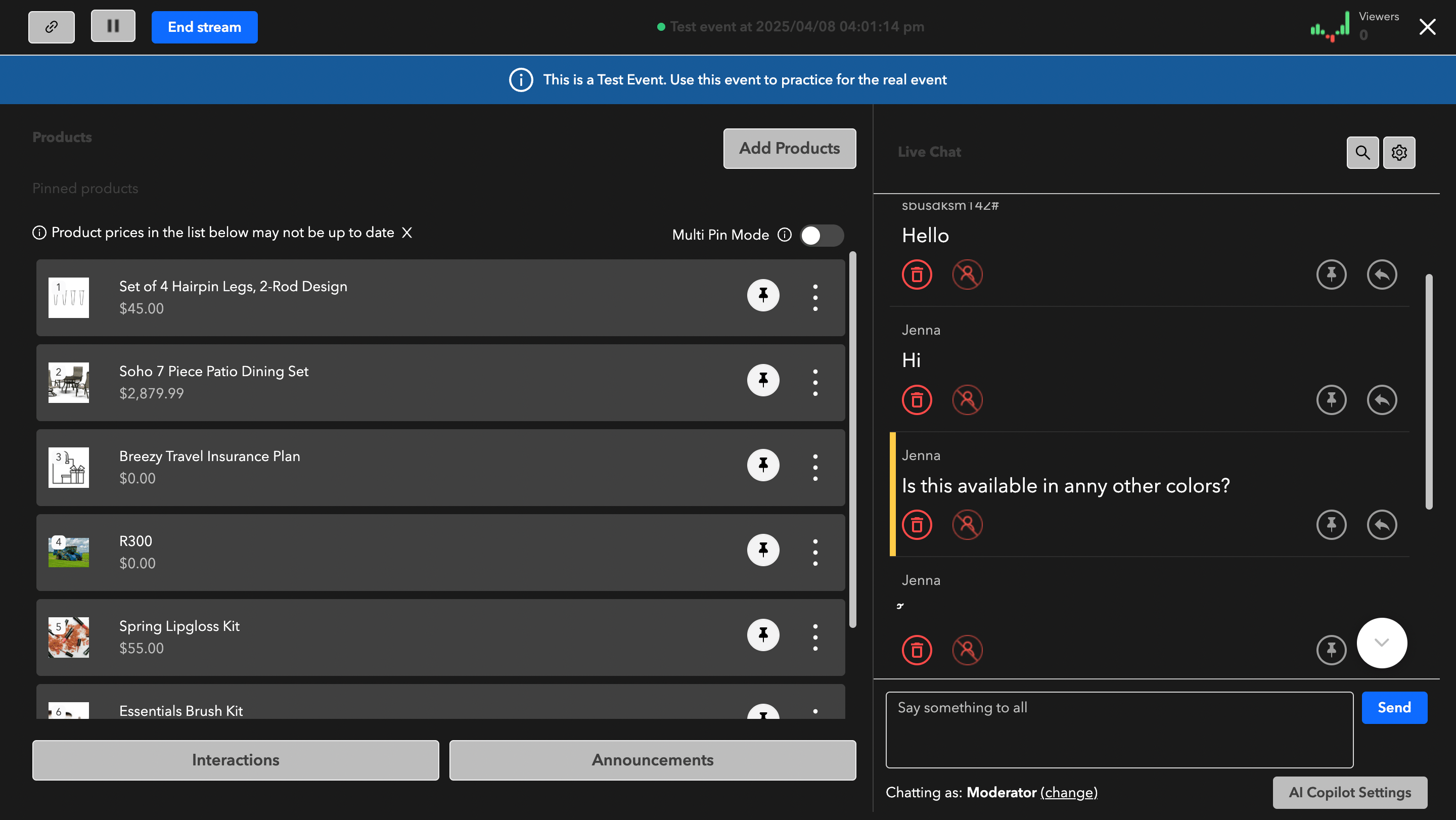
The live chat will appear on the right side of the Dashboard where the moderator can change their name, respond, pin, delete messages, and block users.
- Select

- to delete messages from the audience view.
- Select
- to pin messages on the stream.
- Select

- to respond to messages privately to the viewer who asked the question, or publicly for all viewers to see. Questions that have not been answered by the moderator will be highlighted yellow. Once the moderator answers the question, it will be highlighted purple.
- Select

- to block an audience member from the stream. Blocked users will no longer be allowed to participate in the stream.
- You can easily search through live chats by clicking on the search bar located next to the live chat section. Additionally, you can manage the chat rate limit by accessing the Live Chat settings, which will help prevent individual users from spamming the chat feed.
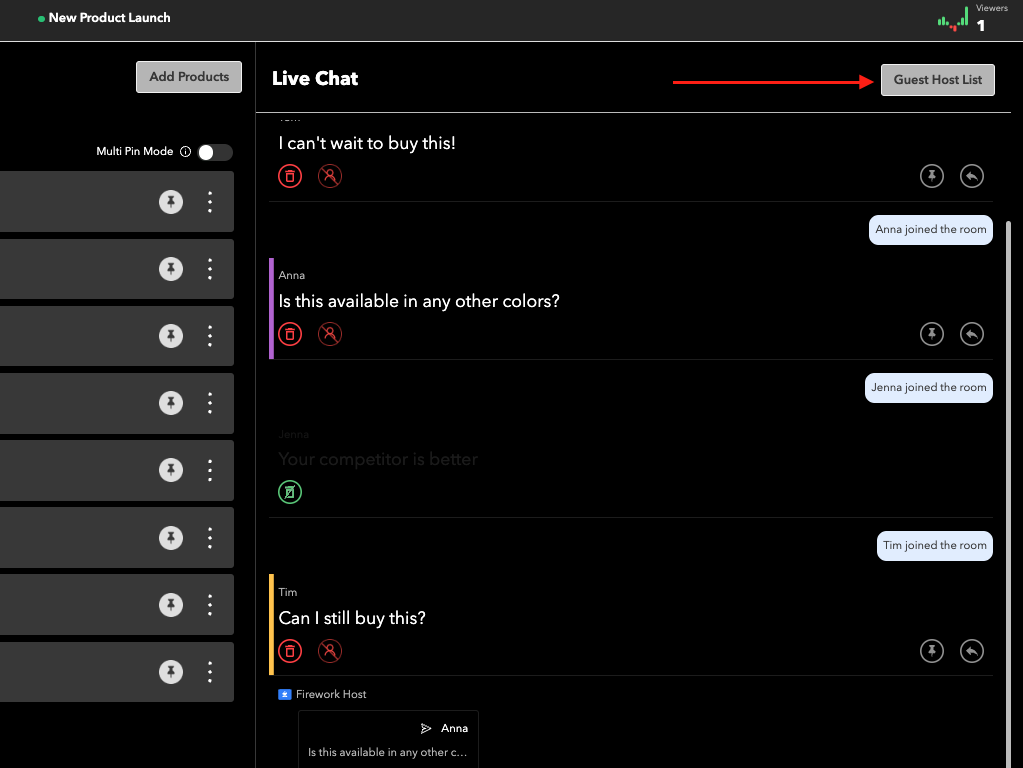
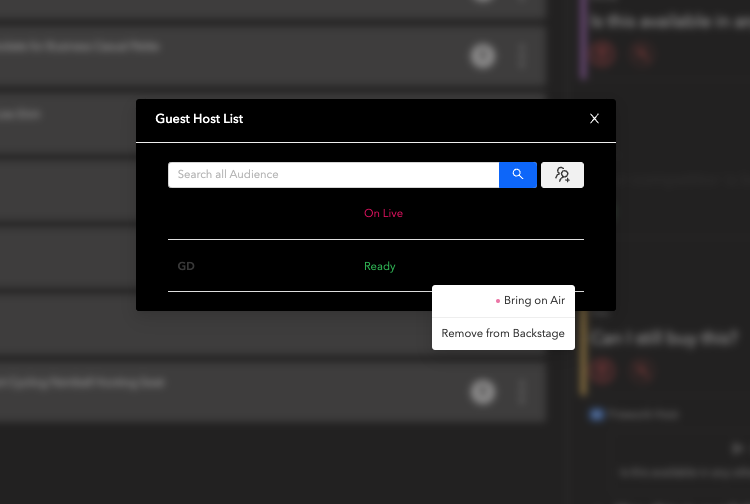
Manage Guest Host List
Invite other members onto the stream by selecting Guest Host List.
Note: Users must be on Agora to bring multiple people onto the stream.***
- Select the

- icon, enter the email of the guest, and select Send to invite them onto the stream.
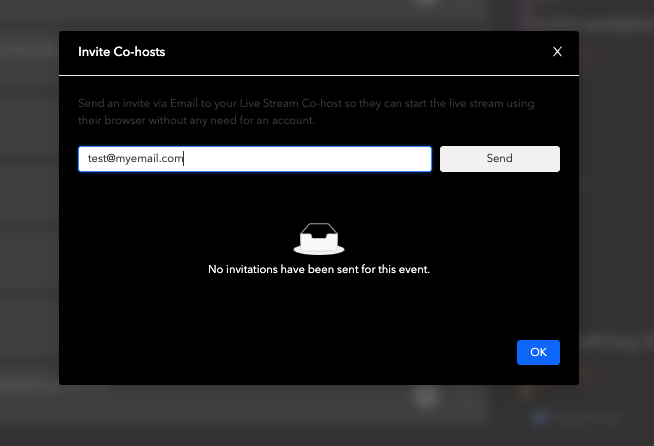
- Guests will receive an email link inviting them onto the stream.
- Once the invitation is accepted, the guest will be in a Ready status.
- Select Bring on Air to bring them onto the stream or Remove from Backstage to cancel? their invitation
AI co-pilot - Activate this option if you want to utilize an AI Co-Pilot to moderate your live events and interact with viewers in real-time. Here is the step by step guide to set up AI co-pilot