Organisez les vidéos dans des playlists à l'aide de l'automatisation
Add and remove videos from a playlist in bulk using the Automator feature in the Firework Business Portal.


Note: You must be an Admin in your Firework Business Portal account to run the Automator.
Schedule Videos to playlist upon creation
Step #1
Navigate to the Firework Business Portal.
Step #2
Under the Channels header, click the channel for which you want to create automation.
Step #3
Click the lightning icon in the upper right corner of the page.
Step #4
Click Create Automation.

Step #5
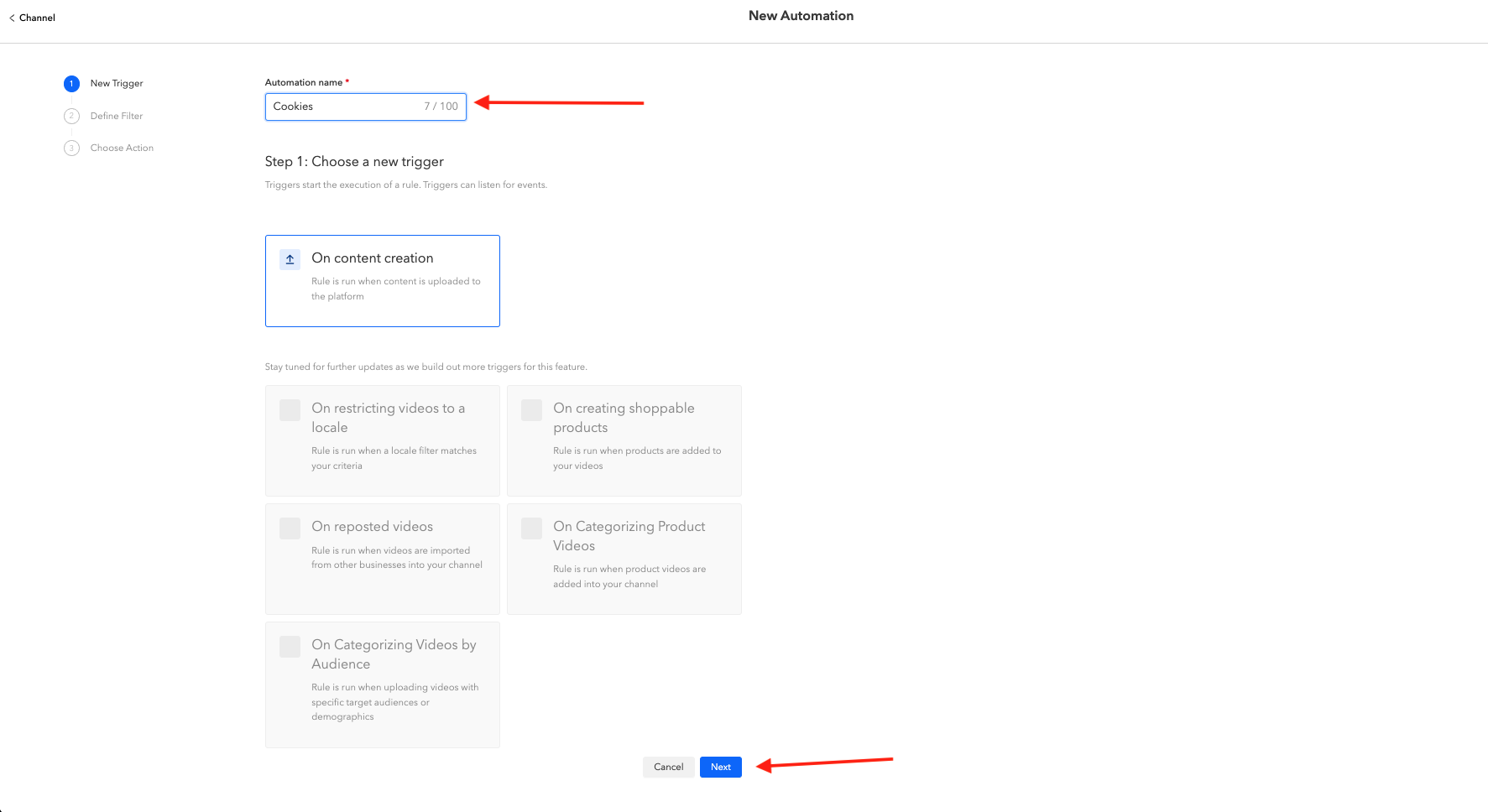
Enter a title in the Automation name field. Click Next.
Step #6
Create trigger rules that will filter videos with selected captions or hashtags into playlists.
- Select whether All or Any conditions need to be met.
- Select up to 10 Captions or Hashtags.
- Select whether the Caption or Hashtag should Contain or Equal the caption or hashtag.
- Enter the caption or hashtag in the field.
Click Next.
Step #7
Select which playlist you want the videos, based on your trigger rules, to be added to. Click Create.

Step #8
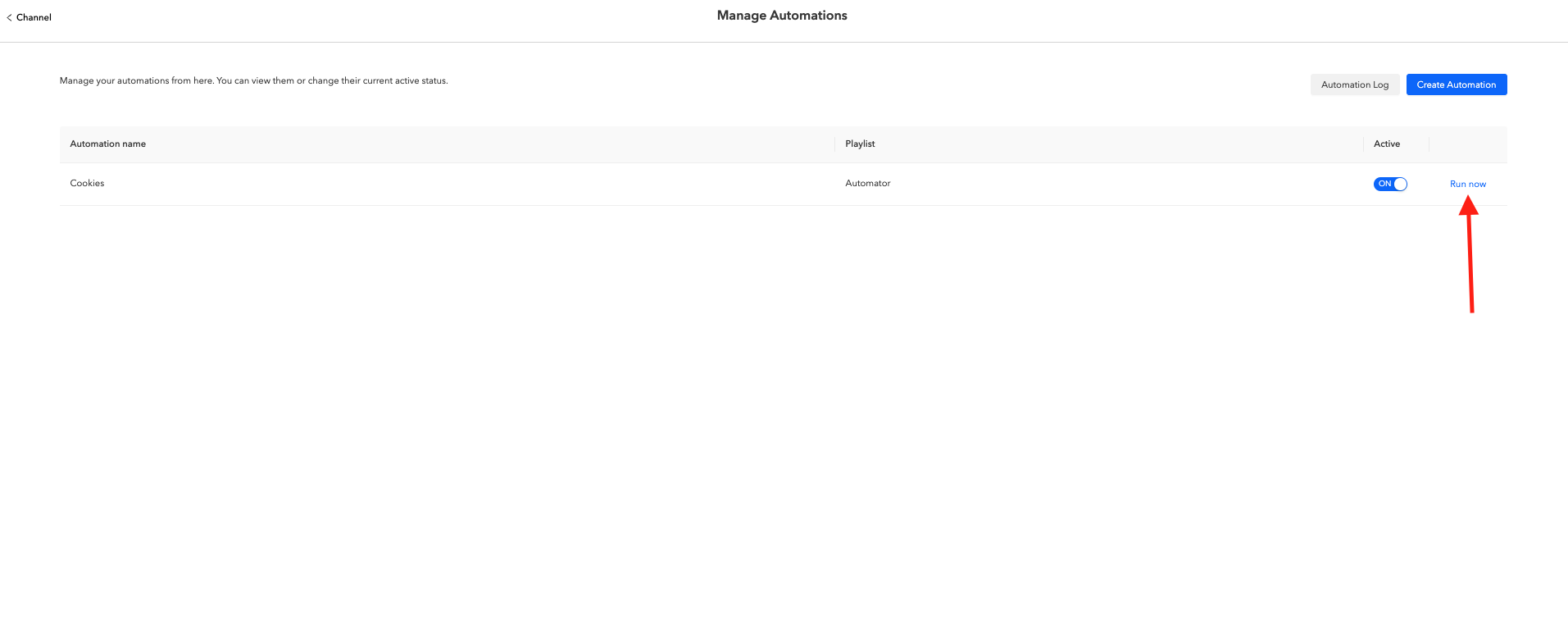
You’ll see that the automation that you just created will automatically be toggled On under the Active column.
Click Run Now to run your new automation.
All videos that are currently in your Firework library, and any videos you upload in the future, that meet the conditions set in your trigger rules will be placed into your selected playlist. New videos will automatically be placed at the beginning of your playlist.
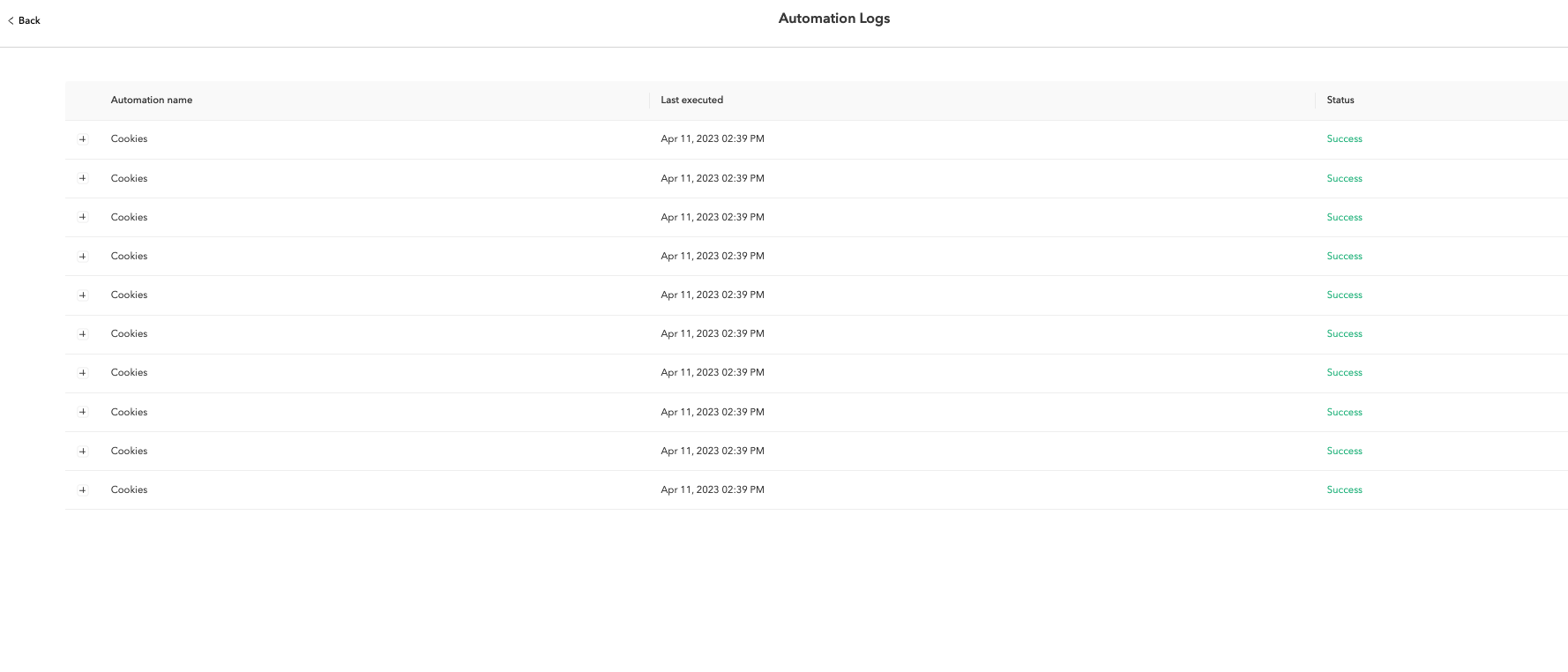
To see if your automation has been run successfully, click the lightning icon, Manage Automation, and Automation Log in the top right of the page. The status will show “Success” in green if it ran successfully.
Schedule videos to be added or removed from a playlist at a future date.
Along with adding videos to playlists upon upload, you can also schedule videos to be added or removed from a playlist at a later date.
Step #1
Click the lightning icon in the upper right corner of the page.
Click Create Automation.
Step #2
Enter a title in the Automation name field.
Step #3
Select On scheduled data and time.
Select the date and time you want to add or remove videos from a playlist.

Step #4
Create trigger rules that will filter videos with selected captions or hashtags into playlists.
- Select whether All or Any conditions need to be met.
- Select up to 10 Captions or Hashtags.
- Select whether the Caption or Hashtag should Contain or Equal the caption or hashtag.
- Enter the caption or hashtag in the field.
Cliquez Suivant.

Étape #5
Choisissez si vous souhaitez ajouter à la liste de lecture ou Supprimer de la liste de lecture.
Étape #6
Sélectionnez la playlist à laquelle vous souhaitez ajouter ou supprimer des vidéos, puis sélectionnez Créer.

En fonction des filtres que vous avez définis, vos vidéos seront ensuite ajoutées ou supprimées de la liste de lecture sélectionnée à la date et à l'heure que vous avez sélectionnées.
Pour désactiver une automatisation spécifique, cliquez sur icône de la foudre, Gérez l'automatisation, et basculez le bouton situé sous la colonne Active pour Off.
