Full Width Support & Advanced Widget Con
The AVA Embed feature allows you to display your AI assistant on your website with customizable options, including full-width support, interactive FAQs, and advanced styling for your widget and buttons. This guide explains how to embed AVA and configure it effectively.
Last updated:
December 11, 2025


Step 1: Selecting AVA to Embed
- Navigate to the AVA you want to embed.
- Click on the Embed option located on the left side of the screen.
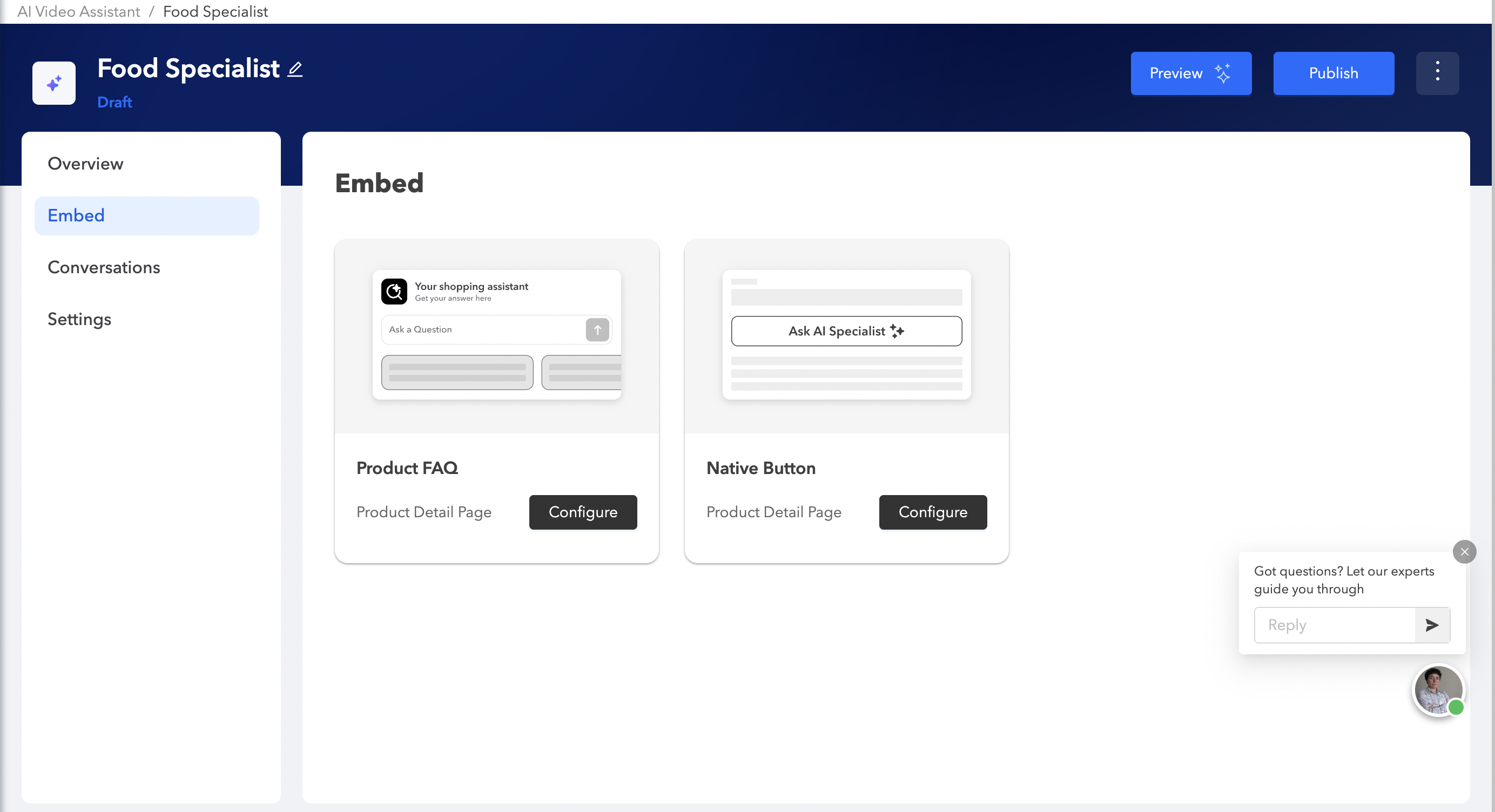
- You will see two primary display options for AVA:
- Product FAQ Display
- Native Button Display
Step 2: Product FAQ Display
The Product FAQ Display allows you to embed AVA as native, interactive content. Visitors can chat or ask questions directly from your website.
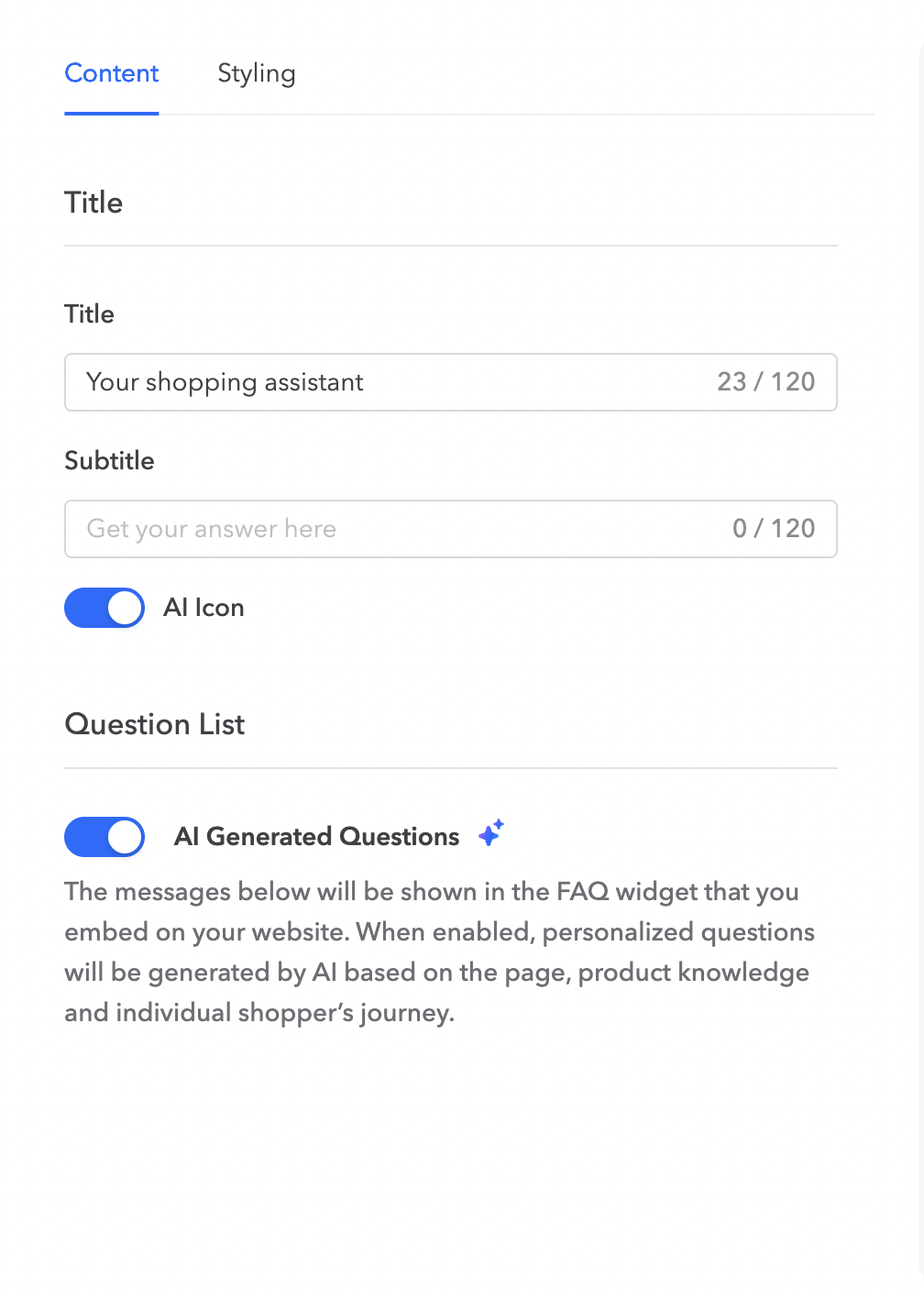
Content Configuration
- Title & Subtitle: Edit the title and subtitle of the widget.
- AI Icon: Toggle on/off to display the AI icon.
Questions List
- Enable AI-Generated Questions:
- AVA automatically generates personalized questions based on page content, product data, and visitor behavior.
- If AI is disabled, default questions you define will be displayed.
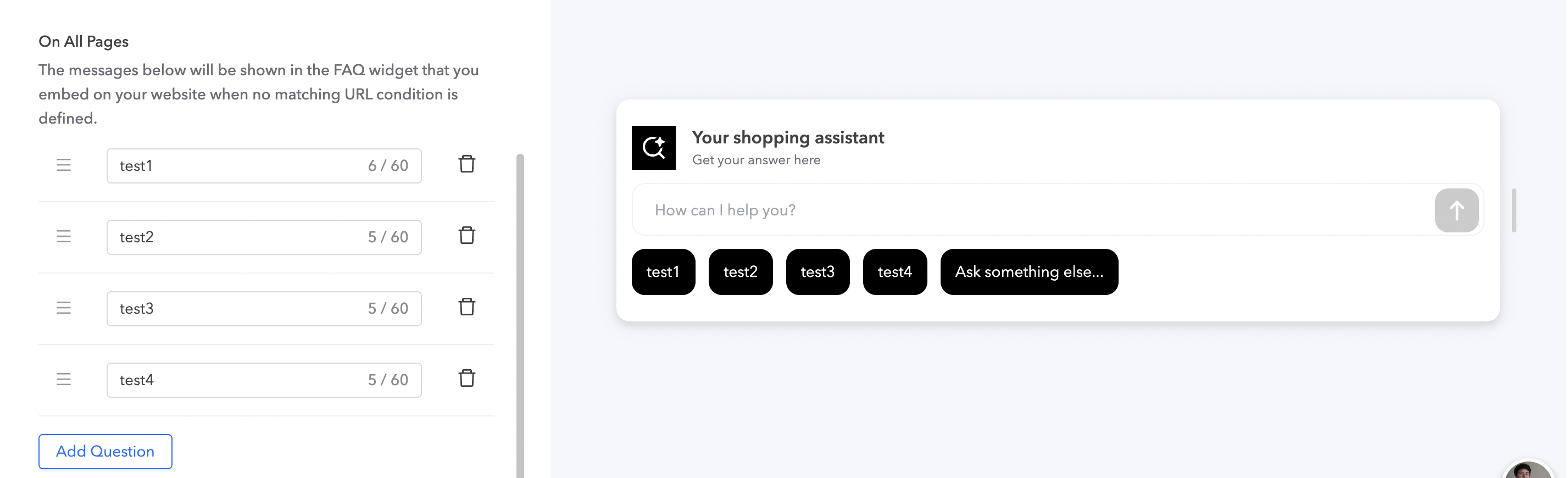
- Add FAQ Questions:
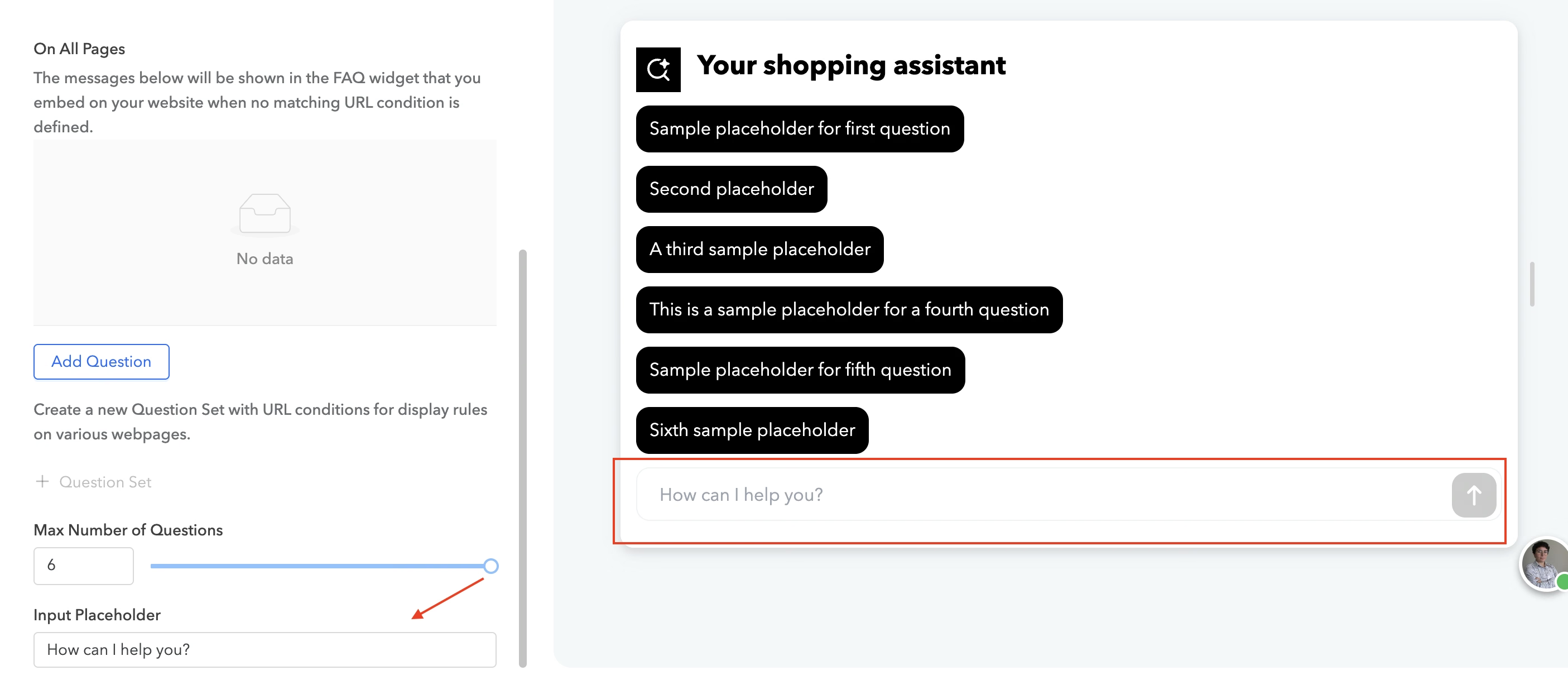
- Add up to 6 questions, each up to 60 characters.
- Provides quick answers and navigation support.
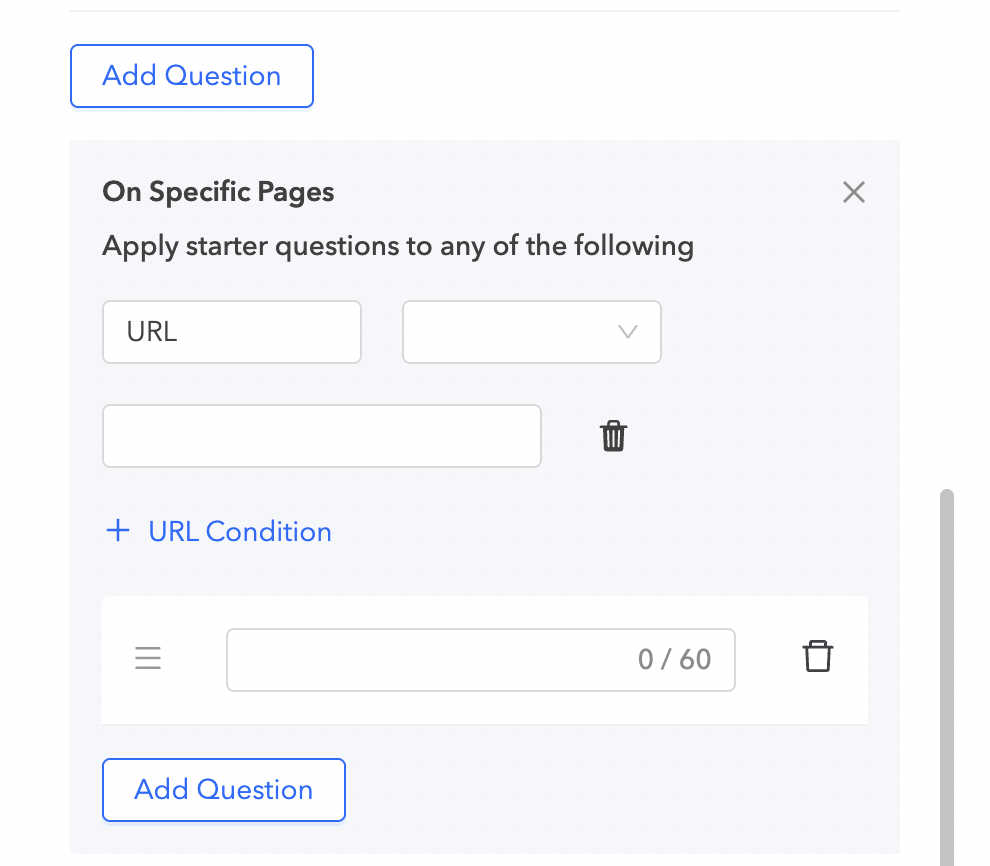
- Additional Question Sets:
- Create URL-specific question sets to display different starter questions on different pages.
- Click +Question Set to add more.
- Input Placeholder: Customize the text displayed in the input field.
- Save Changes: Click Save once configuration is complete.
Styling the FAQ Widget
- Brand Color: Set the base color for your brand.
- Icon Color: Customize the color of icons.
- Widget Background & Border:
- Adjust background color, border color, width, and radius.

- Title Styling: Customize text color, size and weight.

- Button Styling:
- Customize button color, button text color, border color, border width, radius, text size, and weight (normal, light, bold).

- Layout & Alignment:
- Align widget: Left, Center, or Right
- Assistant popup placement: Bottom-left, Center, Right
- Button orientation: Stacked, Horizontal, Responsive

- Embed Code: Click Embed Code to copy the code and use it on your website.
Step 3: Native Button Display
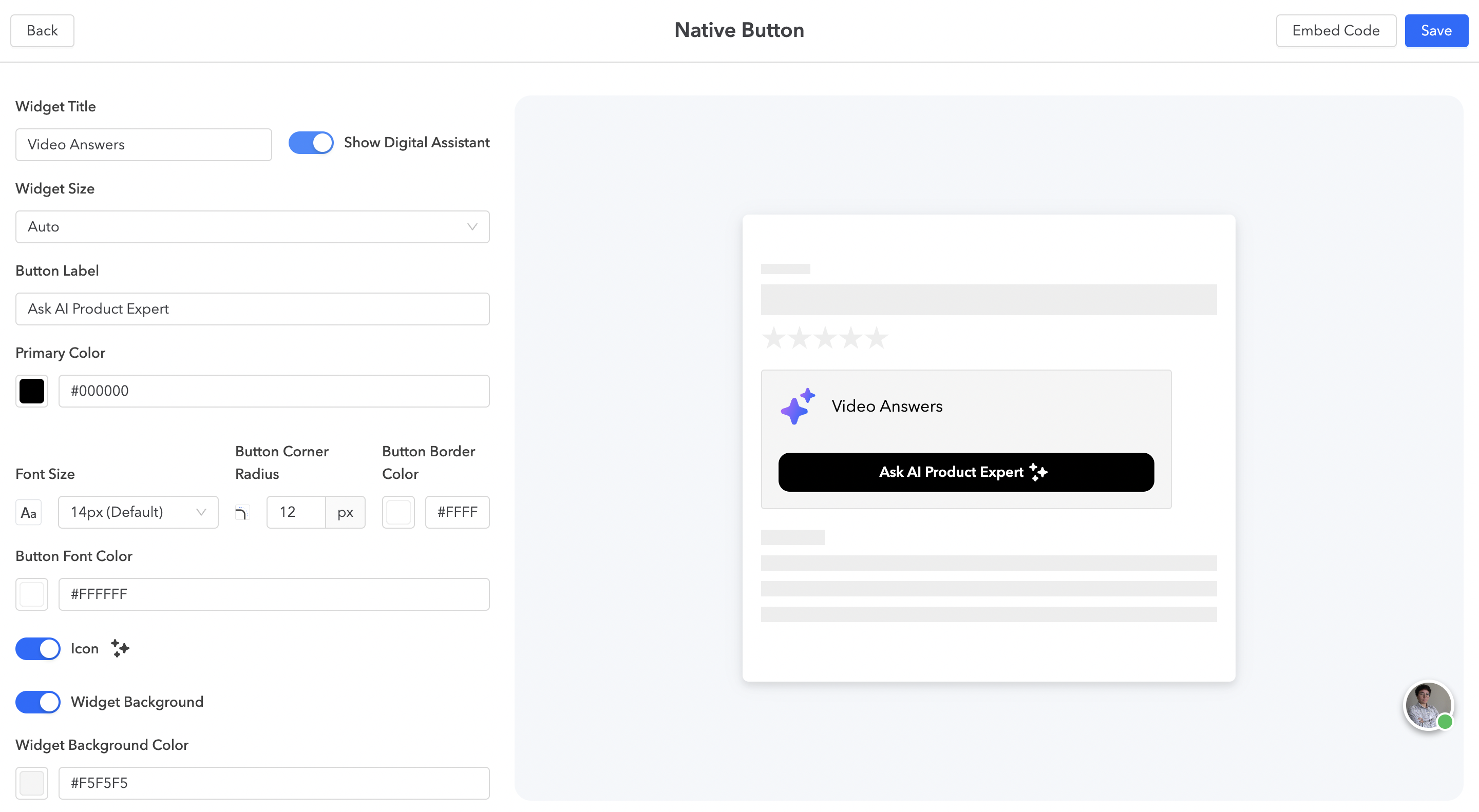
The Native Button Display allows you to embed AVA as a CTA button on your website.
- Widget Title – Add a title for your widget.
- Show Digital Assistant – Toggle on/off to display the assistant in the widget.
- Widget Size – Choose between Auto or Custom. Selecting Custom lets you manually set the widget’s dimensions.
- Button Label – Define the text displayed on the CTA button.
- Primary Button Color – Set the main color of the button.
- Button Border Color – Choose the color of the button border.
- Button Font Color – Select the color for the button text.
- Use AI Icon – Toggle on/off to display an AI icon on the button.
- Widget Background – Toggle on to customize background settings:
- Edit background color
- Adjust border thickness
- Set corner radius
- Choose border color
- Click on "Embed Code" to copy and paste the widget code into your website.