Livestream Simulcast with Amazon Live
Learn how to go live on Amazon using Firework’s Business Portal with stream details from the Amazon Live Creator app.
Last updated:
October 7, 2025


Simulcast with Amazon Live
- Download and open the Amazon Live Creator app on your mobile device, then sign in using your Amazon account credentials.
- Tap the "+" button in the app to create a new livestream session.
- Enter the stream title, upload a thumbnail image, and select the products you want to feature during your livestream.

- Navigate to the Settings section within the app and tap on “Video Source.”
- Choose the “External camera” option as your video source.
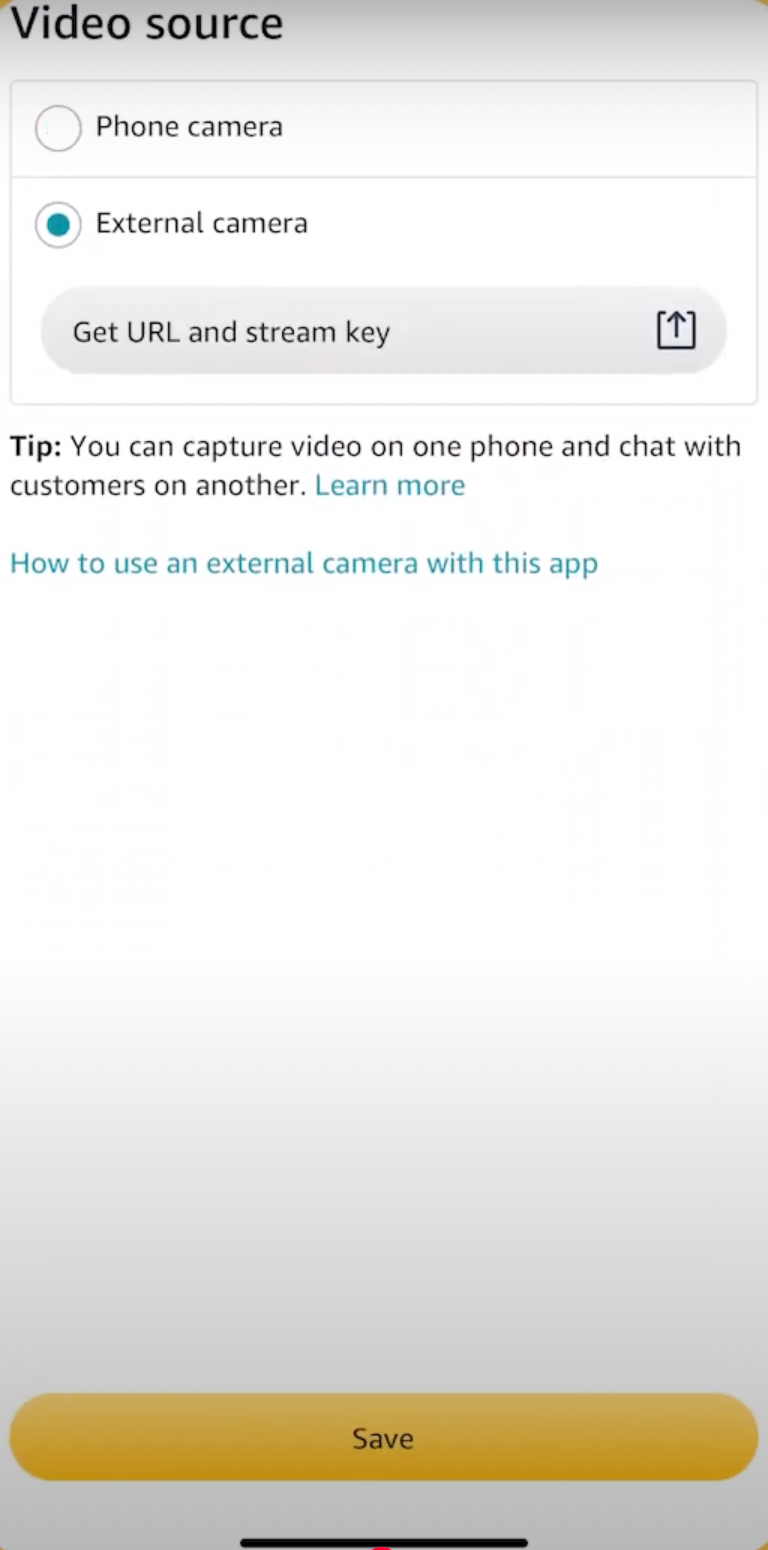
- Tap “Get URL and stream key” to generate your Amazon RTMP URL and Stream Key. Copy both of these details.
- Now log into the Firework Business Portal .
- Go to the Livestream section in the portal and click on the option to create a new livestream event.
- Enter your event details, including the title, scheduled date and time, and a description for your audience.
- On the Livestream Event page, navigate to the Simulcast tab and select Amazon. This will prompt you to enter both your Stream URL and Stream Key.

- Paste the RTMP URL and Stream Key from the Amazon Live Creator app into the corresponding fields in the Firework dashboard.
- Finalize the event setup, then click “Go Live” from within the Firework Business Portal when you’re ready to begin streaming.
- Keep the Amazon Live Creator app open on your mobile device to monitor the stream and ensure the broadcast is live on Amazon.
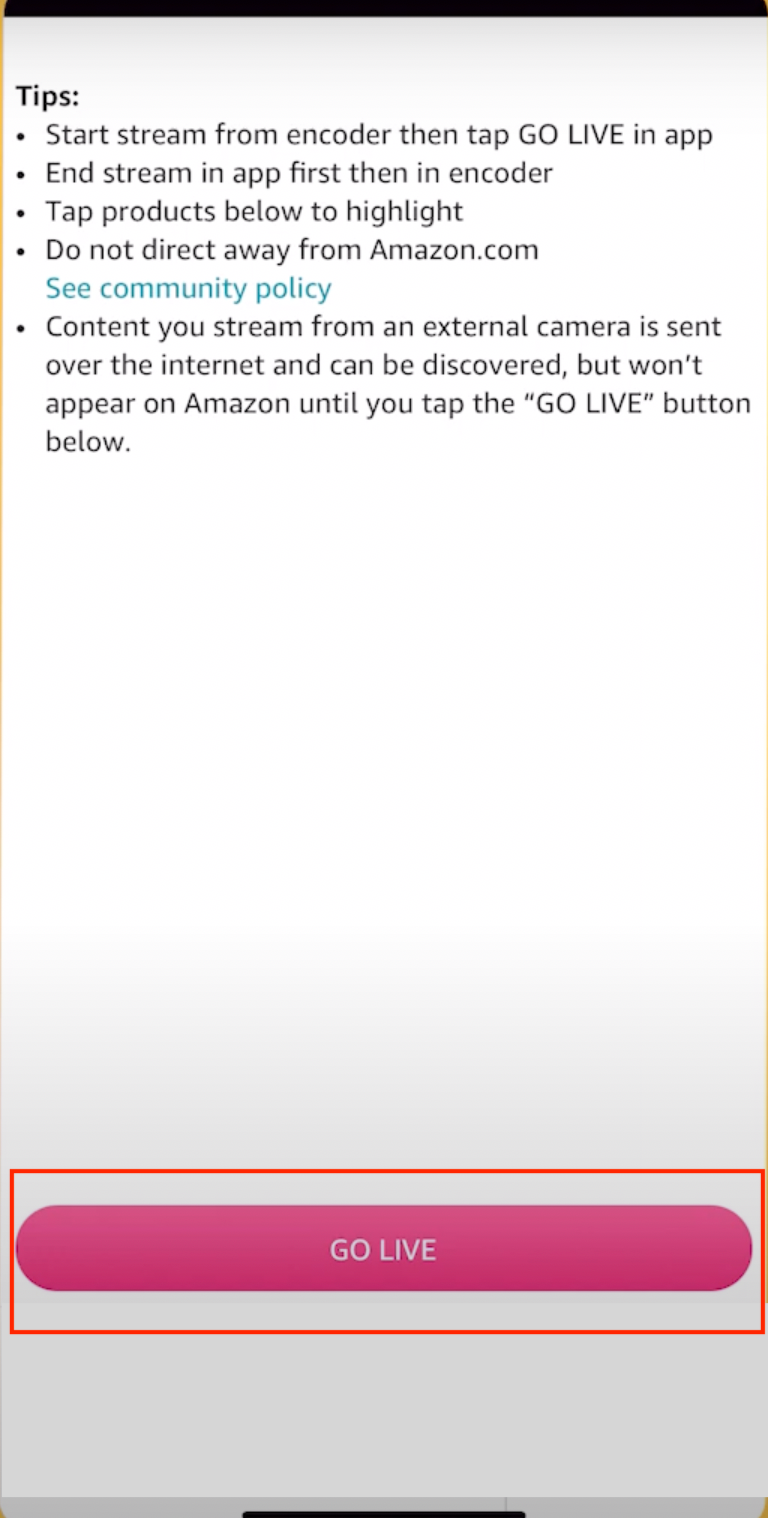
- Your livestream will now be visible on Amazon Live.
Important Points to Remember When Simulcasting to Amazon Live
- You must be an approved Amazon Influencer or Brand registered seller
Only eligible creators can stream on Amazon Live. Apply via the Amazon Influencer Program if not already enrolled. - Use the Amazon Live Creator App (iOS only)
You can only start the stream on Amazon via their iOS app — it's mandatory to initiate the broadcast from there even if you're simulcasting through another platform. - Create your livestream in the app first
Inside the app, click “+” to create a new livestream, select your products, title the stream, and get the RTMP server URL and stream key. - Start Amazon Live broadcast first
Start your stream inside the Amazon Live app before going live from Firework otherwise, Amazon will not display your stream. - Use a stable, high-speed internet connection
Amazon recommends an upload speed of at least 5 Mbps to maintain a stable 720p/1080p stream. - Follow Amazon Live’s tech specs
- Format: RTMP
- Bitrate: 2.8 Mbps
- Resolution: 720 x 1280
- Frame rate: 30 fps
- Audio: AAC, 128 kbps minimum
- Avoid static or inactive screen
Amazon may automatically end the stream if there is no activity for a long time (e.g., silence, paused video, black screen). - Streams are monitored
Violating Amazon Live’s guidelines (e.g., low quality, unrelated content, copyright violations) may result in termination or account suspension.