Cannot login to Business Portal


Common Symptoms
- Suddenly logged out
- Opening from a bookmark redirects to the login screen
- Cannot access the admin panel even after attempting to log in
- https://business.firework.com/packages redirects automatically
- A screen asking "What kind of online store do you have?" appears
- "Unauthorized access" message is displayed
- Accidentally logged in with the wrong account and cannot switch
Try These Steps First
Please try the following steps in order:
1. Log out and log back in
If you are currently logged in, log out from the menu in the upper right and log back in with the correct email address.
2. Try a different browser or device
Try accessing from a different browser such as Chrome, Safari, or Edge, or from a different device.
3. Try Incognito / Private Mode
Try accessing using your browser's Incognito or Private Mode.
Note: If you can log in using a different browser or Incognito Mode, your cache or cookies may be the cause. Please also try the next step (clearing cache and cookies). If the issue persists, please contact support.
4. Clear your browser cache and cookies
Clear your cache and cookies from your browser settings, then try logging in again.
If the Issue Persists
Our support team will investigate based on your environment data. Please collect the following information and share it with us.
① Open Developer Tools (DevTools)
OS
Shortcut
Mac
⌘ + Option + I
Windows
Ctrl + Shift + I
② Open the "Network" Panel
Click "Network" from the tabs at the top of the panel. Network activity will be recorded when you perform the login operation.
③ Start Screen Recording
OS
Method
Mac
⌘ + Shift + 5 → Screen Recording
Windows
Windows + Alt + R (Xbox Game Bar)
Any other screen recording tool is also acceptable.
④ Attempt to Log In
With the Network panel open, perform the login operation.
The Network panel starts recording immediately after DevTools is opened. Make sure to open the panel before attempting to log in.
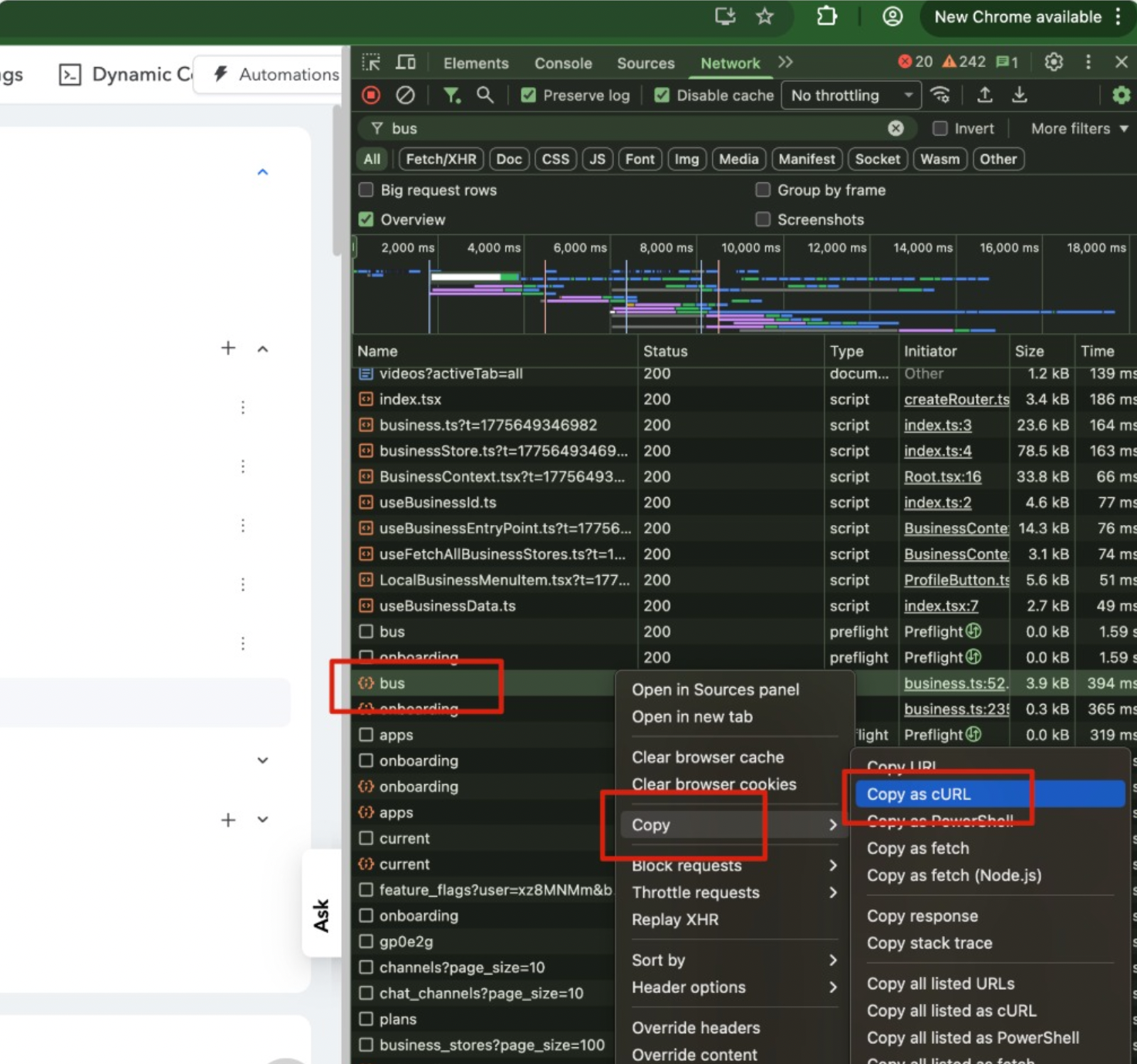
⑤ Copy and Share the cURL Command
Right-click on the API request shown in the Network panel → Select "Copy as cURL" → Copy and share it with the support team.