Setup Your Firework Store
Connect your eCommerce store to Firework — integrate Shopify, set up a custom store, and import products to start tagging videos.


Follow these simple steps for setting up a Firework store.
Set Up and Manage Store
Good to know: Repeat these steps to add additional stores and products to your business.
Step #1
In the left-hand navigation bar, choose Stores and then select Connect to a Store from the channel dropdown menu.

Step #2
Choose an OMS integration or create a custom one.
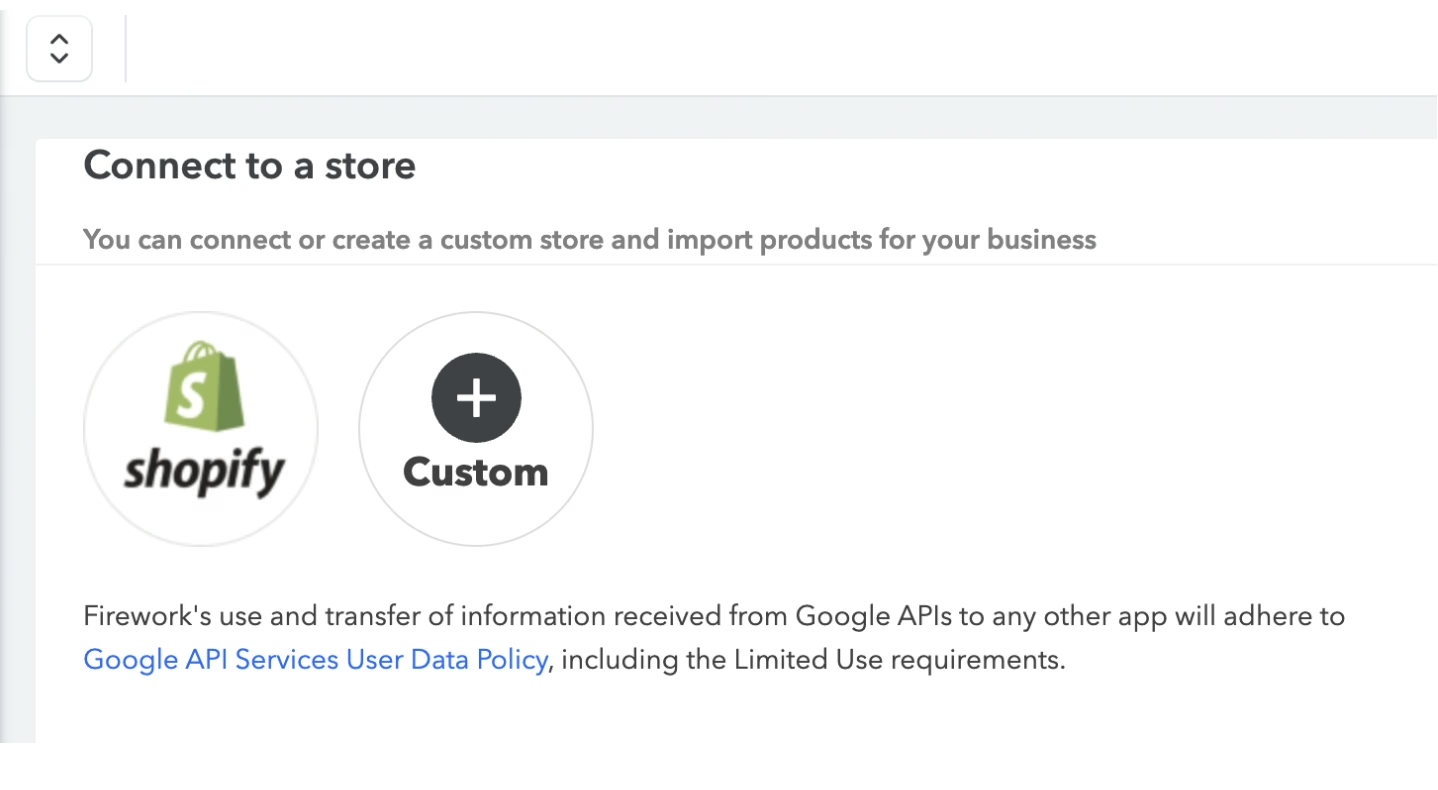
Shopify
See Integrate your Shopify Store with Firework.
Set up a Custom store
Step #1
Click the Custom icon and fill out the form.

Step #2
Click Create. In the "Products" tab, choose Batch import or Create a product.

Step #3
"Batch Import" will bring up an upload workflow. Add your file, agree to the terms, set your store currency, add your email address, and then click Continue.

Step #4
"Create a product" will take you to the customization page. Fill out at minimum all required fields, and then click Save.

Step #5
You can upload and display multiple product images

Step #6
The products will appear in the "Products" tab. Add more products and search existing products here too.

Step #7
When uploading product images, please ensure your files are in one of the following formats:
- .jpg
- .jpeg