Setup Your Firework Store
Last updated:
October 31, 2025
Follow these simple steps for setting up a Firework store.
Set Up and Manage Store
Good to know: Repeat these steps to add additional stores and products to your business.
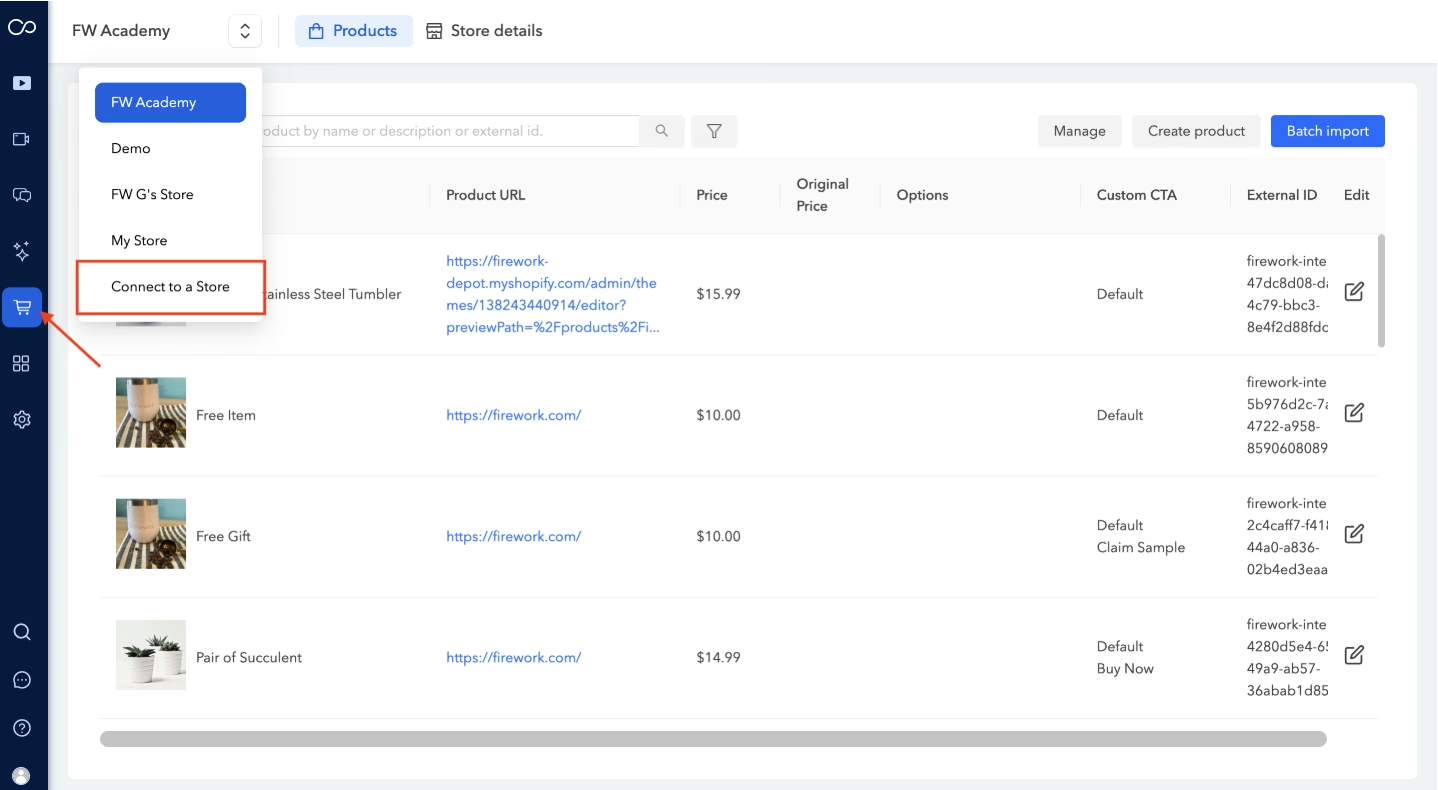
- In the left-hand navigation bar, choose Stores | and then select Connect to a Store from the channel dropdown menu.

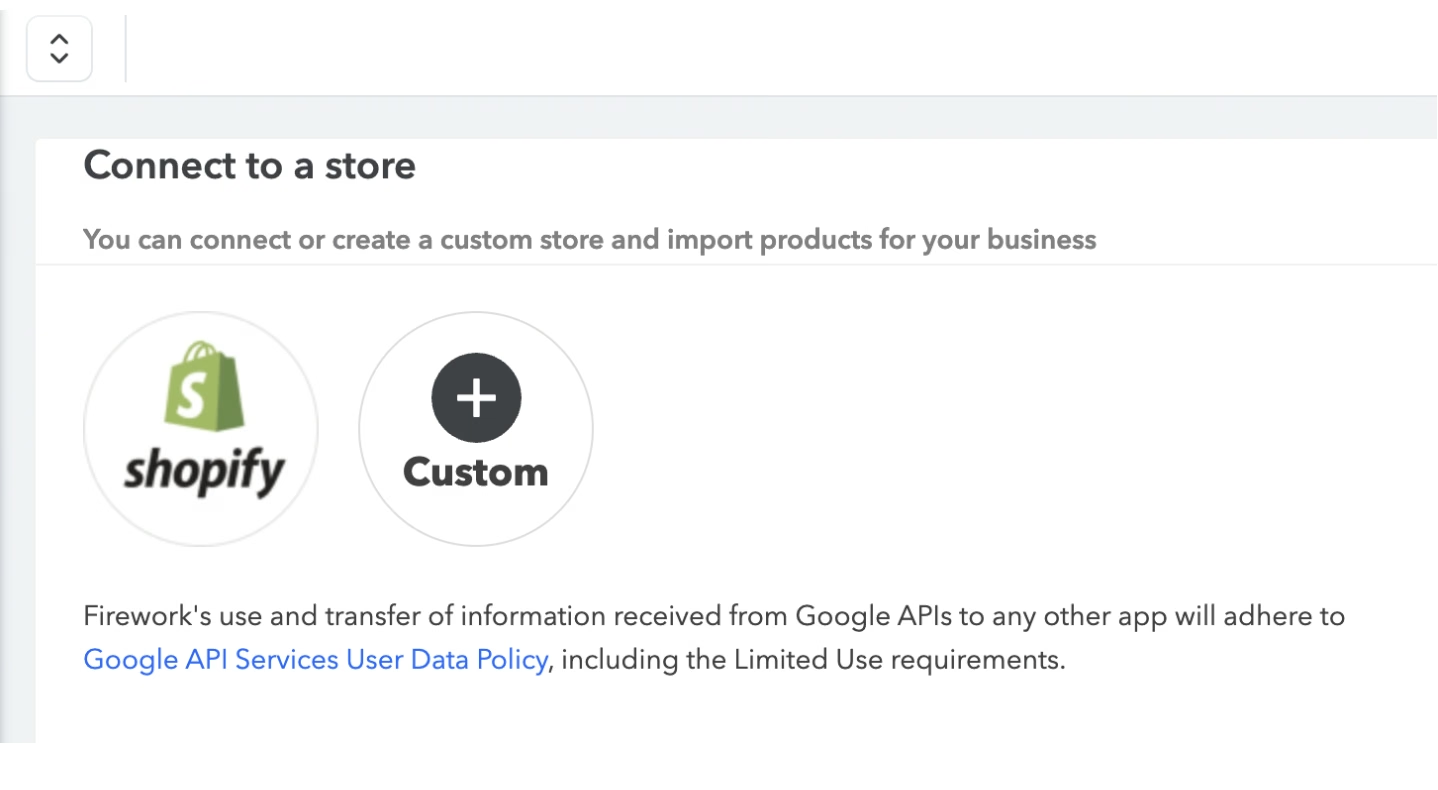
- Choose an OMS integration or create a custom one.

- Shopify:
- See Integrate your Shopify Store with Firework.
- Set up a Custom store
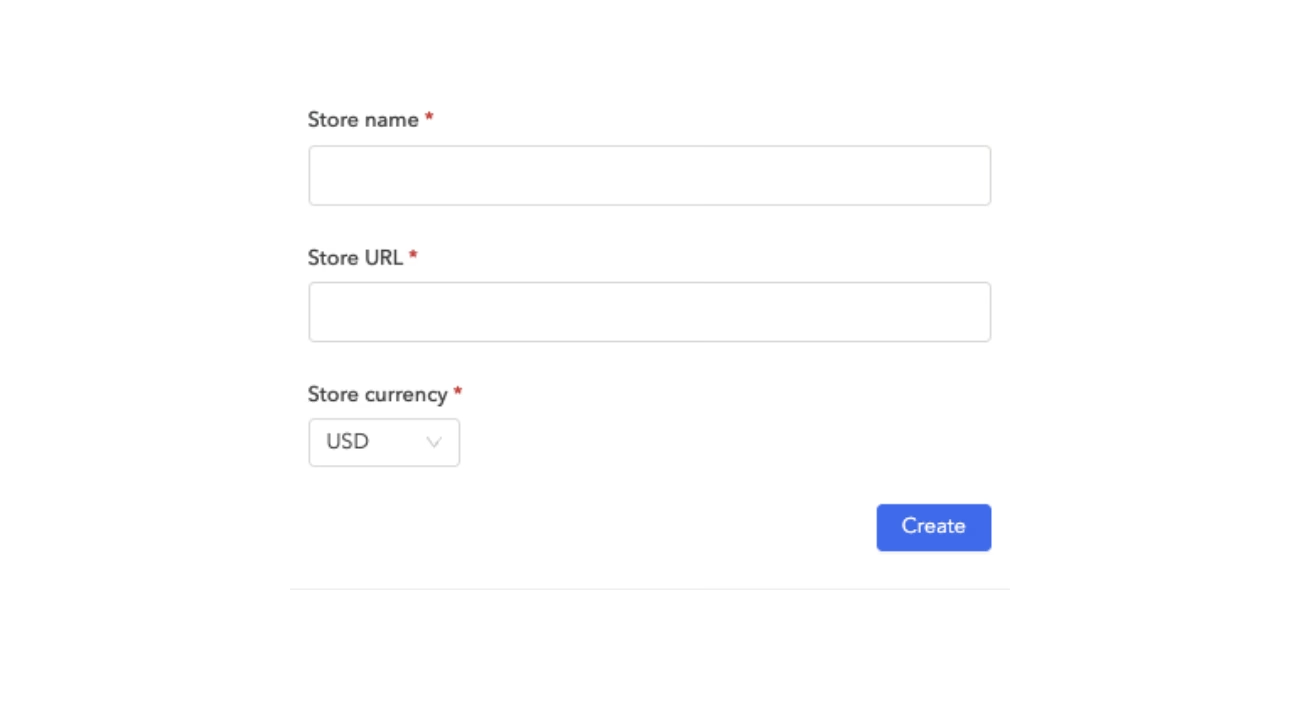
- 1. Click the Custom icon and fill out the form.

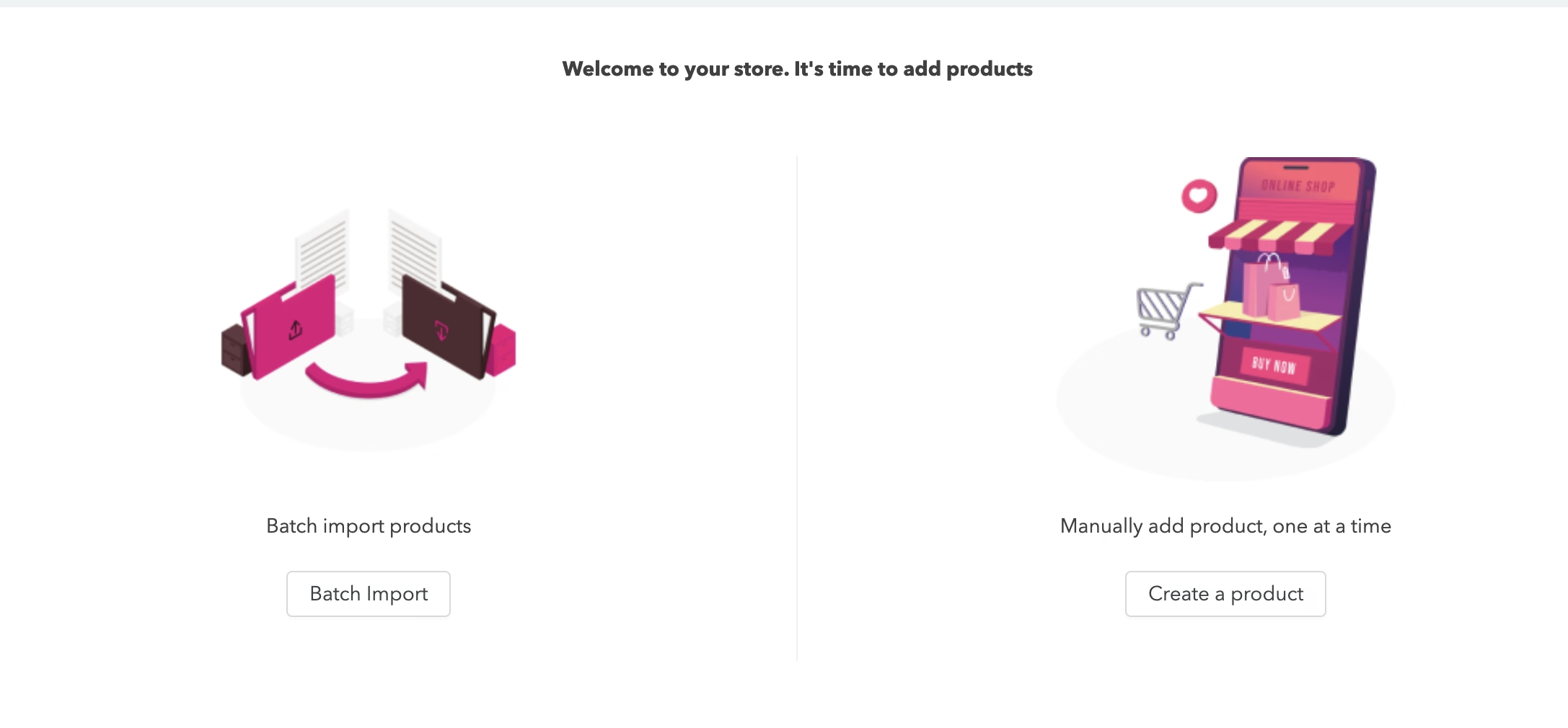
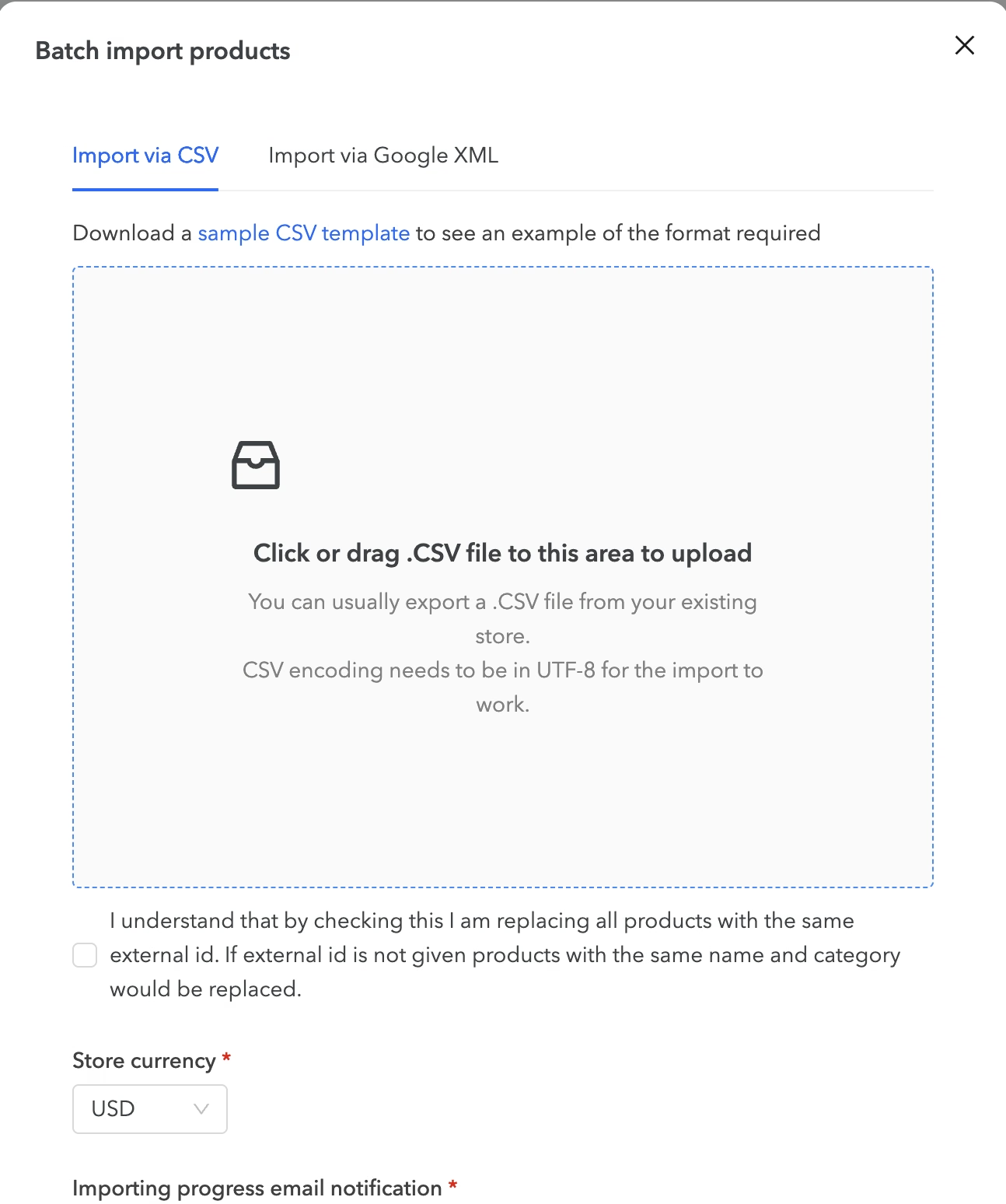
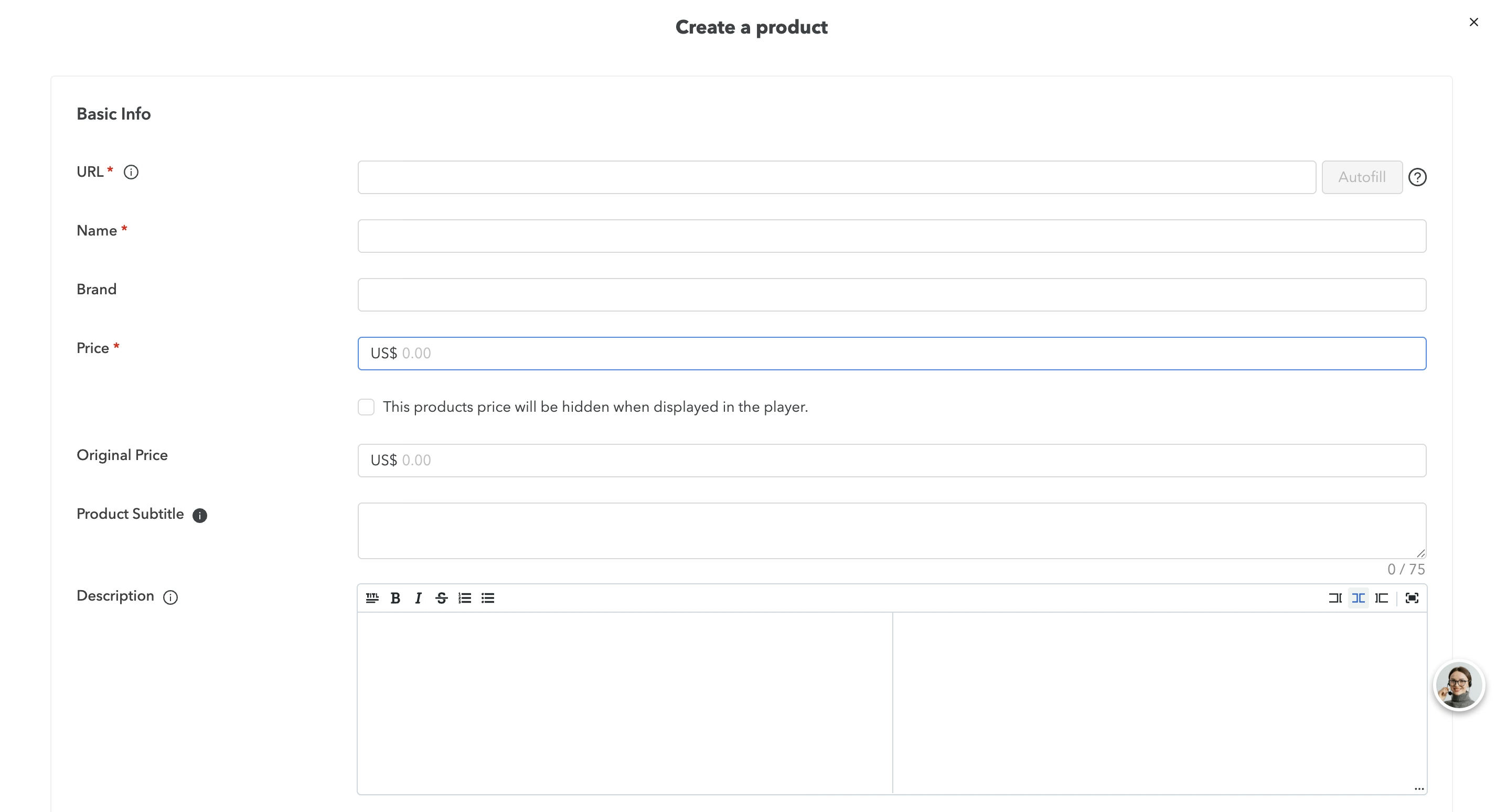
2. Click Create. In the "Products" tab, choose Batch import or Create a product.

- "Batch Import" will bring up an upload workflow. Add your file, agree to the terms, set your store currency, add your email address, and then click Continue.

- "Create a product" will take you to the customization page. Fill out at minimum all required fields, and then click Save.

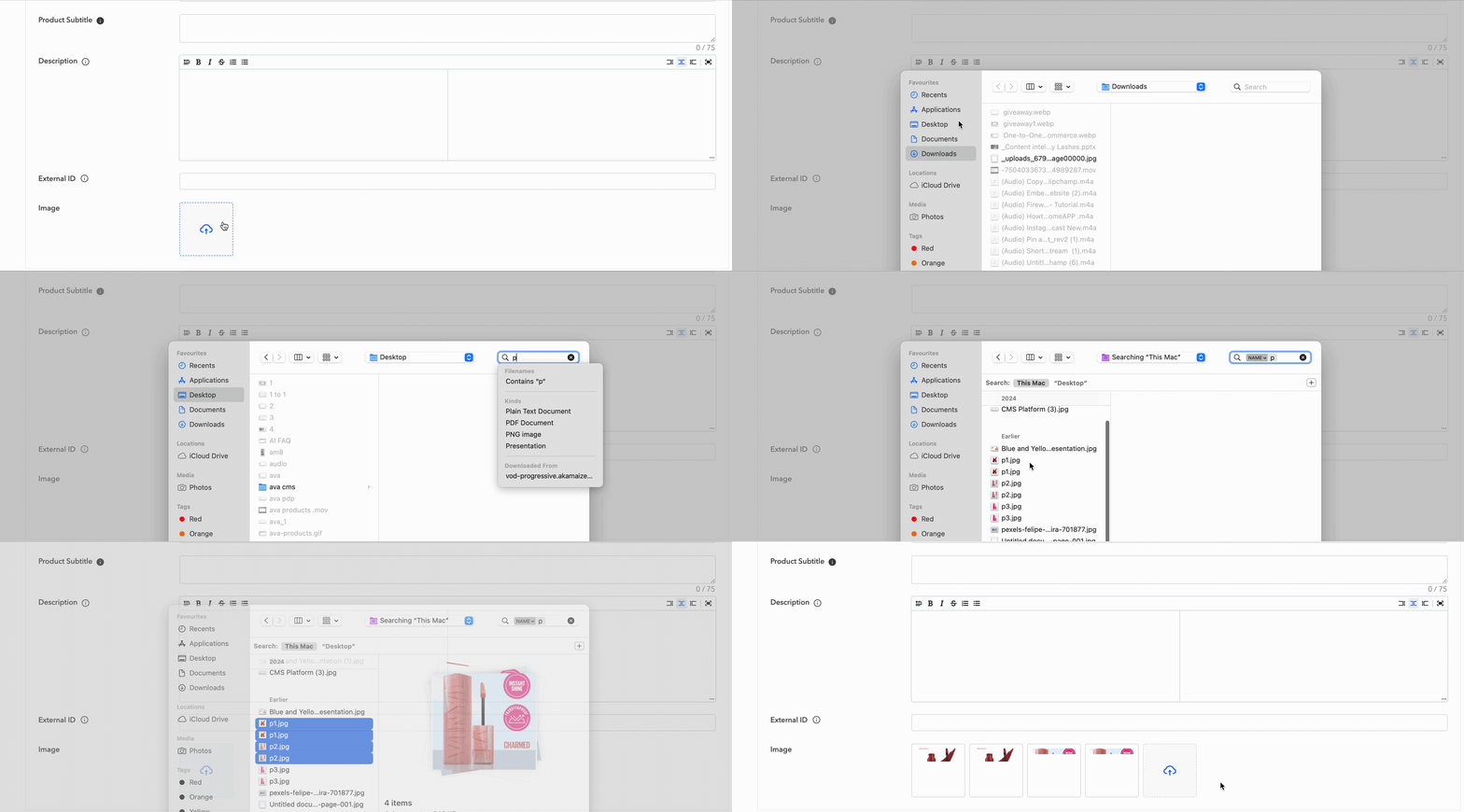
- You can upload and display multiple product images

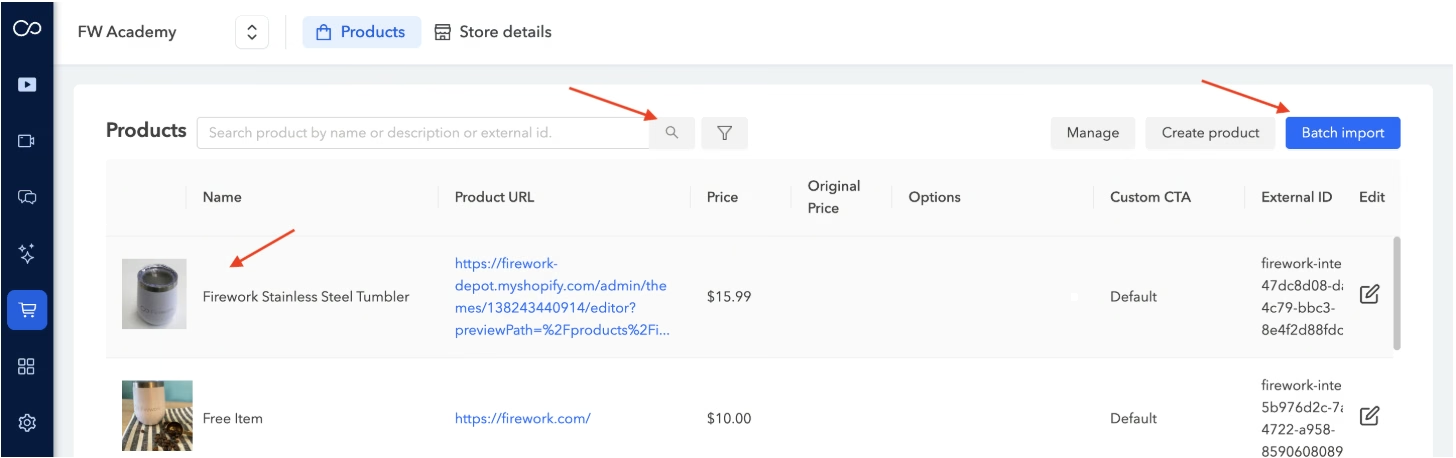
4. The products will appear in the "Products" tab. Add more products and search existing products here too.

When uploading product images, please ensure your files are in one of the following formats:
- .jpg
- .jpeg