Créez une vidéo interactive
Apprenez à créer un Parcours Vidéo Interactif.


Remarque : Le Choix Multiple est la seule Interaction qui vous permettra de continuer à construire votre Parcours. Toutes les autres Interactions mettront fin au Parcours pour le spectateur.
Créer une nouvelle Vidéo Interactive :
- Accédez à l' onglet Parcours dans le Portail d'Affaires.
- Sélectionnez Nouveau Parcours.
- Saisissez votre Nom du Parcours puis sélectionnez Créer.
- Cela affichera toutes les vidéos courtes qui existent actuellement dans votre Chaîne
- Vous pouvez rechercher des vidéos par :
- Légende
- Hashtags
- ID de la vidéo
- Sélectionnez Utiliser la vidéo. Ceci est la Vidéo racine, ou la vidéo qui lance votre parcours.
- (Facultatif) Si vous souhaitez ajouter une nouvelle Affiche à vos vidéos, sélectionnez Modifier les détails de la vidéo.
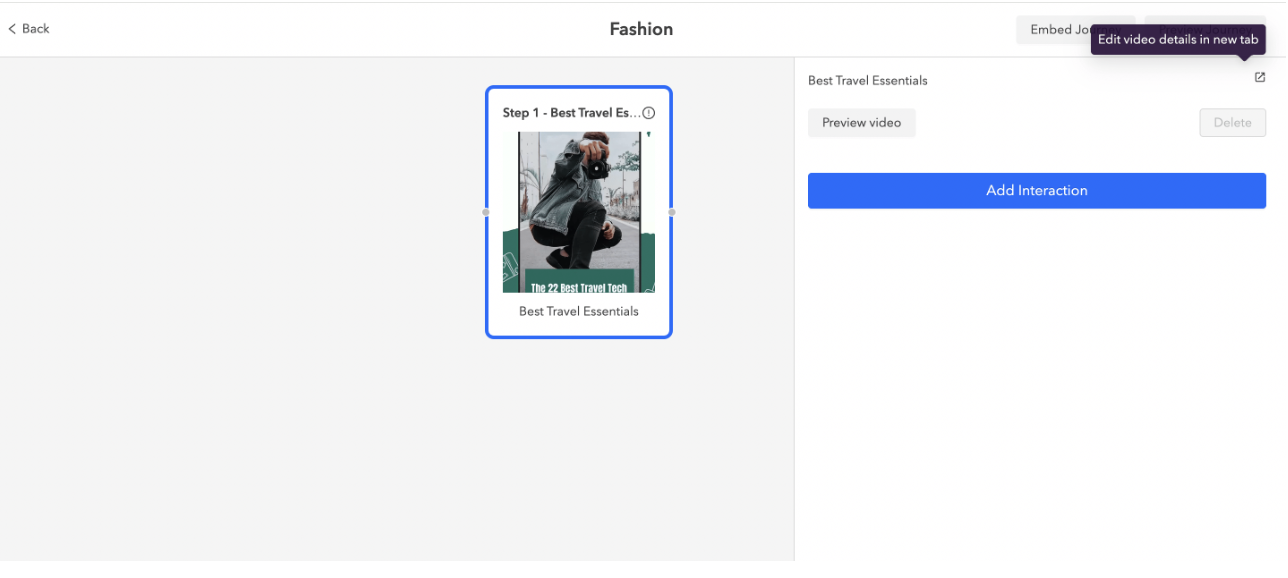
Vous ne pouvez pas utiliser la même vidéo dans deux Vidéos interactives différentes. Si vous le faites, vous devrez dupliquer la vidéo originale depuis le Portail d'entreprise.
Élaborer un parcours dans la Vidéo interactive :
- Après avoir sélectionné la Vidéo racine, sélectionnez Ajouter une interaction
- Sélectionnez Choix multiple car c'est la seule interaction que vous pouvez ajouter à votre Vidéo racine
- Saisissez un Message qui captera l'attention du public et lui permettra d'interagir avec le contenu. Vous avez la possibilité de retarder l'interaction jusqu'à 5 secondes.
- Ajoutez jusqu'à 5 Choix qu'un spectateur peut sélectionner et Connecter une vidéo à chaque Choix

5.Sur chaque vidéo après votre Vidéo racine, vous avez la possibilité d'Ajouter des interactions :
- Produits - termine le parcours avec des produits à sélectionner.
- Boutons - termine le parcours avec un bouton CTA pour rediriger.
- Question - termine le parcours avec une question et une réponse.
- Sondage - termine le parcours avec une question et plusieurs réponses à sélectionner.
- Choix Multiple - sélectionnez cette option si vous souhaitez continuer à construire votre Parcours.

6.Une fois votre Parcours construit, vous avez la possibilité de Prévisualiser le Parcours ou Intégrer le Parcours sur votre site web.
- Story Block et Floating Player sont les seules mises en page disponibles si vous décidez d'intégrer directement depuis le Parcours.
- De plus, vous pouvez ajouter le Vidéo Racine à une Playlist pour intégrer le Parcours dans n'importe quelle autre de nos mises en page

7.Une fois le Parcours intégré sur votre site, le spectateur pourra déterminer son propre chemin et naviguer à travers le Parcours jusqu'à ce qu'il atteigne la vidéo finale.
Remarque : Vous ne pouvez pas réutiliser une vidéo qui contient déjà une interaction (sondage, fiche produit ou CTA). Vous pouvez soit :
- Supprimer l'interaction sur la vidéo que vous souhaitez utiliser, puis l'ajouter au Parcours.
- Dupliquer la vidéo et supprimer l'interaction de la copie, puis l'ajouter au Parcours.