Integrate Firework with Klaviyo
This article will go through the process of connecting Firework to Klaviyo & Adding Videos. Skip to "Integration through Klaviyo" if you do not have a Firework Account.


Prerequisite
A Klaviyo Account if you do not already have a Klaviyo account created, you can sign up here!
Integrating through Firework
Step #1
Starting on the Firework, click on "settings" (gear icon) on the left side bar then click "Integrations" on the top bar. This will allow you to be able to click "Install" Klaviyo App.

Step #2
This will prompt you to sign into Firework again. Please complete the sign in process.
NOTE: If you encounter a 431 Error, clear your cookies and refresh the page

Step #3
Connect the corresponding business

Step #4
Click on "Authorize" for Klaviyo to access your Firework account.

Step #5
Select the corresponding account you would like to install the app integration to.
NOTE: If you do not already have a Klaviyo account created, you can sign up here

Step #6
After clicking “Continue” please click “Allow” for Firework to access your account’s information.

Step #7
Double check if the status of the integration is enabled on your Klaviyo account by clicking "Integrations" on the left side bar.

You're all set!
Next, check out our help center article on How to Add Videos to Klavyio.
Integrating through Klaviyo
Step #1
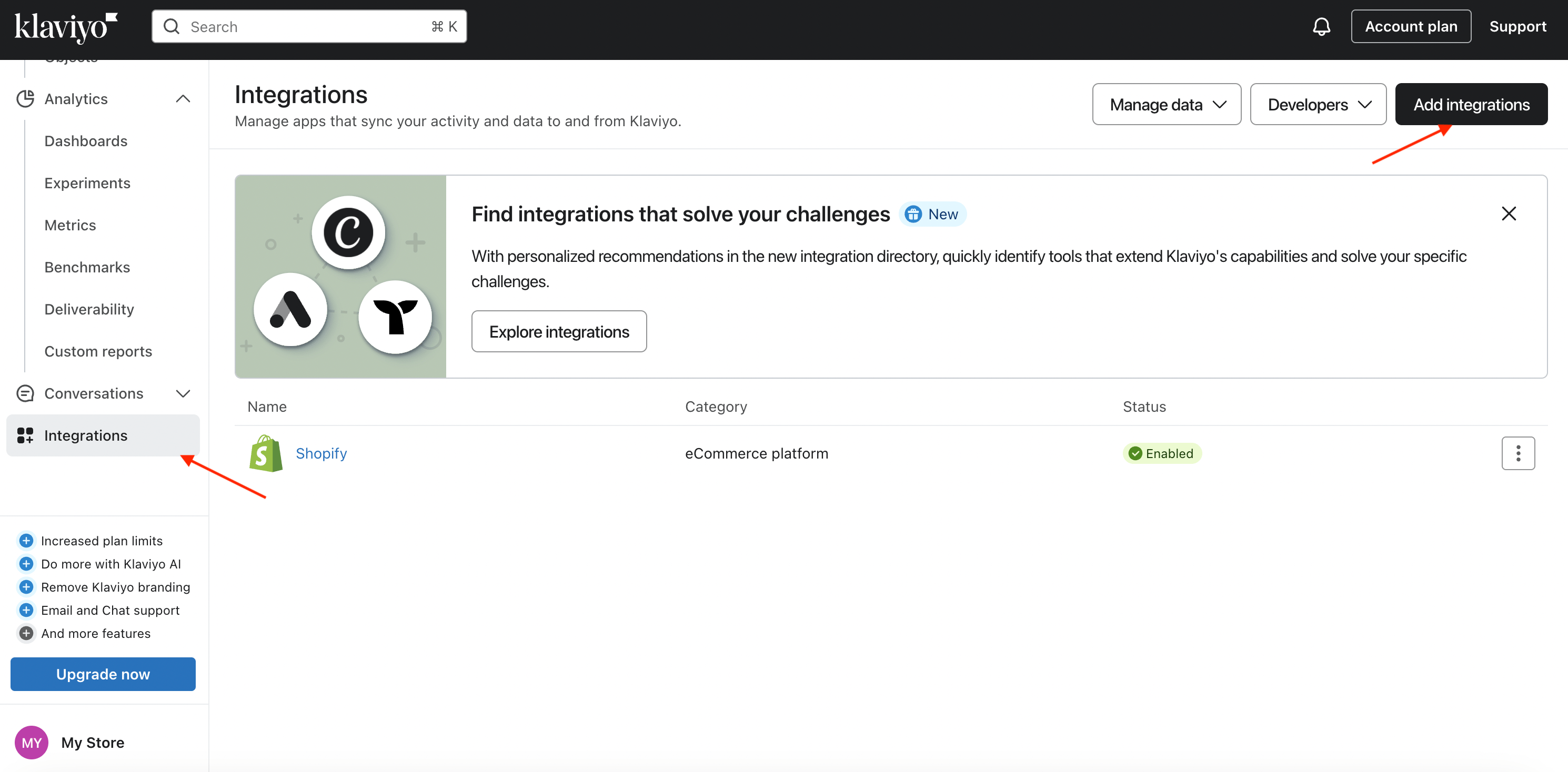
On your Klaviyo Dashboard, navigate to the "Integrations" page. Click "Add integrations" on the top right.
Step #2
Search for the Firework App in the Integrations Directory or locate it here.

Step #3
Install the Firework App.

Step #4
This will redirect you to sign into Firework. If you do not already have a Firework account, you can Install Firework for Free on Shopify OR you can request for a demo through this link.
Note: If you encounter a 431 Error, clear your cookies and refresh the page
Step #5
Connect the corresponding business
Step #6
Click on "Authorize" for Klaviyo to access your Firework account.
Step #7
Select the corresponding account you would like to install the app integration to.
Note: If you do not already have a Klaviyo account created, sign up here
Step #8
After clicking “Continue” please click “Allow” for Firework to access your account’s information.
Step #9
Once you hit "Allow", you should be redirected into Firework Business portal. In order to verify if the status of the integration, sign back into your Klaviyo account.
Step #10
(Optional) Make sure your Klaviyo account is connected under Integrations > Shopify

Klaviyo Support Articles
https://help.klaviyo.com/hc/en-us/articles/115005080407#onsite-tracking4