Twitch Livestream Simulcast
Discover the steps to activate a Livestream Event Simulcast for Twitch through the Firework Business Portal.


From the Business Portal
Step #1
Navigate to the Firework Business Portal.
Step #2
Click on the Livestream Event.
Step #3
On the Livestream Event page, click the Simulcast tab.

Step #4
Click on the Twitch icon, which will allow you to enter both your Stream URL and Stream Key..

Simulcast with a Twitch Account
Step #1
Go to twitch.tv and log into your Twitch account.
Step #2
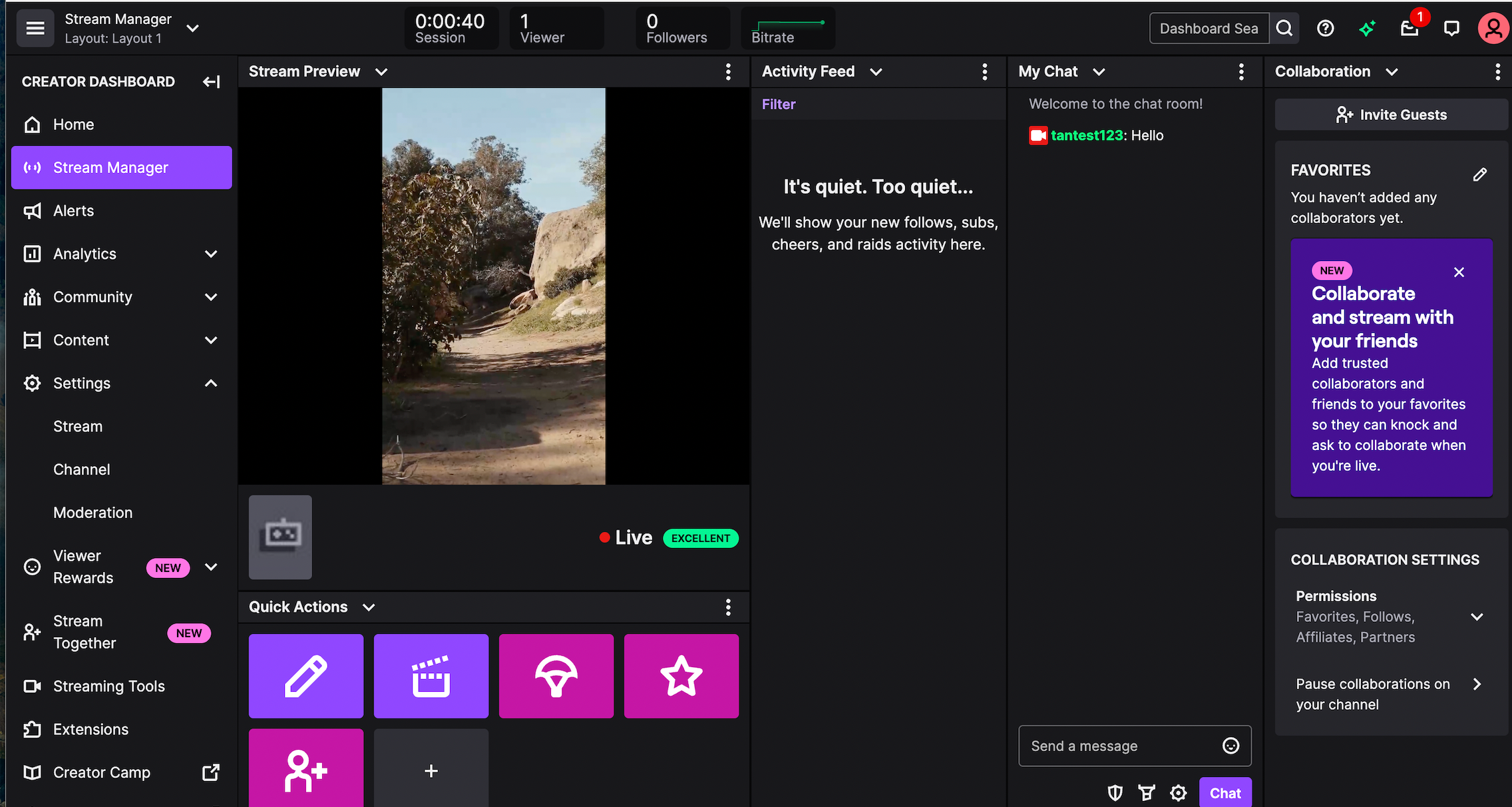
Click on your profile icon in the top-right corner and select Creator Dashboard.

Step #3
From the left menu, click on Settings and then select Stream.

Step #4
Copy your Primary Stream Key from the Stream settings.
Step #5
Open your Firework Business Portal and paste the stream key.
Step #6
For the Server URL, use the following format:rtmp://ingest.global-contribute.live-video.net/app/{stream_key}
Replace {stream_key} with the actual stream key you copied from Twitch.
Step #7
Add the full RTMP URL (with the stream key) in the Firework Stream url input field.
Step #8
Click on the “Go Live” button in the Firework Business Portal to start streaming.
Step #9
Your stream will now be live on your Twitch channel.
Points to remember
- Before going live, ensure your stream title, category, and tags are correctly set in Twitch’s Creator Dashboard.
- You can monitor your livestream performance and viewer interactions via the Twitch Creator Dashboard.