Youtube Livestream Simulcast
Learn the steps to simulcast from a Livestream Event to Youtube


Before proceeding, you should have already set up your livestream event. For help, see Setup Your Livestream Event.
In the Business Portal
- Navigate to the Firework Business Portal and create a livestream event.
- On the Livestream Event page, click the Simulcast tab.

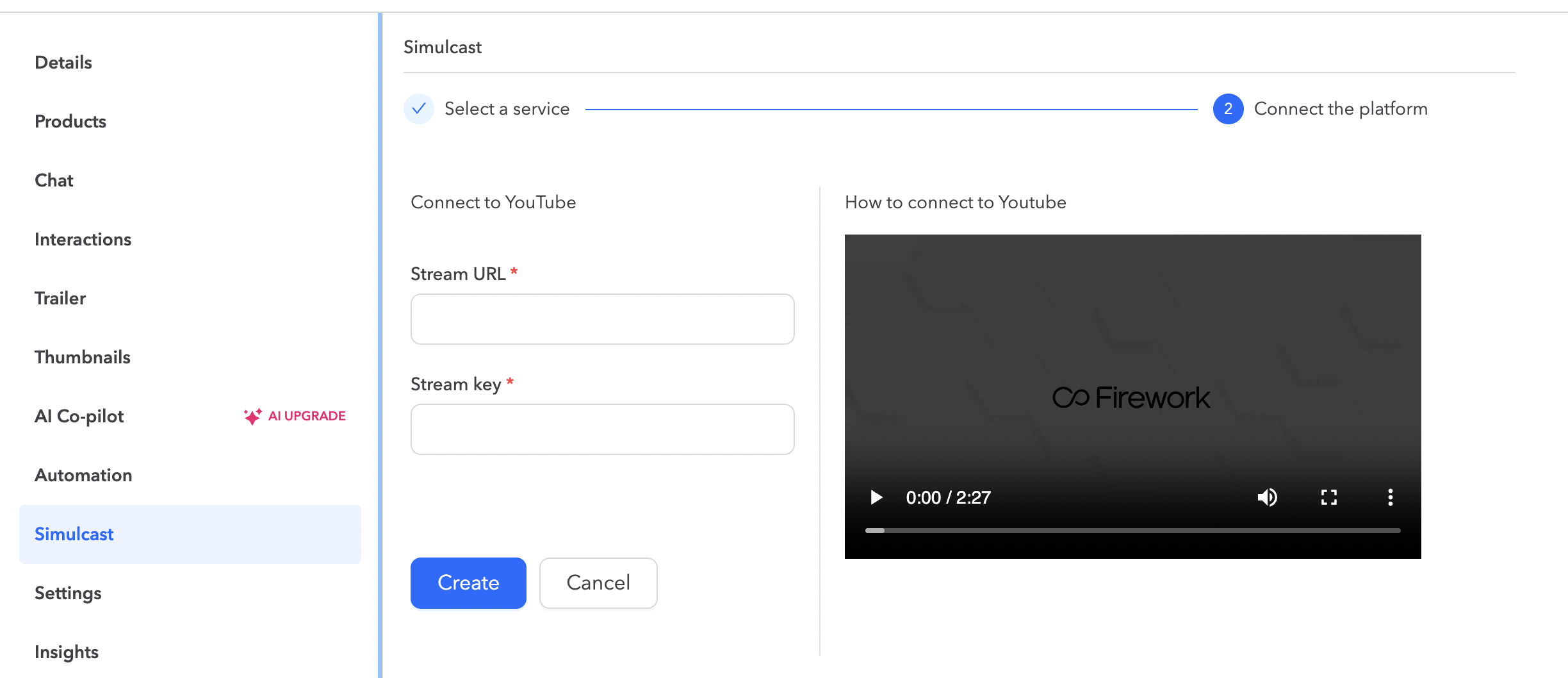
3.Click on the Youtube icon. Here is where you’ll enter the Stream key and Stream URL
On Youtube
1. Navigate to your Youtube page in another window or tab.
2. Click Create | Go Live in the upper-right corner of the page.

3. On the Manage tab, you’ll see all of your scheduled livestreams. Click Schedule Stream in the upper-right corner to schedule a new livestream event.
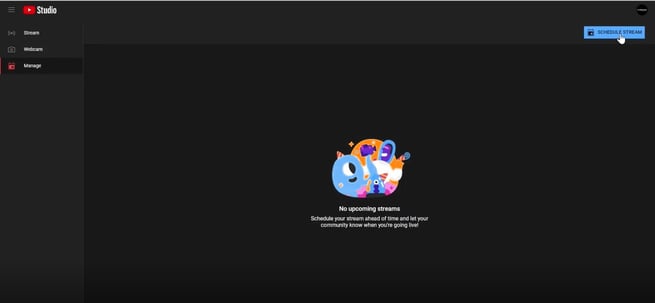
4. In the pop-up window, you have the option to reuse details from a previously scheduled livestream. Otherwise, click Create New.

5. Fill in all of the details in the Create Stream window, including your privacy settings and livestream schedule, click Next to proceed to the next screen to continue entering additional livestream details.
6. In the How do you want to go live? drop-down menu, select Streaming software if you’re using the Firework Camera app or another third-party application to conduct your livestream.
7. Click done. Toggle on Enable Auto-start to ensure the stream begins when the Firework livestream starts.

8.Once your Livestream Event ends in the Firework Business Portal, go back to your Youtube Livestream to ensure this ends. You can also set this to auto-stop as well.
9.Your Youtube Livestream Event page will load containing the Stream key and Stream URL.
- Copy the Stream key and paste it into its respective field on the Youtube Multistream page in the Firework Business Portal.
- Copy the Stream URL and paste it into its respective field on the Youtube Multi-Stream page in the Firework Business Portal.
10. Click Create. When ready to stream, click Go Live in your Livestream Event in the Business Portal.
Note: Youtube’s chat is not integrated with Firework’s livestream player.To edit or delete your Youtube multi stream, click the three dots to the right of the Youtube box.
YouTube Simulcast
You can now connect your YouTube account directly to your channel and start simulcasting with just a few clicks. Once the integration is set up, you no longer need to manually copy and paste the Stream URL and Stream Key for every livestream, making the simulcast workflow much faster and easier.
Note: Please reach out to your Customer Success Manager to enable this feature if you don't see the option.
Configure the YouTube Integration
Before you can start simulcasting to YouTube, you must connect your YouTube account to your channel.
- Navigate to Channel Settings.
- Locate Livestream Settings.
- In the Simulcast Settings section, click Edit.
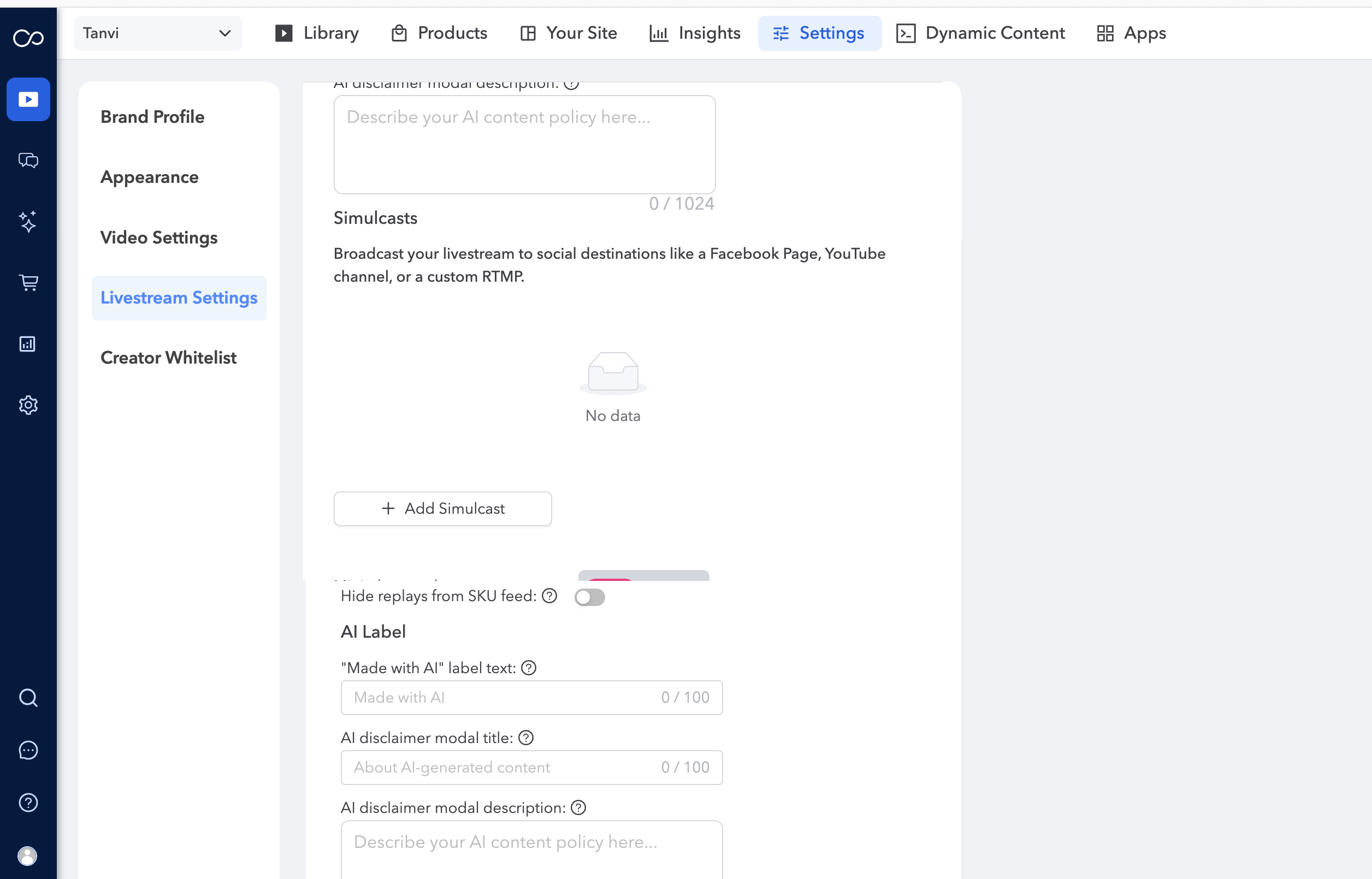
- Click + Add Simulcast Connection.
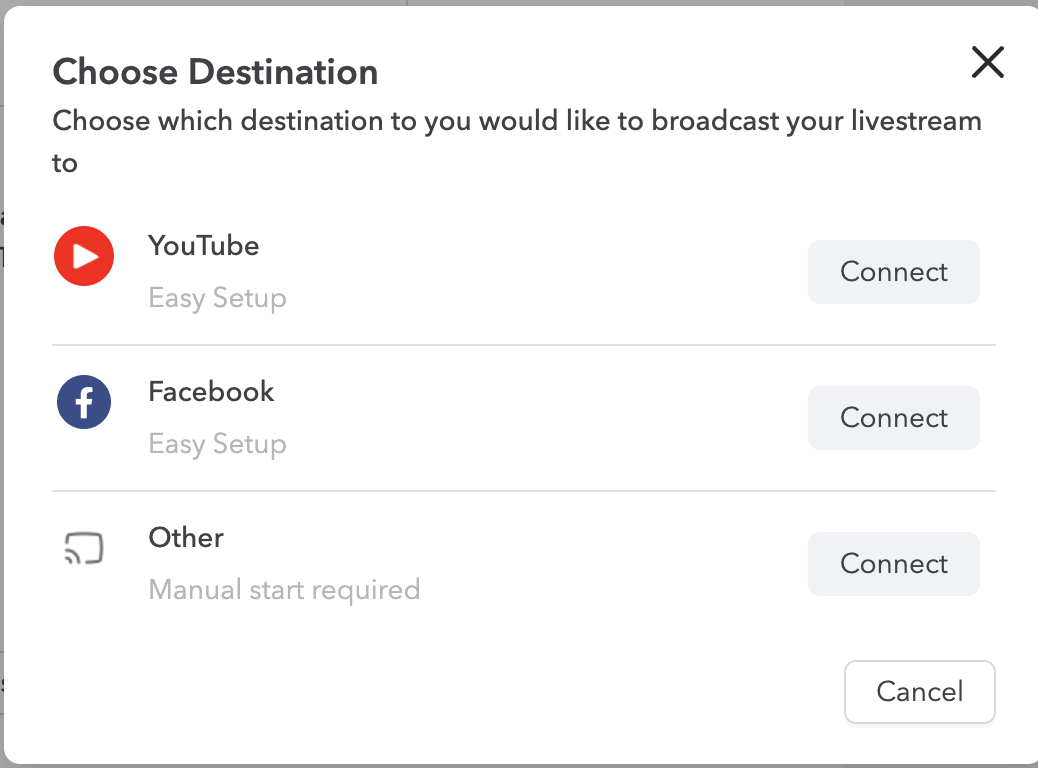
- Select YouTube and sign in to the YouTube account you want to use.
- Complete the authorization process.
Once the connection is established, it is linked to your channel. You will not need to sign in again each time you create a livestream.
Start a YouTube Simulcast
After completing the initial setup, you can easily simulcast future livestreams to YouTube.
- Create or open a livestream.
- Navigate to Simulcast Settings.
- You will see your connected YouTube account already available.
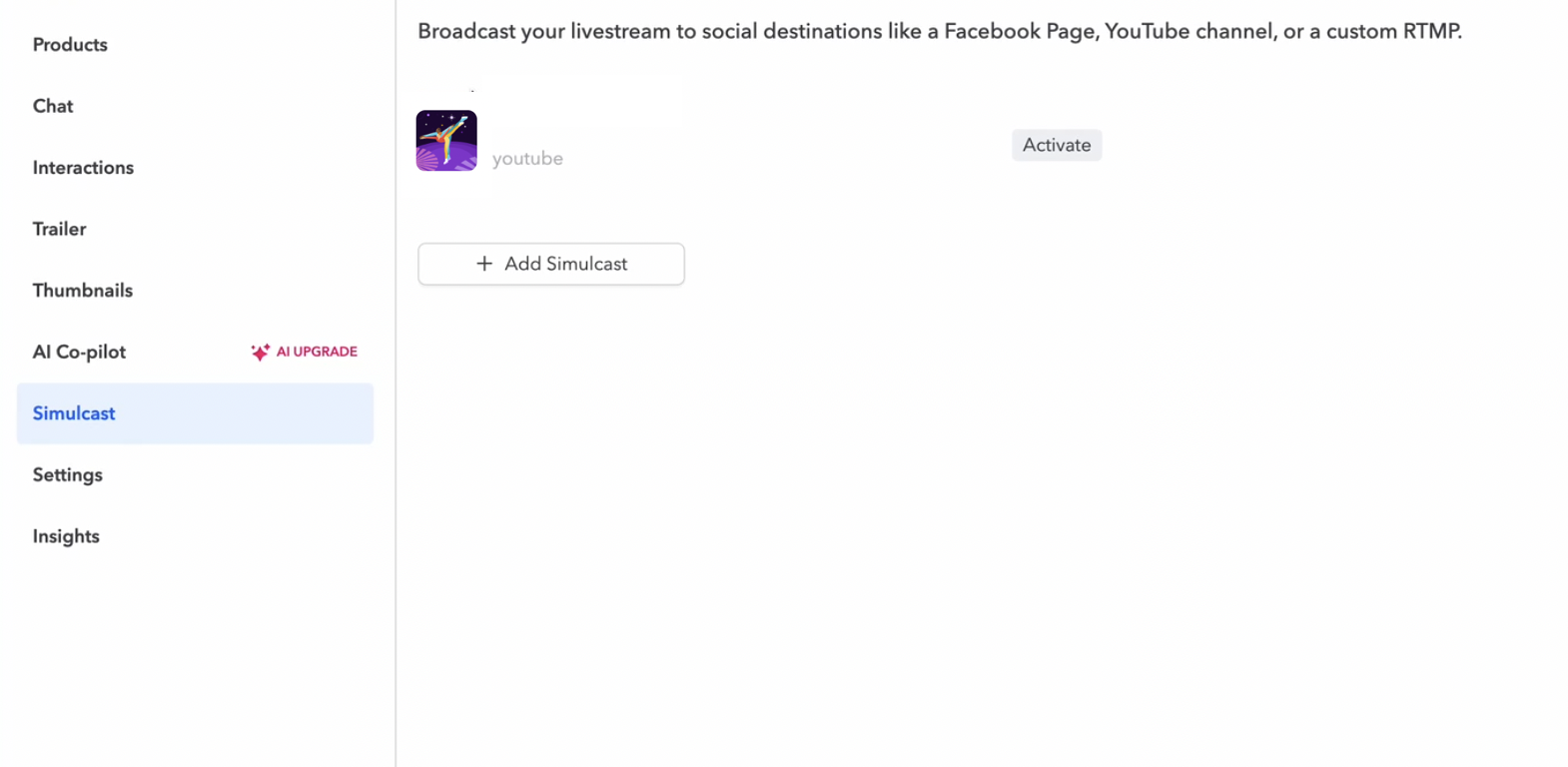
- Click Activate next to the YouTube connection.
- Configure the following settings:
- Title
- Description
- Visibility (Public, or Private)
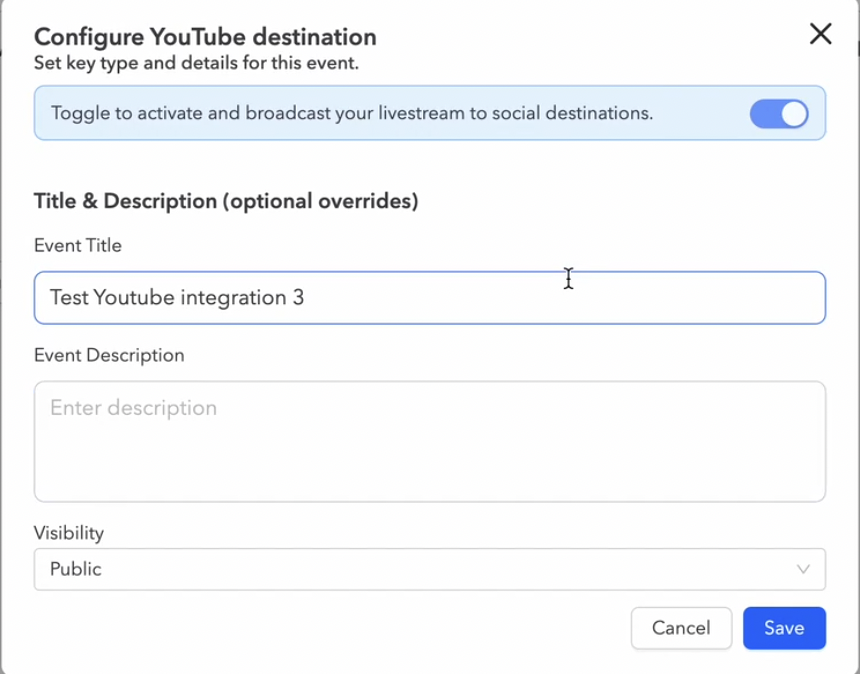
- Click Go Live.
A corresponding YouTube livestream will be automatically created, and your broadcast will stream to YouTube simultaneously without requiring any manual Stream URL or Stream Key configuration.
Benefits
- No manual copying and pasting of Stream URLs and Stream Keys.
- Faster livestream setup process.
- Simplified and streamlined simulcasting workflow.