Configuración y visualización del asistente virtual de IA (AVA)
Learn how to set up your AVA and build their knowledge around your products!


Build your AVA and Upload Products
Note: You are viewing instructions for the Old UI of the AI Virtual Assistant (AVA).
If you are using the updated version, please see: Setup and Display AI Virtual Assistant (AVA) – New UI
Step #1
Select AI Video Assistant from the toolbar in the Business Portal.
Step #2
Click on Create New Assistant and select the assistant profile for your product and click Add Expertise.

Step #3
Next, specify the areas of expertise for your assistant and select a product that will enable them to provide precise and helpful guidance to your customers.
Step #4
Assign a name to your assistant, provide a description, customize the initial greeting, and set up follow-up greetings for returning users.
Step #5
Select your Store and choose which product you want to use AVA for, then click Add.
Step #6
After completing the addition of these details, proceed by clicking on the Personalize Appearance option.
Step #7
Choose a solid background colour for the assistant.
Step #8
You can also select the default interaction mode, which determines the initial input preference that shoppers will encounter. They will have the option to switch between text input and audio input during the conversation.
Step #9
Upload a Custom Image: This image will serve as a replacement for the default digital human avatar in the user interface, allowing you to personalize the appearance of your assistant.
Click on Create Avatar once done.
You can add multiple products to AVA by following the steps outlined here.

Provide AVA With Resource and Product Knowledge
Once you are on the AVA details page, locate the Resources menu on the left sidebar. Click on it, then select Add Resources+ to begin uploading your Video, Text, File or URL.
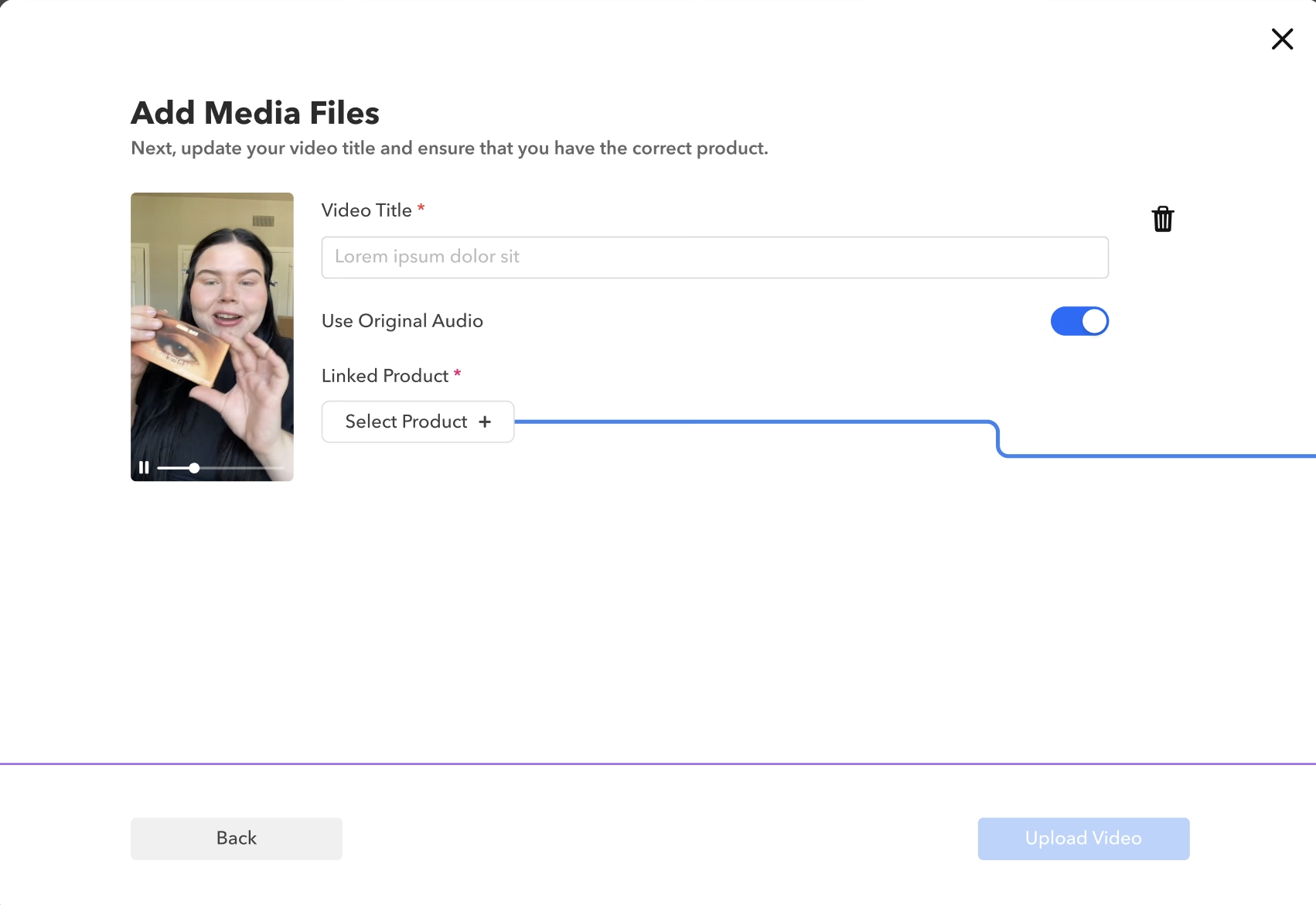
Video/Image

- Easily add your video files by dragging and dropping, or selecting from your device.
- Enter the video Title and Toggle Use Original Audio to On to provide the original audio for this video. Otherwise Ava will talk over the video if a response is provided.
- Once the video is uploaded and information is added, select Add Video.
- You can also include product in your video by clicking the edit option next to the video and selecting the desired product from the dropdown menu. You can select only one product as per the video (Please note that only products already added to AVA will be displayed in this list)

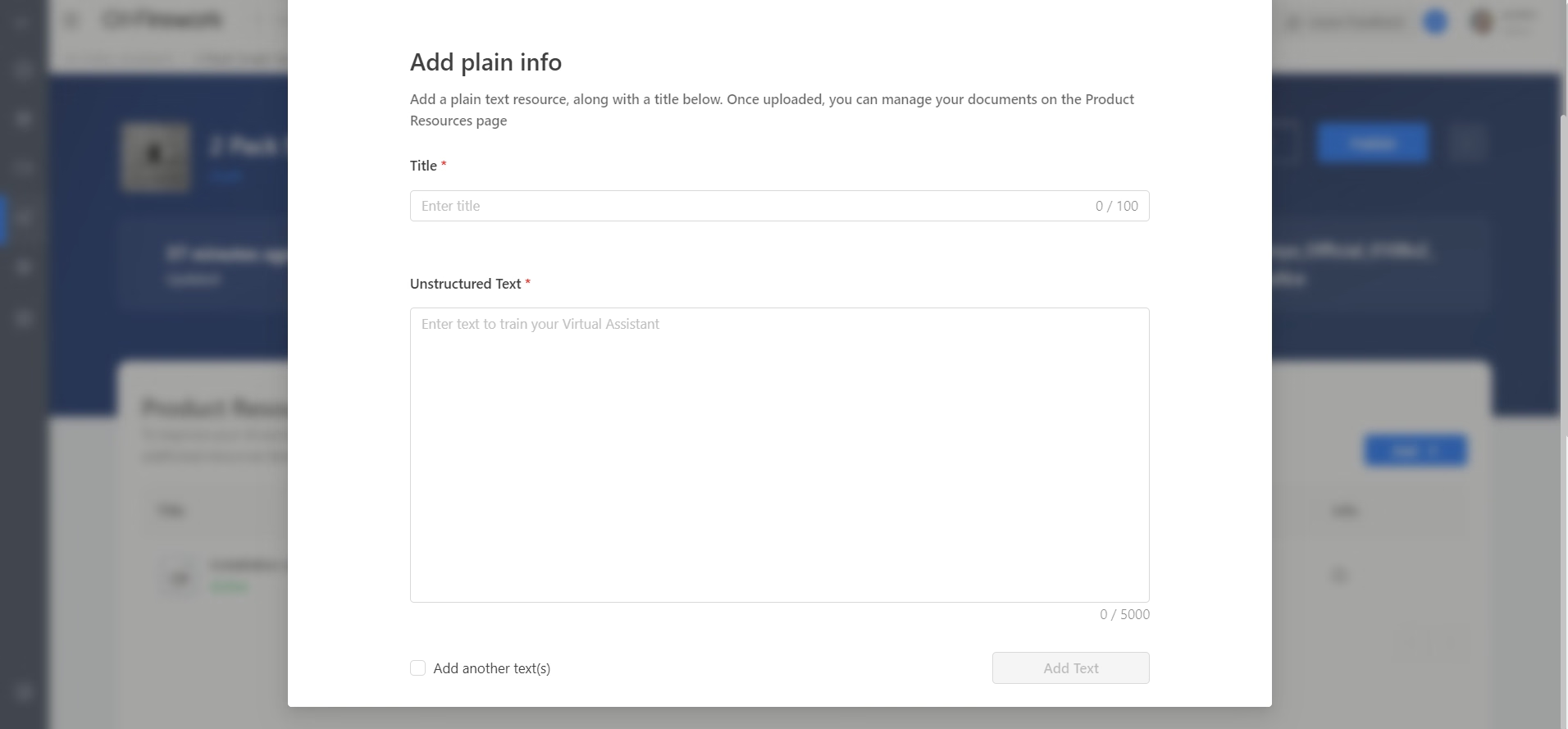
Plain Text
Title = this section serves as the question the user will ask.
Unstructured Text = this will be the answer that AVA will refer to.
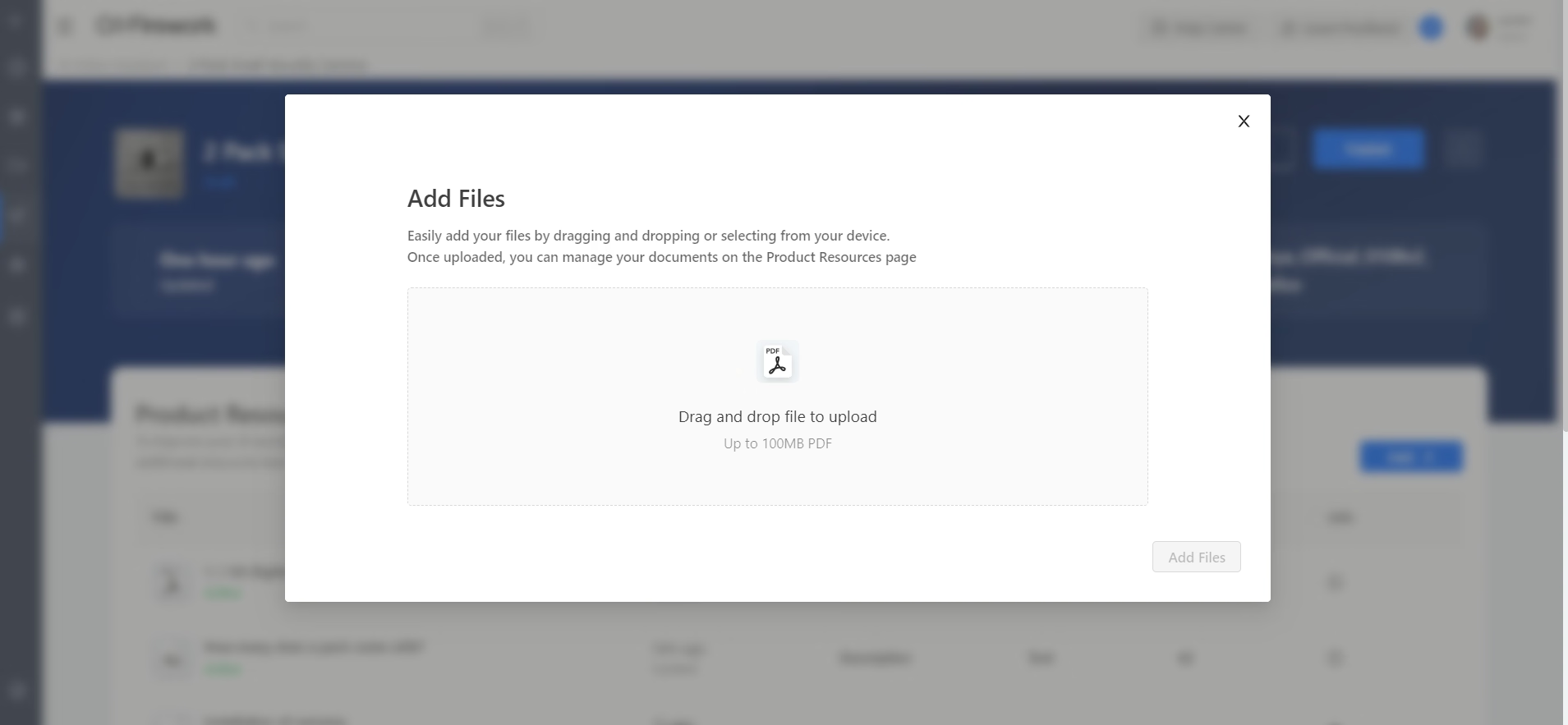
File
- AVA will provide a reference link
- Drag or click to upload a file. It must be a PDF only.
- Once uploaded, you can manage your documents on the Product Resources page
Import from SV
- Directly import short videos from your channel. Search and select videos. Note: this will not showcase interactions previously added to videos.
- Adjust the video Title and Toggle Use Original Audio to On to provide the original audio for this video. Otherwise AVA will talk over the video if a response is provided.
- Once the video is uploaded and information is added, select Add Video.

Webpage
You can input the desired web link to include it as a resource. After the upload is complete, you will have the ability to manage your documents on the Product Resources page. Click on Add another URL after submission if you wish to add more URL and then click on Save.

Upload Requirements
Video (Media Files): Up to 300mb MP4, MOV, WMV, FLV, AVI, PNG, JPG, JPEG
Plain Text: Title & Unstructured Text
File: 100mb PDF
Import from SV (Short Video): Select from Video Library
Webpage: URL
Add Products
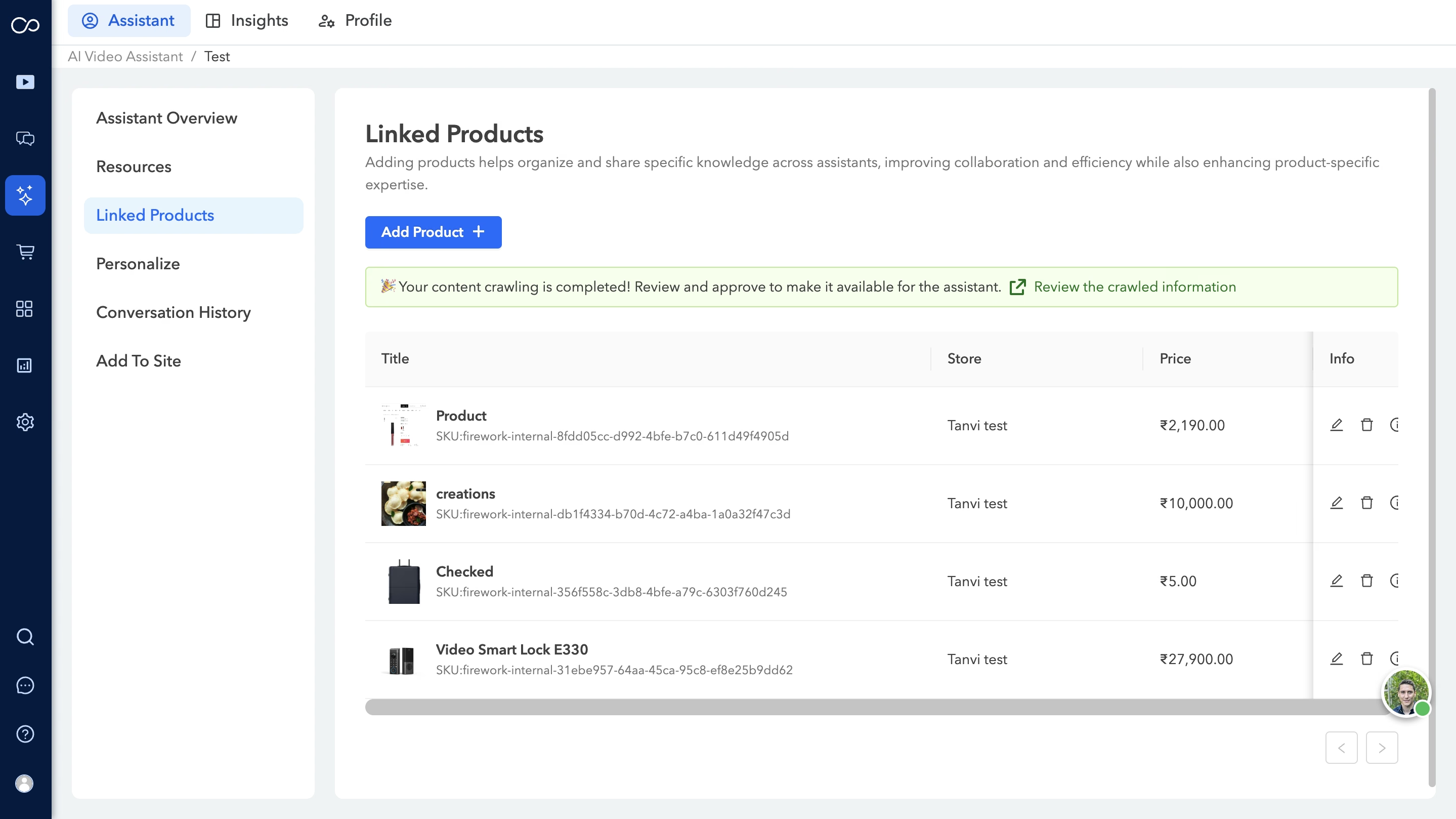
To include additional products for your AVA, simply navigate to the Linked Products section on the left sidebar and click on the Add Products+ button.
One click Crawling
When a user imports a product into AVA, we now automatically crawl the PDP (if available) to retrieve FAQs and product comparisons.
- Import Products – Click Linked Products > Añadir producto (+) para importar a AVA.
- Rastreo automático — AVA rastrea automáticamente el PDP (si está disponible) en busca de preguntas frecuentes y comparaciones de productos.
- Revisar el contenido — Un mensaje confirmará la finalización. Haga clic Revisa la información rastreada para editar, eliminar o seleccionar recursos.
- Agregar recursos — Seleccione los recursos y haga clic Agregar recursos para finalizar las selecciones.
- Agregar recursos — Seleccione los recursos y haga clic Agregar recursos para finalizar las selecciones.
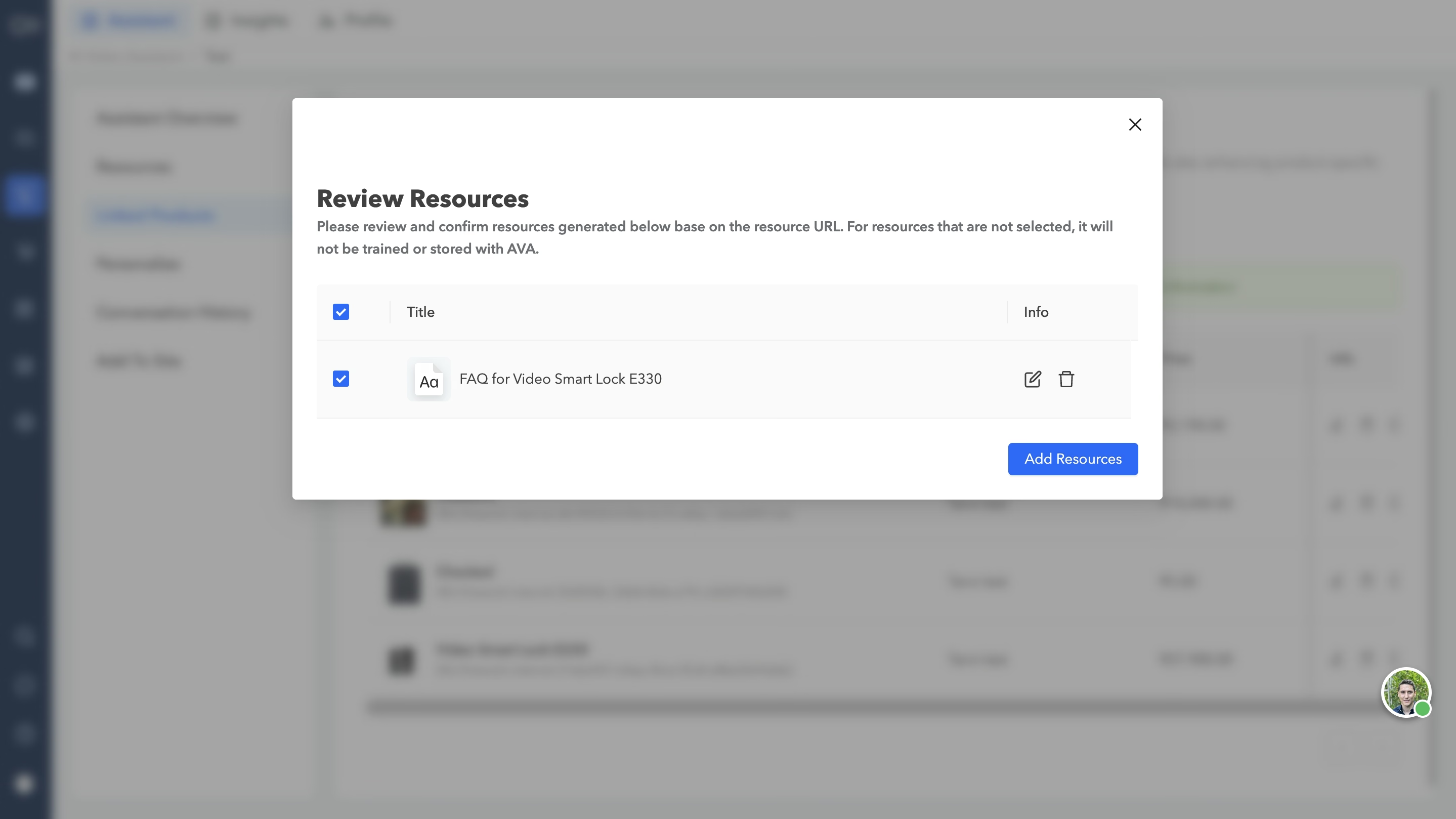
- Confirmar selección — Solo los recursos seleccionados se almacenarán y entrenarán con AVA.
- La opción Agregar recursos estará disponible en la sección Recursos.
Personaliza
Esta función te permite personalizar la apariencia y la personalidad de tu asistente para una experiencia más personalizada. Puedes modificar el nombre, la descripción, los saludos, el color de fondo y el modo de interacción predeterminado del asistente, lo que brinda a los compradores la opción de cambiar entre la entrada de texto y audio durante las conversaciones.

Historial de conversaciones
Podrá acceder y revisar todo el historial de conversaciones para obtener información valiosa y mejorar la calidad de las interacciones de los usuarios. También tienes la opción de exportar las conversaciones.
Para obtener información más detallada, consulta la guía sobre el historial de conversaciones. - eslabón
Agregar al sitio
Puedes integrar tu AVA en tu sitio web desde esta sección, lo que mejorará la participación de los usuarios y la atención al cliente. Aprenda a incrustar Ava en su sitio web - eslabón
Puedes previsualizar tu AVA seleccionando la opción de previsualización situada en el lado derecho del Descripción general del asistente. Al hacer clic en el botón Publicar, harás que tu AVA esté disponible y sea accesible para que los usuarios interactúen con él.
