Gestion du Consentement pour les Importateurs
Apprenez à simplifier les autorisations pour une expérience d'importation fluide.


Demande de Consentement
Sélectionnez le Aperçu bouton pour la vidéo qui nécessite un consentement, puis cliquez sur le Demander le consentement.
.gif)
Vous verrez un message personnalisé avec le lien de consentement. Cliquez sur Copier et ouvrir le profil , cela vous redirigera vers le compte Instagram du Créateur où vous pourrez coller le message et l'envoyer.
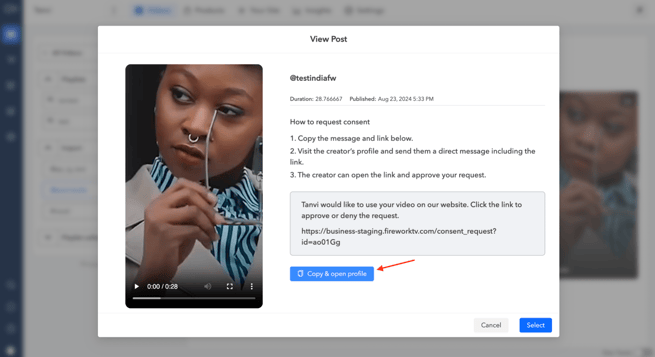
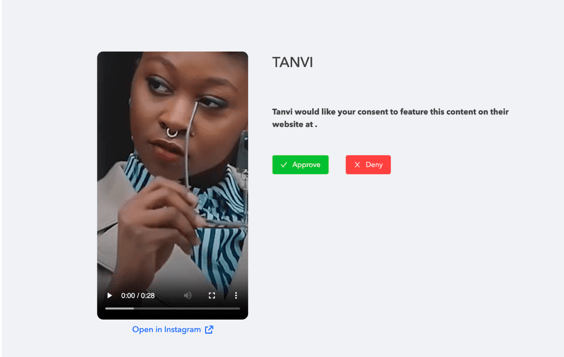
Le créateur pourra ensuite suivre le lien pour approuver ou refuser la demande.
Suivi des Statuts
L'utilisateur peut consulter toutes les vidéos pour lesquelles il a demandé un consentement, ainsi que le statut actuel de chaque demande, qui peut être Approuvé, En attente ou Refusé.
