Consent Management for Importers

Learn how to streamline permissions for a seamless import experience.

  1. Select the Preview button for the video that requires consent, and then click on the Request Consent.
    [IMAGE: consent-man__001__consent-gif_1e6ff5.gif | src: https://cdn.prod.website-files.com/66a003afc59794bcf70c2b34/69cecdb0fd7e9809c38d6050_consent-man__001__consent-gif_1e6ff5.gif]
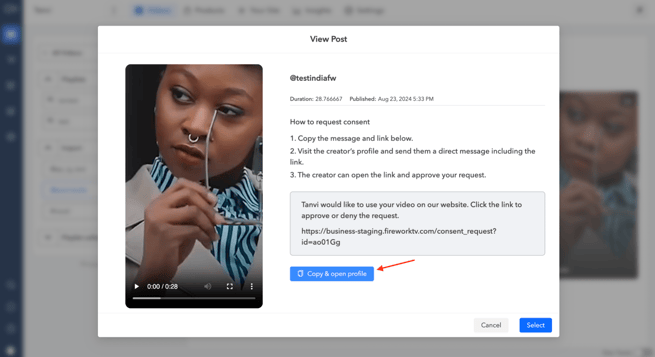
  2. You will see a customised message with the consent link. Click on Copy and open profile this will redirect you to the Creator's IG account where you can paste the message and send.
    [IMAGE: consent-man__002__consent1_8777ca.avif | src: https://cdn.prod.website-files.com/66a003afc59794bcf70c2b34/69d3d57d3dc9f0691178d759_consent-man__002__consent1_8777ca.avif | alt: consent1]
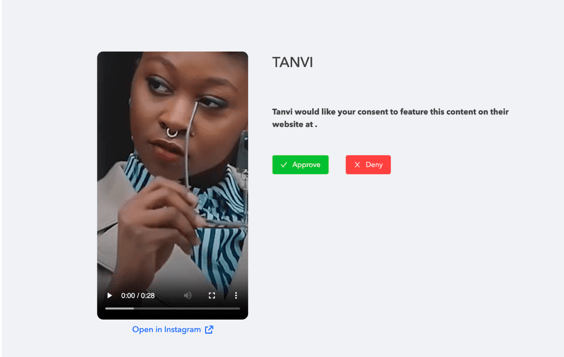
  3. The creator can then follow the link to either approve or deny the request.
    [IMAGE: consent-man__003__consent2_b882da.avif | src: https://cdn.prod.website-files.com/66a003afc59794bcf70c2b34/69d3d57e503963d7666b0d08_consent-man__003__consent2_b882da.avif | alt: consent2]
  4. The user can view all the videos for which they have requested consent, along with the current status of each request, which may be Approved, Pending, or Denied.

    [IMAGE: consent-man__004__consent3_cb0df9.avif | src: https://cdn.prod.website-files.com/66a003afc59794bcf70c2b34/69d3d57fa1461a6889e26b9e_consent-man__004__consent3_cb0df9.avif | alt: consent3]