Leveraging the Zapier and 1:1 Integration
Learn how to leverage Zapier to connect information between one to one virtual shopping and your other apps.


Before getting started, we wanted to showcase different use cases for Zapier and One to One.
Most popular platforms to connect to
- Klaviyo
- Mailchimp
CRM
- Salesforce
- Hubspot
What types of information should I gather from a One to One conversation?
- Name
- Chat history
- Agent notes
Information Use Cases:
- Klaviyo email automation: Send follow up emails after conversations happen or for those conversations that are missed.
- CRM system integration: Identify and update visitor information based on the conversation and agent notes.
Create a Zapier Flow to Collect User Names
In this example, we showcase the steps to set up a Zap to collect user name.
Step #1
Click + create to create a new Zap.

Step #2
Select the Firework app for the first node. Choose an event being a "Conversation Started" or "Conversation Ended".
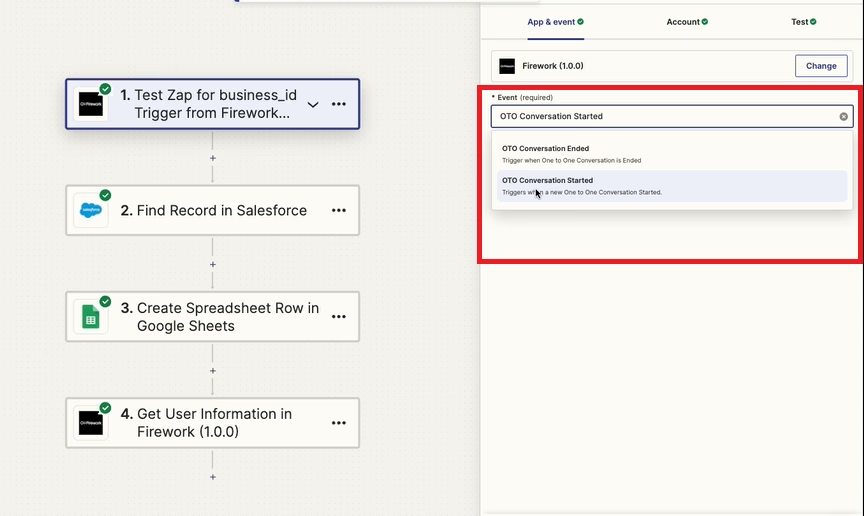
Step #3
Under Test, you can then set the result of the event, in this case receiving the email address of the customer. Be sure to save your changes.

Step #4
Next, connect your CRM in the next node. Complete your details needed to receive the email and share from a one to one conversation. Be sure to save your changes.

Step #5
Add a spreadsheet node to collect.
Step #6
Then we are sending the information back into your Firework One to One dashboard. Select Get User Information.

Step #7
Under Action, map these back to your CRM. Then save.

Create a Zapier Flow to Add Conversation Notes
Step #1
Setup a new Zap. Select Conversation Ended under the Firework app.

Step #2
For the second node, select your CRM and select Find Record to find the customer information.
Step #3
For the third node, choose create note. This will set the one to one chat summary to be sent to your CRM under that customer record.
