Creating a Playlist in the Business Portal
Learn how to create a playlist and add video content


Create a New Playlist
Step #1
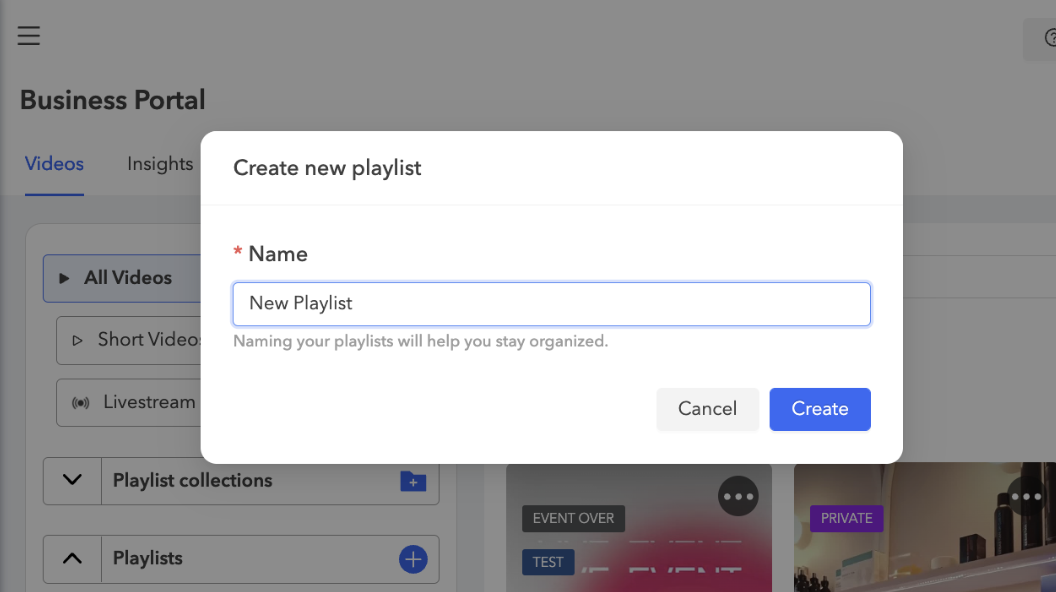
On the Videos tab, click the + icon next to Playlists.

Step #2
Enter a Name, and then click Create.
Step #3
Open the "Playlists" drop-down menu to view your newly created playlist.
Add Videos to a Playlist in Two Ways
Step #1
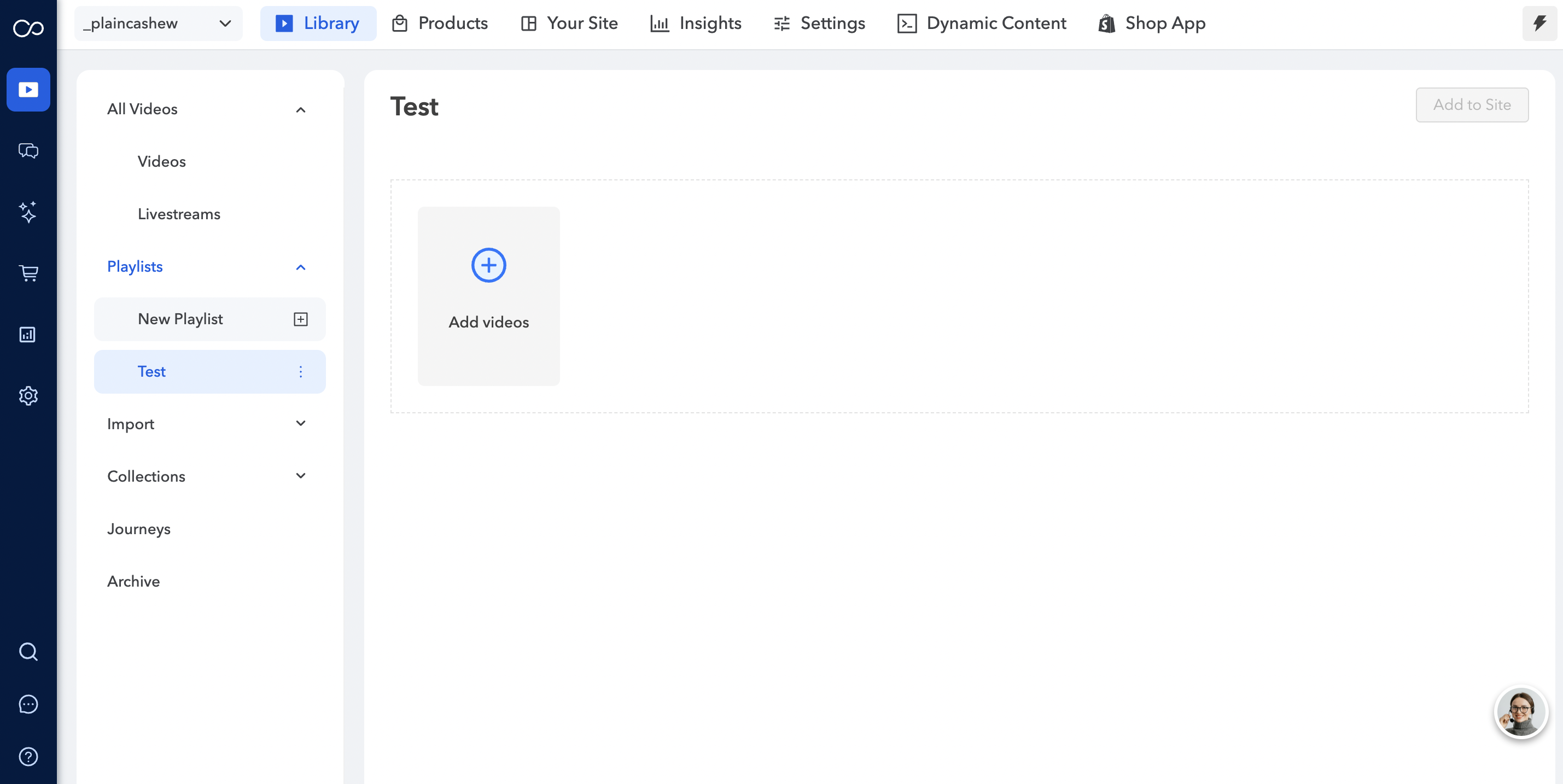
From the "videos" tab (playlists with no videos):
Choose the playlist, and then click Add videos.
Step #2
You can add videos from your channel to the newly created playlist. You can also easily search for a specific video using captions, hashtags, and the Video ID filter. Additionally, you can filter the videos based on their upload date.

Step #3
Click Add to Playlist | Save.
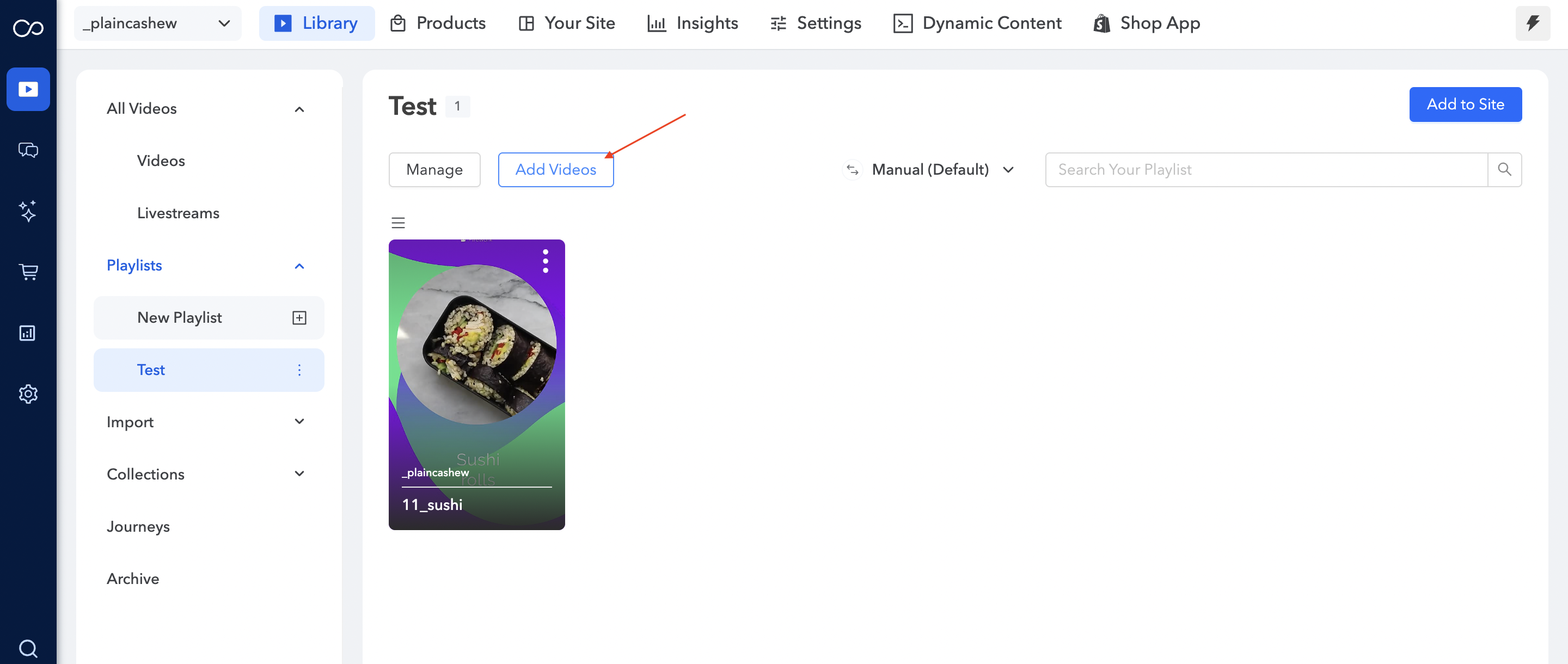
You'll see the videos you selected on the page for the playlist you just created. Here, you can re-order videos in the playlist by clicking, dragging, and dropping them in the order that you want them to appear.
Step #4
From the "Add Videos " button in a playlist:
Note:
There is no limit to how many videos you can include in a playlist.
📌 Pin Important Playlists to the Top
Users can pin key playlists within the portal, making them appear at the top of their playlist list for quick and easy access.

Note:
This is a front-end only change (pins only persist on the same computer/browser)
Pins are now available in the playlist list view. Click on a playlist to open the list view, then select the pin icon next to the playlist you want to pin.