How to setup AI Copilot
Learn how to use AI Co-Pilot to moderate your live events and respond to viewers in real-time!
If you do not see this enabled, please reach out to your account manager for assistance before continuing below.
Setting up the Knowledge for your AI Co-Pilot
- From the business portal, click into Settings. Navigate down to AI Knowledge Base.
[IMAGE: leverage-ai-co-pilot__001__Ai_co-pilot_ab0927.webp | src: https://cdn.prod.website-files.com/66a003afc59794bcf70c2b34/69cecc80398fc7760a32a5bb_leverage-ai-co-pilot__001__Ai_co-pilot_ab0927.webp | alt: Ai co-pilot] - Click on Upload and add PDFs or Text resources for your product's information. We recommend providing common Q&A, feature details, how to manuals, and other supporting resources to help the co-pilot answer inbound questions. You can upload a file size upto 100 MB.
[IMAGE: leverage-ai-co-pilot__002__setup_AI_Copilot1_fb69f9.webp | src: https://cdn.prod.website-files.com/66a003afc59794bcf70c2b34/69cecc81c7d346d0a530d3df_leverage-ai-co-pilot__002__setup_AI_Copilot1_fb69f9.webp | alt: setup AI Copilot1] - Add Products to your live event. AI CoPilot will extract information from the product descriptions to use in its response.
[IMAGE: leverage-ai-co-pilot__003__setup_AI_Copilot2_cd5f98.webp | src: https://cdn.prod.website-files.com/66a003afc59794bcf70c2b34/69cecc810e65921f91814255_leverage-ai-co-pilot__003__setup_AI_Copilot2_cd5f98.webp | alt: setup AI Copilot2]
Enabling the AI Co-pilot.
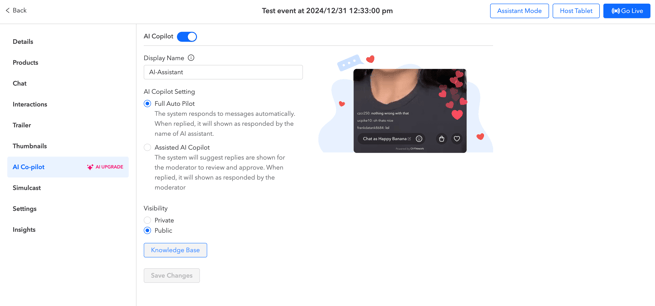
- After creating a livestream or showroom, from the edit details section select AI Co-Pilot. Be sure to toggle this "on" before going live.
[IMAGE: leverage-ai-co-pilot__004__setup_AI_Copilot3_05d173.webp | src: https://cdn.prod.website-files.com/66a003afc59794bcf70c2b34/69cecc821fc570f27e56b28f_leverage-ai-co-pilot__004__setup_AI_Copilot3_05d173.webp | alt: setup AI Copilot3] - Now, choose a Display Name for the AI Co-pilot. Please note that this display name is applicable only when using the Full Auto Pilot mode. In the Assisted AI Co-pilot mode, the moderator's username will be utilized instead.
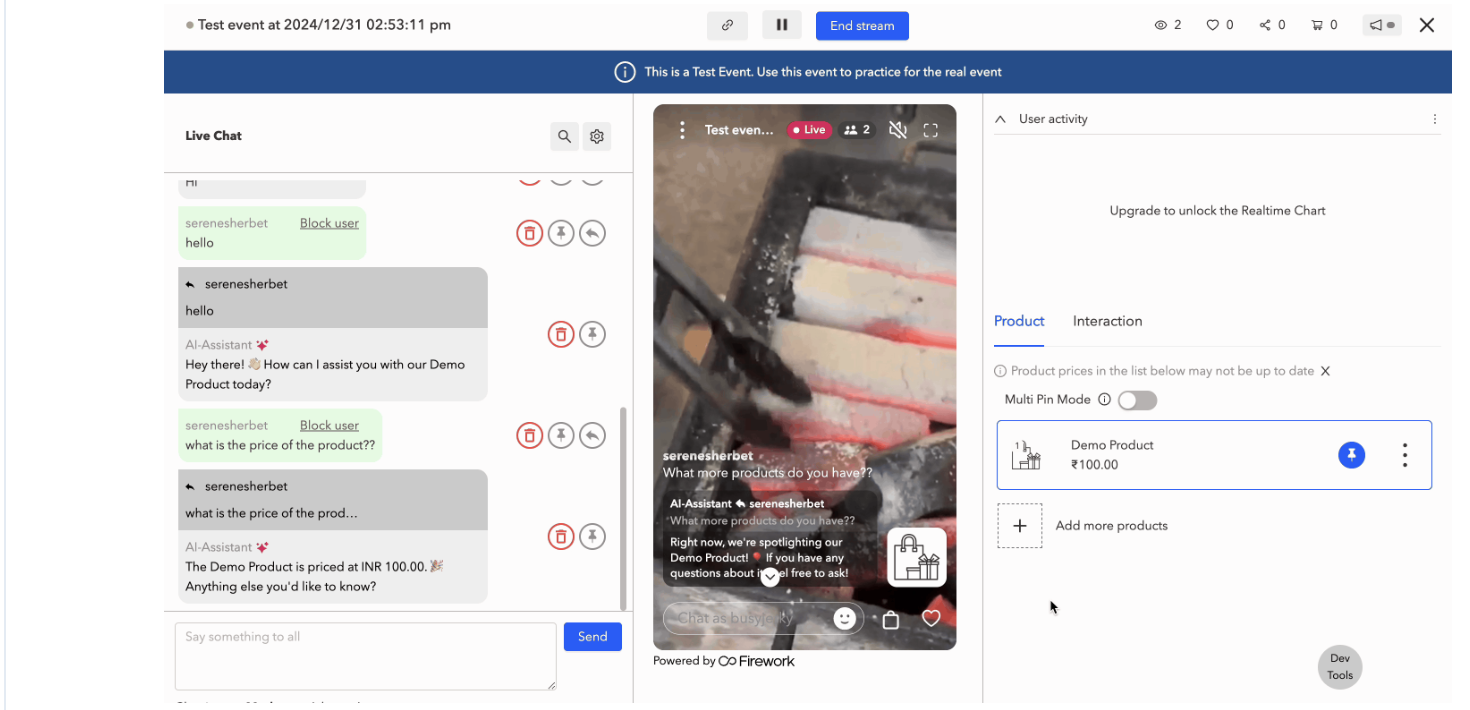
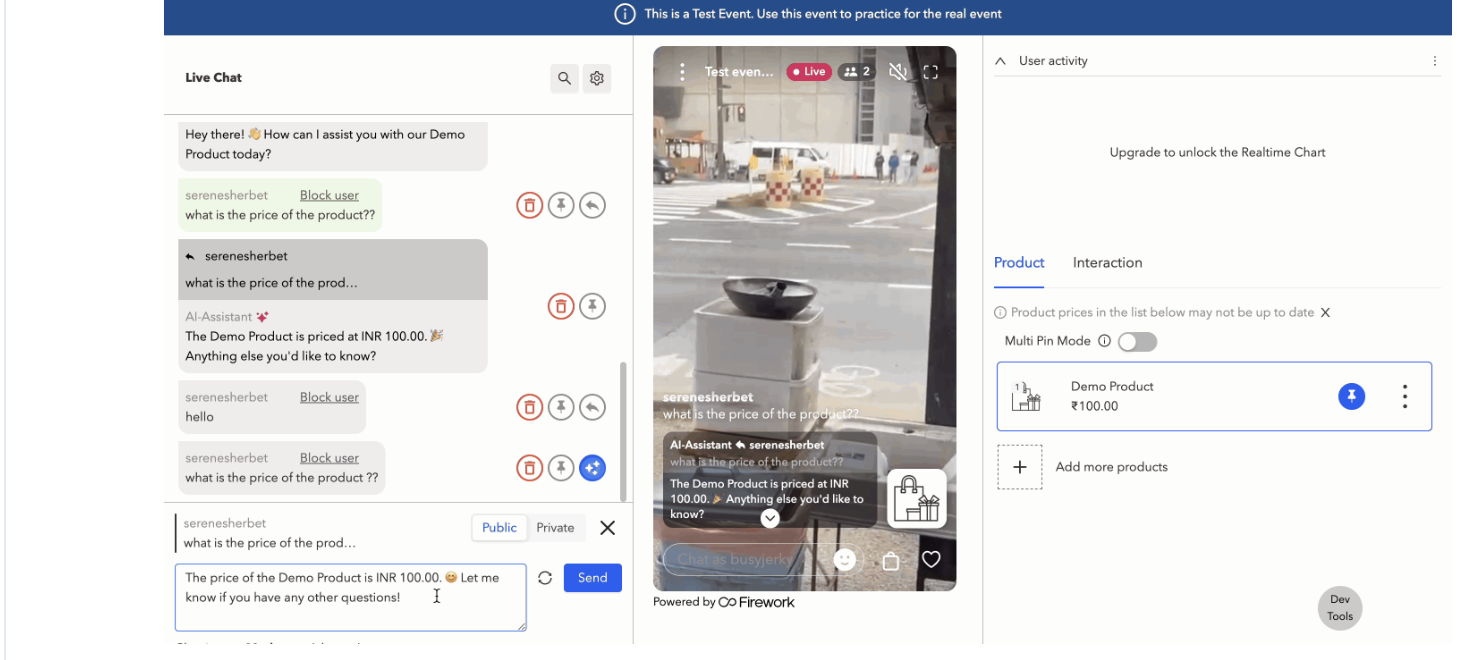
- AI Copilot Setting you can choose between the two models Full Auto Pilot or Assisted Ai copilot :
a) Full Auto Pilot - The system automatically replies to messages, and responses will be attributed to the AI assistant's name.
[IMAGE: leverage-ai-co-pilot__005__setup_AI_Copilot4_e83f34.gif | src: https://cdn.prod.website-files.com/66a003afc59794bcf70c2b34/69cecc83fdffd8be9ab92e0c_leverage-ai-co-pilot__005__setup_AI_Copilot4_e83f34.gif | alt: setup AI Copilot4]
Assisted AI Copilot - The system will display suggested replies for the moderator to review and approve. Once a response is provided, it will be attributed to the moderator. - [IMAGE: leverage-ai-co-pilot__006__setup_AI_Copilot5_58d5b8.gif | src: https://cdn.prod.website-files.com/66a003afc59794bcf70c2b34/69cecc84787a1d5bb07a38aa_leverage-ai-co-pilot__006__setup_AI_Copilot5_58d5b8.gif | alt: setup AI Copilot5]
- You can then set the response to public or private.
- You can also access the Knowledge Base from here if you need to upload additional resources. This will direct you to the Knowledge Base section within the Settings menu.
[IMAGE: leverage-ai-co-pilot__007__setup_AI_Copilot6_eca72a.webp | src: https://cdn.prod.website-files.com/66a003afc59794bcf70c2b34/69cecc8548523a2d4c93abe5_leverage-ai-co-pilot__007__setup_AI_Copilot6_eca72a.webp | alt: setup AI Copilot6]
- You can also access the Knowledge Base from here if you need to upload additional resources. This will direct you to the Knowledge Base section within the Settings menu.
- When ready click Save Changes. Broadcast your stream by clicking Go Live, then your AI Co-Pilot will handle the rest.
Notes:
- AI Co-Pilot can be enabled for a replay as well.
Enabling the AI Co-pilot (After Livestream has went Live):
- Click on a previous Live Stream in the calendar.
- Click on “AI Co-Pilot” and enable it.
[IMAGE: leverage-ai-co-pilot__008__setup_AI_Copilot7_faa585.avif | src: https://cdn.prod.website-files.com/66a003afc59794bcf70c2b34/69d3d4381316b9dda7c0dc9b_leverage-ai-co-pilot__008__setup_AI_Copilot7_faa585.avif | alt: setup AI Copilot7]
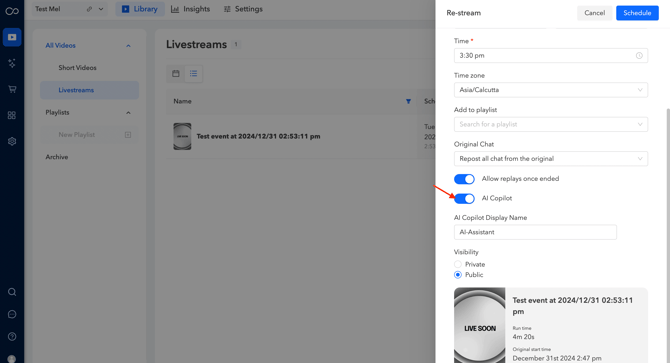
Enabling the AI Co-pilot for Re-Stream:
- Create a re-stream then enable “AI Co-Pilot”
[IMAGE: leverage-ai-co-pilot__009__setup_AI_Copilot8_c52803.webp | src: https://cdn.prod.website-files.com/66a003afc59794bcf70c2b34/69cecc869e22f44fc9089d2d_leverage-ai-co-pilot__009__setup_AI_Copilot8_c52803.webp | alt: setup AI Copilot8]
Knowledge Base Resources:
- Upload files with product level information/specs:
- Product Specifications (website info, user manual, etc)
- Accepted Formats (Text): pdf, txt, docx
- Conversation history (Q&A, FAQ, script from customers, engagement chats)
- Accepted Formats (Text): pdf, txt, docx
- Warranty, care and maintenance, shipping etc
- Accepted Formats (Text): pdf, txt, docx
- Product Specifications (website info, user manual, etc)
New update
- You can also include a disclaimer by enabling the AI Co-Pilot Disclaimer option.
- After hosting a livestream event, you can access insights related to the AI Copilot interactions to understand customer engagement.