One-to-One Customizable Offline Widget Content
Learn how to customize offline widget content and visibility


Set Customizable Offline Widget Content
Step #1
From your One to One Workspace, navigate to Settings.
Step #2
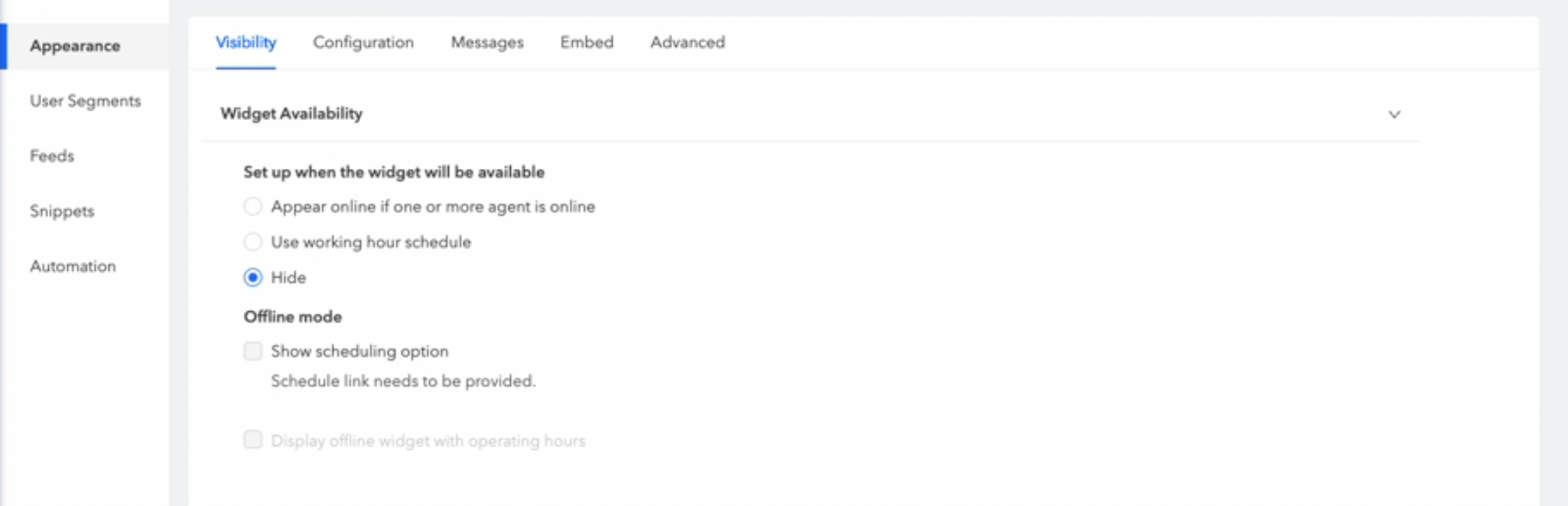
In the Visibility section, choose the show scheduling option in offline mode.
The option will only be available if scheduling has been configured.

Step #3
To display the scheduled working hours during offline mode, navigate to the Widget Availability section and click on Use Working Hour Schedule. From there, select the appropriate timezone, date, and time. Next, under Offline Mode, select the Show Scheduling option and display offline widget with operating hours. Once you have made your selections, be sure to click Save to apply the changes.

Step #4
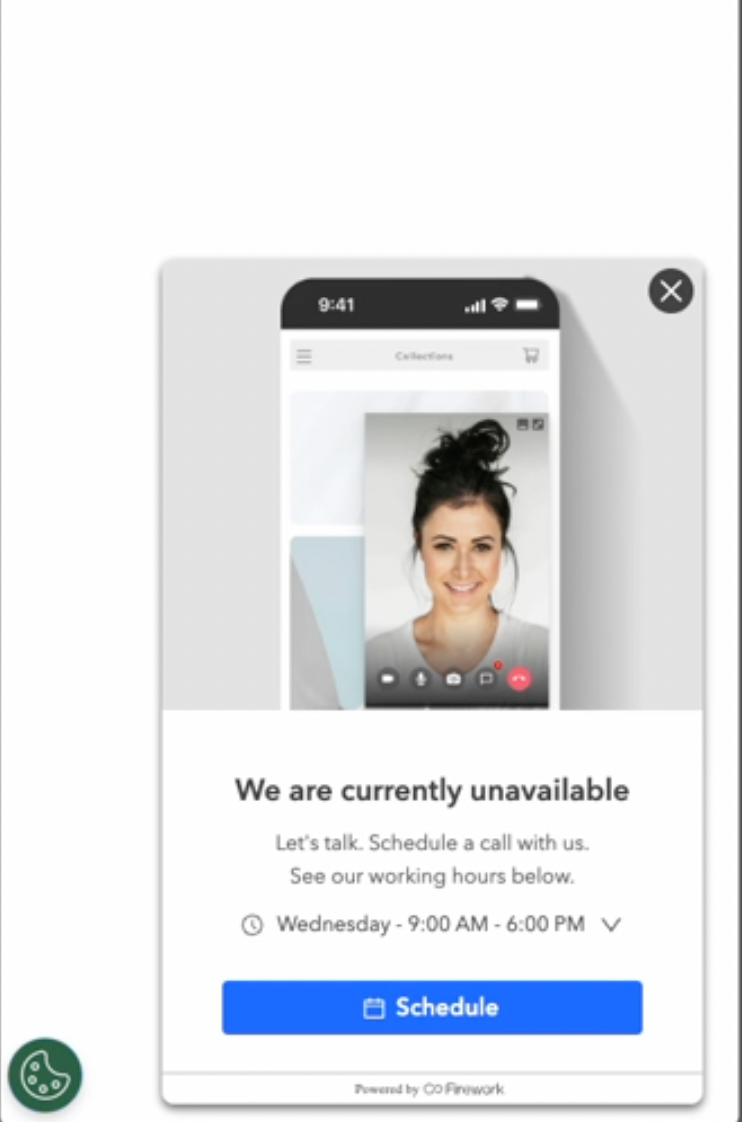
This will show your working hours along with the option to schedule appointments when offline.
Step #5
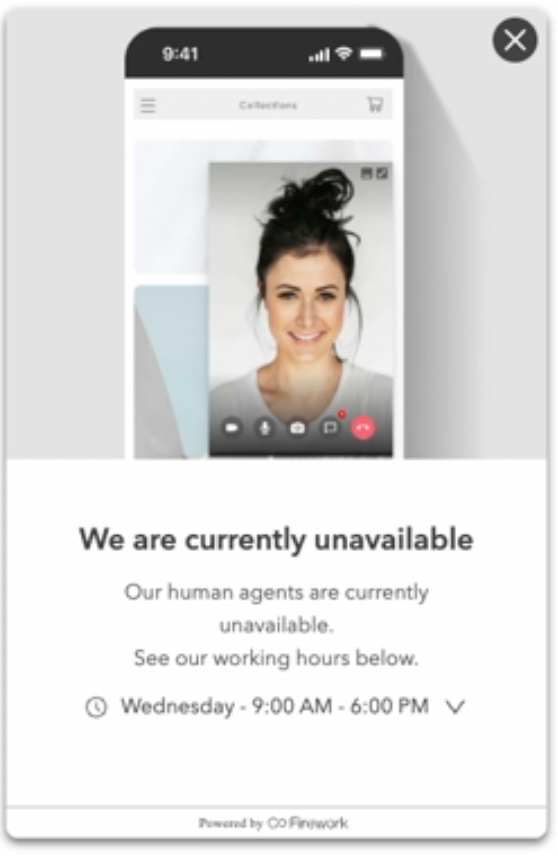
The option to display the offline widget with operating hours is only selectable if your working hours have been configured. If the scheduling option is not enabled, you will only be able to view your working hours, and the ability to schedule appointments will not be accessible.
Step #6
If no options are selected, the widget will not display any content. Choosing the Hide option in the Widget Availability section will completely remove the widget from view.