Add One-to-One Customizable Waitlist Message
Learn how to set your own message when a visitor enters the waitlist queue.
Last updated:
August 20, 2025


Set Customizable Waitlist Message
Step #1
From your One to One Workspace, navigate to Settings.
Step #2
Under Appearance, select Messages.
Step #3
Now, you have the option to include a personalized message. This message will be displayed for a visitor waiting in the waitlist queue.
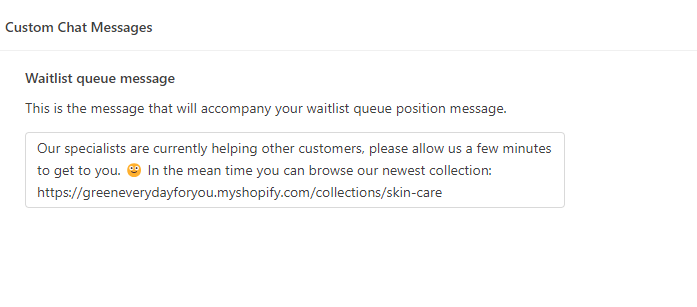
Step #4
Click on Save once completed
Notes:
- The message displaying your queue position will remain the same. Only the message preceding it can be personalized.
- Only the admin can edit this in your dashboard.
- Additionally, you can also include emojis and links in the personalized message for the waitlist update.