- Navigate to the Firework Business Portal and create a livestream
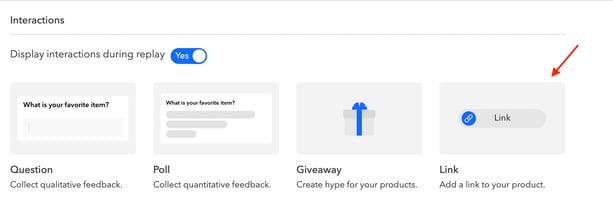
- On the event detail page, go to the Interactions Tab and select Link. [IMAGE: how-to-add-link-interactions-for-your-livestream-e__001__add_Link_Interactions_5b37ee.webp | src: https://cdn.prod.website-files.com/66a003afc59794bcf70c2b34/69cecdb6fdffd8be9ab9f4fc_how-to-add-link-interactions-for-your-livestream-e__001__add_Link_Interactions_5b37ee.webp | alt: add Link Interactions]
- Add a title and URL for the link, then click Save.
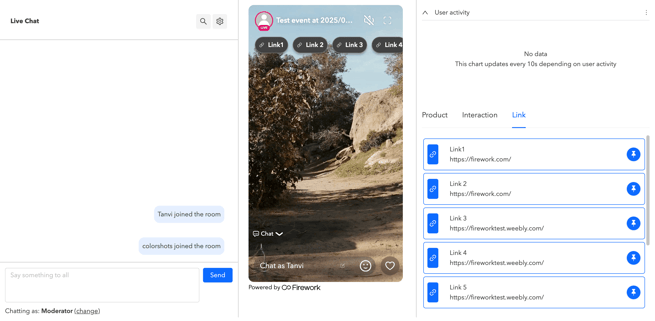
- Once the event is live, you can easily pin or unpin the links directly from the Link section in assistant mode. Additionally, you have the option to set up a link while in the assistant mode. You can pin upto 5 links at a time.
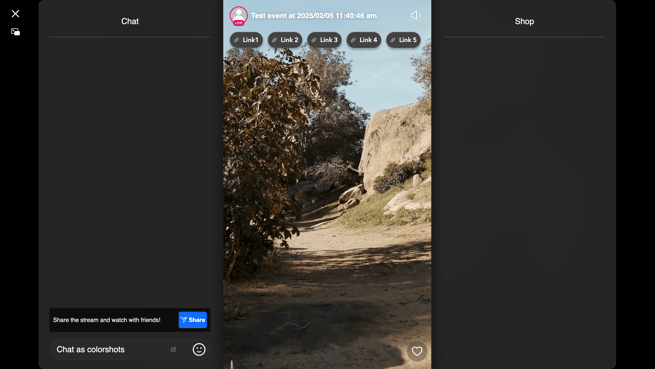
[IMAGE: how-to-add-link-interactions-for-your-livestream-e__002__add_Link_Interactions1_716408.webp | src: https://cdn.prod.website-files.com/66a003afc59794bcf70c2b34/69cecdb7fdffd8be9ab9f59a_how-to-add-link-interactions-for-your-livestream-e__002__add_Link_Interactions1_716408.webp | alt: add Link Interactions1] - The link will appear as a clickable button at the top of the player and will be displayed in a scrollable carousel format.
[IMAGE: how-to-add-link-interactions-for-your-livestream-e__003__add_Link_Interactions2_9072ad.webp | src: https://cdn.prod.website-files.com/66a003afc59794bcf70c2b34/69cecdb8398fc7760a335fdd_how-to-add-link-interactions-for-your-livestream-e__003__add_Link_Interactions2_9072ad.webp | alt: add Link Interactions2] - When the link is clicked, it will open in a new browser tab.
- Links can be pinned alongside giveaways (which will always occupy the first position), as well as products or interactions.[IMAGE: how-to-add-link-interactions-for-your-livestream-e__004__add_Link_Interactions3_f76dc5.gif | src: https://cdn.prod.website-files.com/66a003afc59794bcf70c2b34/69cecdb97a4931260d8a3992_how-to-add-link-interactions-for-your-livestream-e__004__add_Link_Interactions3_f76dc5.gif | alt: add Link Interactions3]