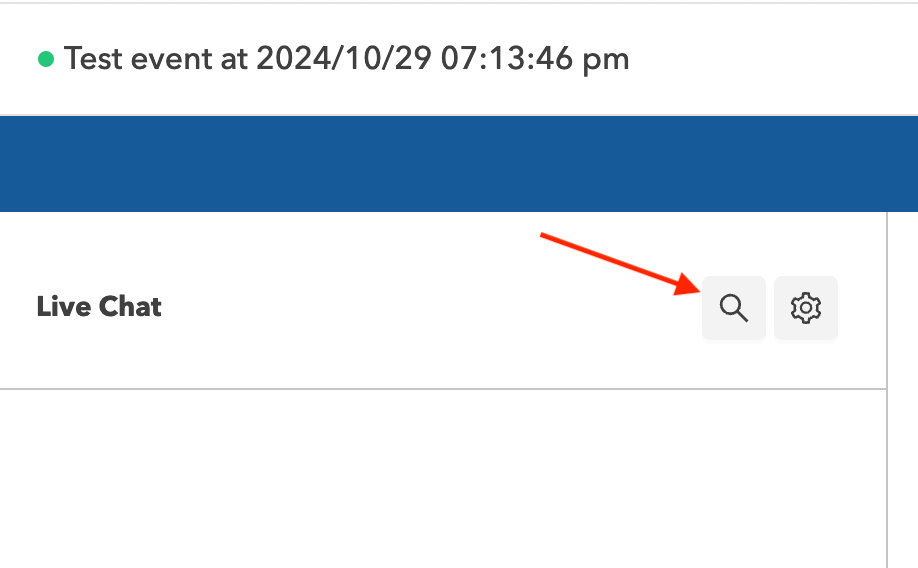
Mode assistant de diffusion en direct


Assistant Mode lets you moderate chat, manage products and interactions and monitor user engagement during a livestream. You can access Assistant Mode from the Livestream Detail page in the Business Portal by selecting Assistant Mode.

Now that you've launched Assistant Mode, let's talk about how to use it!
Manage Activity Panel
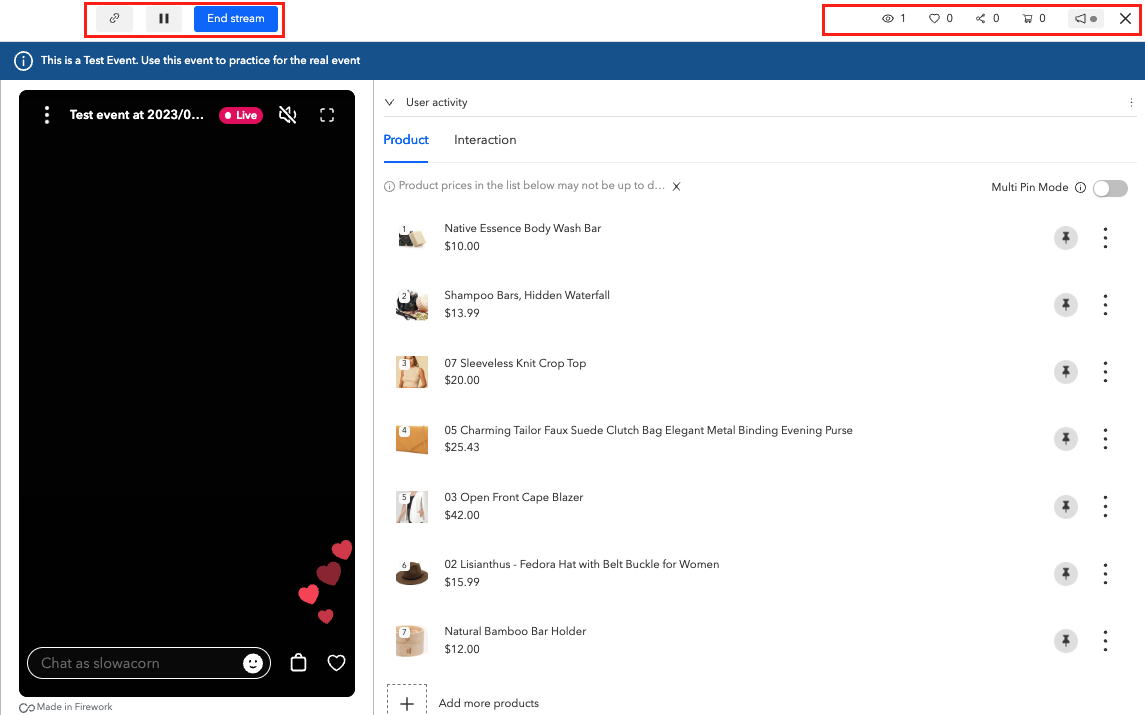
Think of this feature as your control center. Start, pause, and end your stream to the left and keep tabs on your user engagement to the right.
To the left:
- Select the link button to share the event.

- Select the pause button to pause the event at any time. Pausing the event for 5 minutes will automatically end the stream.

- Select "End stream" to end the event at any time.

To the right:
- Hover over the "watch" icon to see active viewers on the stream.

- Hover over the "heart" icon to see how many viewers have liked the event.

- Hover over the "share" icon to see how many viewers have shared the event.

- Hover over the "cart" icon to view the added to cart count.

- Select the "announcement" icon to include a Running Announcement at the top of the event.

- Select Save to launch the announcement.
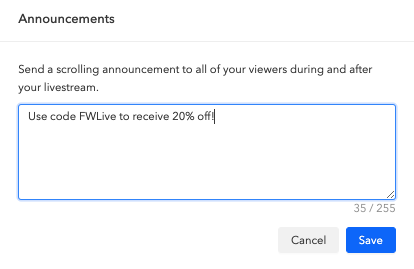
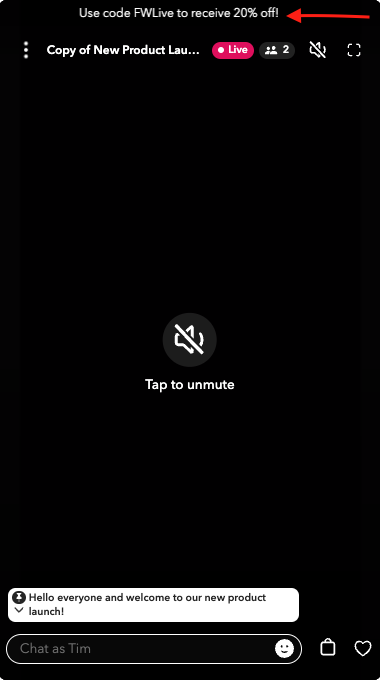
- The Announcement will run across the screen until it is removed in Assistant Mode. Remove it by deleting the text.
Moderate the Chat
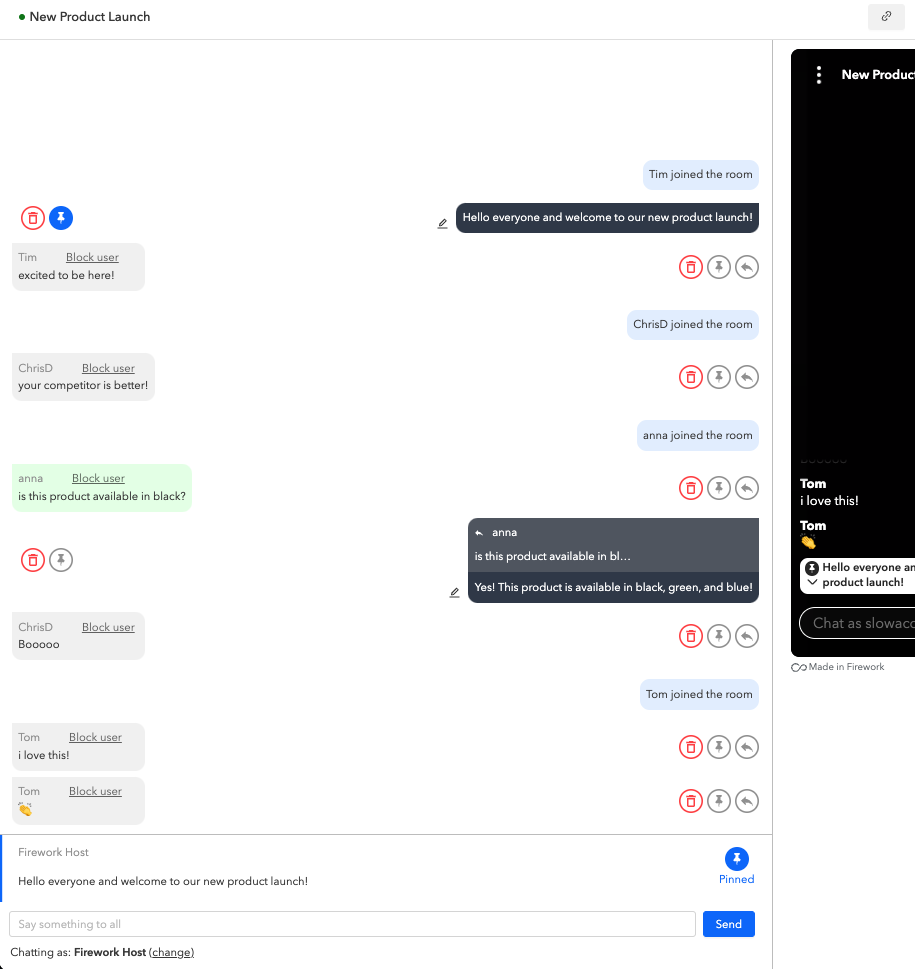
The live chat will appear on the left side of Assistant Mode where the moderator can change their name, respond, pin, delete messages, and block users.
- Select the "delete" icon to delete messages from the audience view.

- Select the "pin" icon to pin messages on the stream.

- Select the "reply" icon to respond to messages privately to the viewer who asked the question, or publicly for all viewers to see.

- Select the "Block user" button to block an audience member from the stream. Blocked users will no longer be allowed to participate in this particular stream (Note: they can view future streams).

Manage Products
The products that you added before the event will appear on the right side of the screen. During the event, you can pin, add, remove, and mark products as sold out.
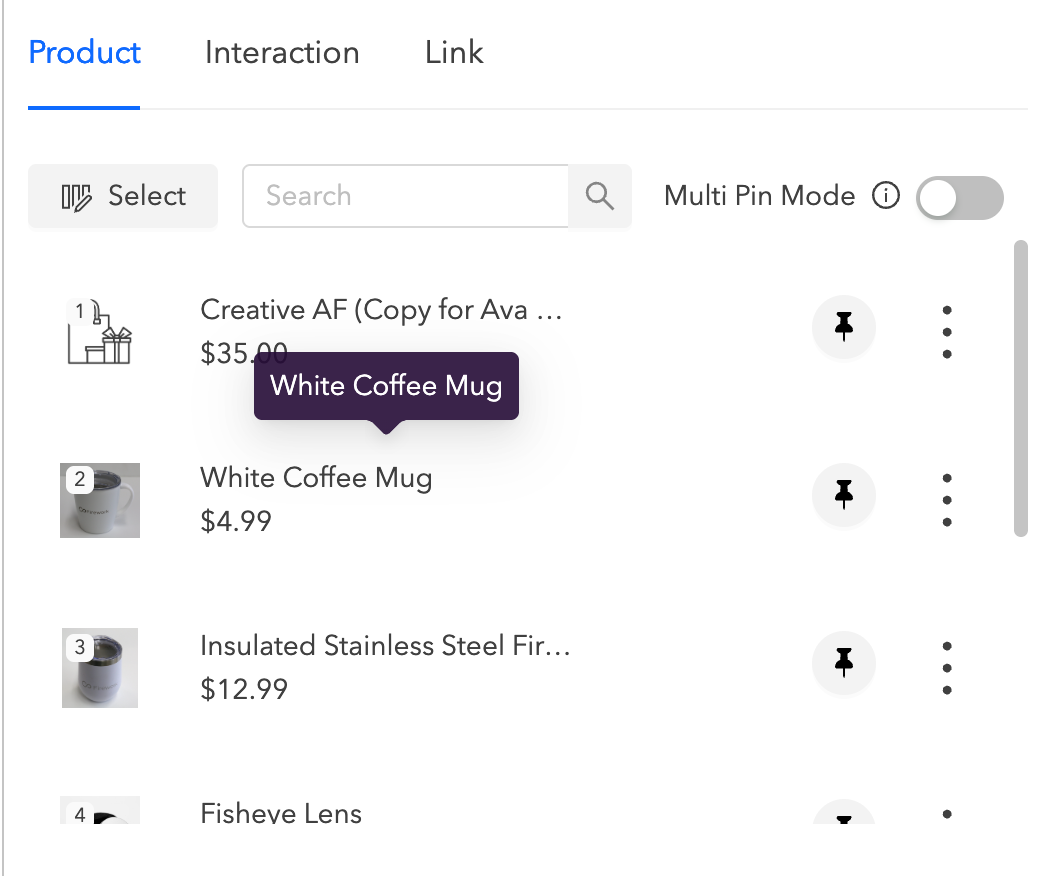
- Select the "pin" icon to pin that product on the stream.
- Select the "options" icon to Mark as Sold Out.

- Toggle On "Multi Pin Mode" to pin up to 3 products on your event.

- Select "Add more products" to add more products from your store.
Quick-Sort & Filter:
- Organize your product list instantly to keep the livestream flowing smoothly.
Bulk Actions & Multi-Select:
- Select multiple products and apply bulk actions:
- Send to Top – Move the selected products to the top of the list so they appear first to viewers.
- Send to Bottom – Push selected products to the bottom of the list to deprioritize them.
- Mark as Sold Out – Instantly update the status of selected products to Sold Out.
- Access these options from the More Actions menu.

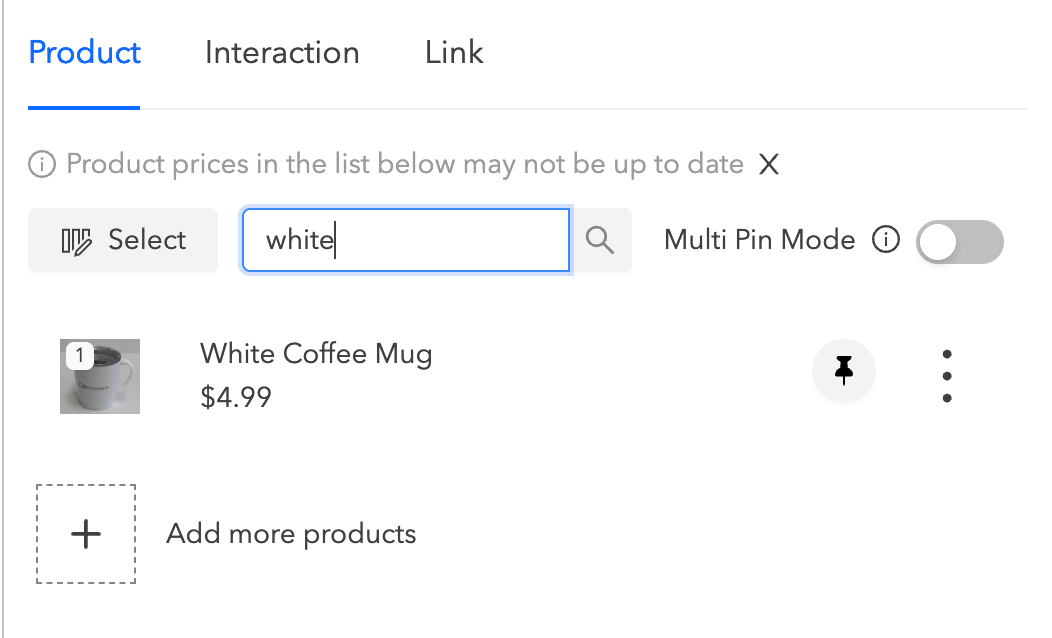
Search Attached Products:
- Use the search bar to quickly find and manage specific products already attached to the livestream.
Launch Interactions
The interactions that you added prior to the start of your event, will be ready for use once you go live. Pin a question or launch an poll to increase engagement with your viewers.
Note: Interactions must be added to your event prior to going live.
- Select the Interaction tab to pin questions or launch polls during your event.
- As a Moderator, you will see the number of responses to questions and poll results in realtime.
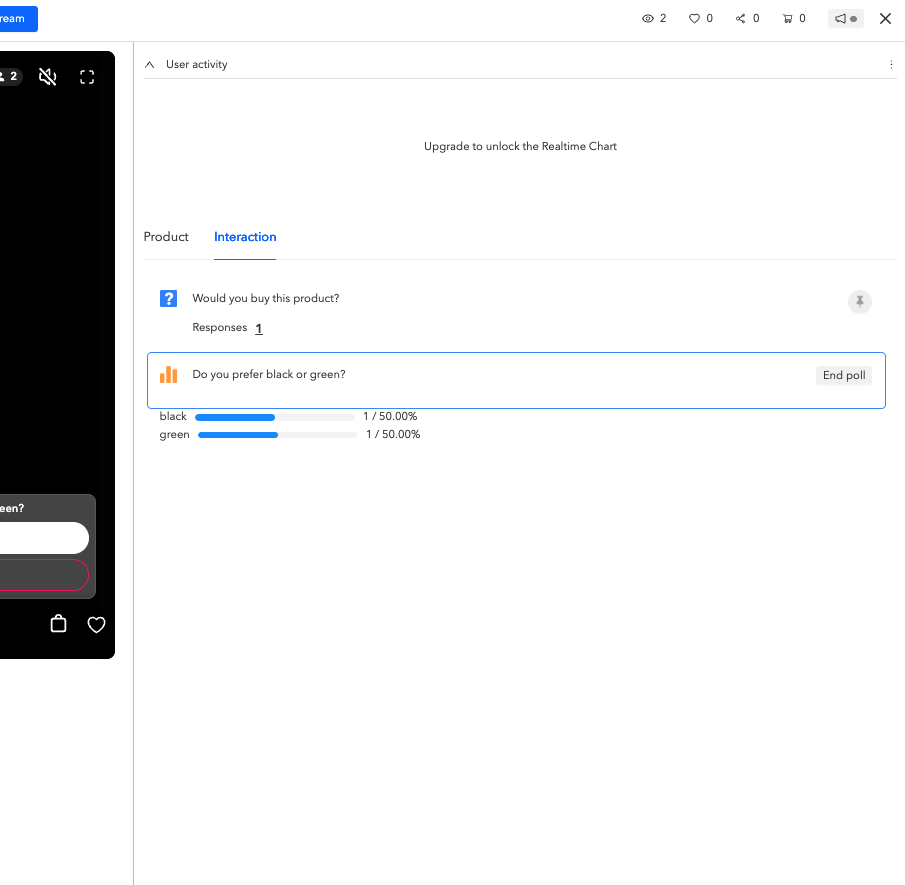
- Select the "pin" icon to remove the Question from the stream.

- Select "End poll" to end the poll.

Live chat
You can search for a specific term within the livestream using the search bar and also learn how to limit the incoming chat in a livestream using the settings - link