Comment configurer un événement Livestream
Découvrez comment créer un nouvel événement


Configurer un événement en direct
Étape 1
Accédez au portail Business, cliquez sur Ajouter des vidéos et sélectionnez Créer un événement en direct.

Étape 2
Sélectionnez le mode d'événement et saisissez le titre, la date, l'heure et le fuseau horaire de votre événement en direct. Vous avez également la possibilité d'ajouter la vidéo directement à une playlist.

Étape 3
Choisissez l'affichage Orientation de votre vidéo en direct en fonction de la manière dont vous souhaitez qu'elle apparaisse pendant l'événement. Sélectionnez vertical ou horizontal
Étape 4
Sélectionnez la Source média pour l'événement en direct. Utilisez une source externe plutôt que l'application Firework Camera si vous avez l'intention de filmer votre événement en direct à l'aide d'une application/d'un équipement tiers. Vous pouvez également sélectionner l'actif média si vous souhaitez diffuser votre vidéo préenregistrée pour les diffusions en direct. Sélectionnez la vidéo que vous souhaitez utiliser pour votre événement et téléchargez-la en cliquant sur le bouton "Choisir une vidéo". Cliquez sur Créer une fois terminé
Étape #5
Pour les ressources multimédias, vous pouvez sélectionner le type de démarrage pour un lancement manuel, cliquez sur le bouton Go Live en haut à droite de l'écran pour démarrer le flux. Si vous sélectionnez le démarrage automatique, le flux commencera automatiquement à l'heure prévue.

Étape #6
Sur la page de détails de l'événement, vous pouvez ajouter une description et une bannière d'annonce. Vous avez également la possibilité de modifier la date et l'heure en cliquant sur l'icône de modification à côté de l'heure, puis en cliquant sur Mettre à jour pour enregistrer les modifications. Une fois que vous avez terminé, cliquez sur Enregistrer les modifications.

Étape #7
Ensuite, cliquez sur le Produit onglet sur le côté gauche pour ajouter des produits à votre livestream. Sélectionnez le magasin et ajoutez les produits que vous souhaitez présenter pendant l'événement. Pour des conseils plus détaillés sur la configuration d'un magasin, veuillez vous référer à cet article.
Étape #8
Sous la section Chat , vous pouvez personnaliser les paramètres du chat en les activant ou en les désactivant.
Si vous souhaitez que les spectateurs puissent discuter pendant la bande-annonce, activez l'option Autoriser la publication de messages dans le chat pendant la bande-annonce.
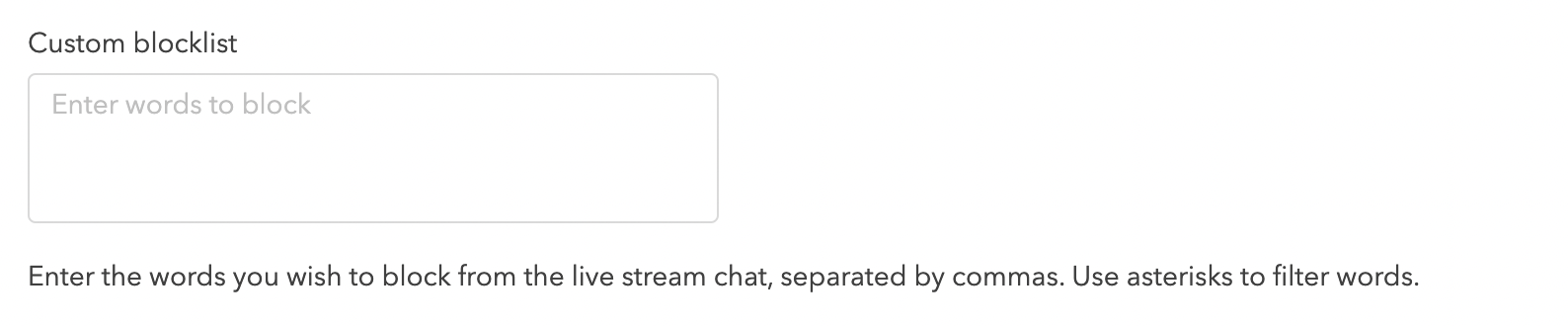
Liste de blocage personnalisée
Vous pouvez saisir des mots ou des expressions spécifiques que vous souhaitez bloquer afin qu'ils n'apparaissent pas dans le chat pendant votre diffusion en direct. N'oubliez pas de cliquer sur Enregistrer les modifications une fois que vous avez effectué vos ajustements.
Vous pouvez également masquer les messages de chat inappropriés. Lorsque la modération est déclenchée, les modérateurs peuvent choisir de supprimer complètement ces messages du chat au lieu de les afficher avec un contenu censuré.
Pour activer : allez dans Paramètres de la chaîne → Paramètres du livestream → activez Masquer les commentaires contenant des mots censurés.

Vous pouvez également configurer les paramètres du chat séparément pour l'événement en direct et la rediffusion.
Vous pouvez également établir des mots bloqués au niveau de la chaîne pour votre livestream. Pour des instructions détaillées sur la façon de procéder, veuillez vous référer à l'article lié. Lien
Interactions
Vous avez la possibilité d'inclure diverses interactions pour votre événement et de les épingler pendant le livestream.
Carte de question
Saisissez une question que vous souhaitez poser aux spectateurs et recueillez leurs réponses. Vous pouvez également activer le bouton « Collecter l'e-mail du répondant » pour inviter le spectateur à saisir son adresse e-mail après avoir répondu à votre question.
Sondage
Saisissez la question du sondage dans le Votre question ici champ, puis saisissez les choix de réponse dans chaque champ « Choix » (par exemple, Choix 1, Choix 2). Cliquez sur +Ajouter un choix pour ajouter jusqu'à cinq choix au total.
Configurez le Cadeau en lui donnant un Nom, Description, et en ajoutant un lien vers le Conditions Générales (le cas échéant). Sélectionnez Enregistrer. Toutes les interactions ajoutées seront affichées ici

Lien (Bêta)
Permettez aux spectateurs d'accéder facilement à des ressources importantes pendant le livestream sans avoir besoin de messages de chat répétitifs. Pour des instructions détaillées sur la configuration, cliquez ici : Lien.
Jeu-concours (Bêta)
Découvrez comment configurer les interactions de jeu-concours pour le livestream Lien
Bandes-annonces
Utilisez une bande-annonce pour offrir à votre public un aperçu de votre prochain livestream. Cette bande-annonce sera diffusée avant le début de l'événement en direct et avant que les spectateurs n'entrent dans le flux. Vous avez la possibilité de télécharger une nouvelle vidéo ou de choisir parmi des vidéos courtes existantes pour créer un aperçu attrayant.

Vous pouvez également sélectionner l'option de superposition de bande-annonce pour personnaliser la bande-annonce de votre événement avec un rappel par e-mail, un bouton ou une fiche produit pour votre événement en direct.
- Rappel par e-mail : Les acheteurs peuvent saisir leur adresse e-mail et demander des rappels avant l'événement.
- Fiche produit : Si vous avez une boutique liée à votre compte Firework, vous pouvez inclure les informations produit ici dans la bande-annonce de l'événement en direct (voir Importer des produits de votre OMS vers votre compte Firework). Sélectionnez votre boutique dans le menu déroulant Boutique , sélectionnez le ou les produits que vous souhaitez ajouter en cochant la case à côté du ou des produits, puis cliquez sur Ajouter.
- Bouton : Le CTA, ou appel à l'action, est un bouton qui invite les utilisateurs à cliquer dessus. En saisissant un lien dans le champ RSVP, les utilisateurs pourront cliquer dessus et confirmer leur présence à l'événement en direct.
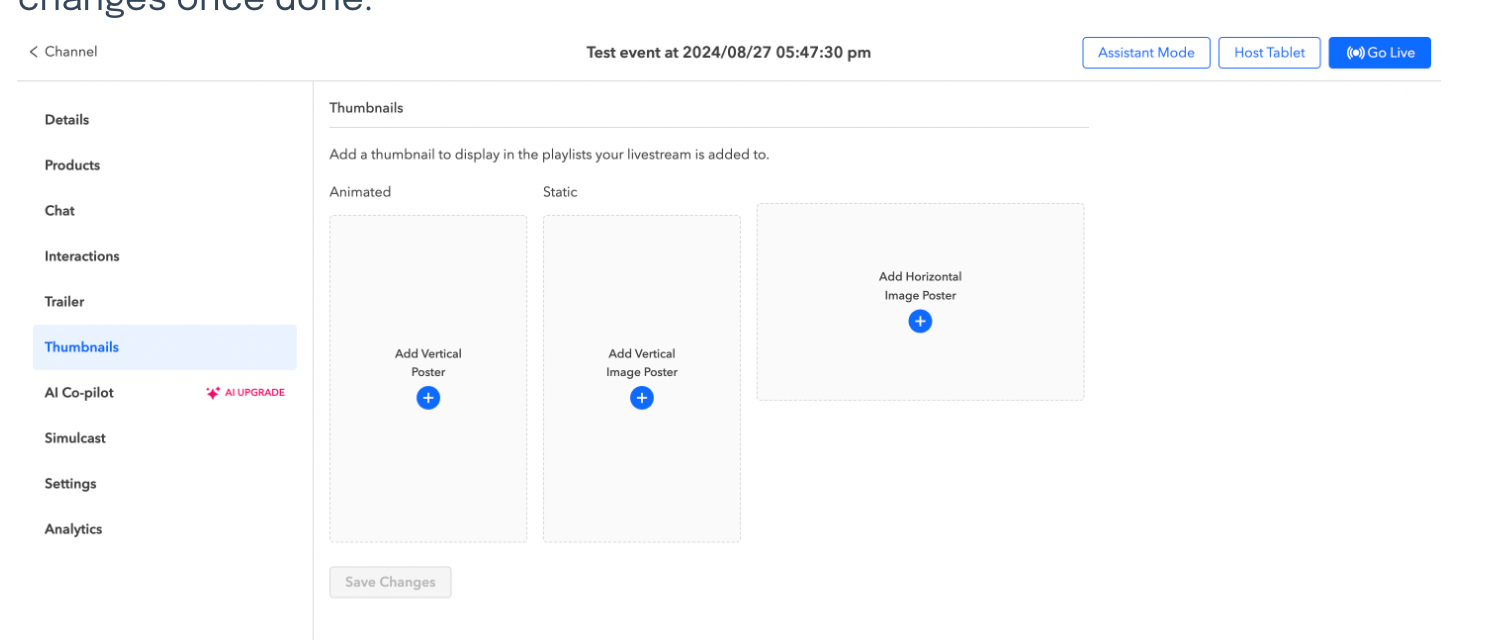
Miniatures
Vous pouvez télécharger une photo personnalisée – au format 9x16 pour le format vertical ou 16:9 pour le format horizontal – qui servira de miniature pour votre vidéo d'événement en direct. Un poster animé peut être choisi à partir de la bande-annonce du livestream. Sinon, Firework propose un poster par défaut qui apparaîtra comme votre miniature. Cliquez sur Enregistrer les modifications une fois terminé.
Assistant Digital AI
Activez cette option si vous souhaitez utiliser un Assistant Digital AI pour modérer vos événements en direct et interagir avec les spectateurs en temps réel. Voici le guide étape par étape pour configurer Assistant Digital AI
Diffusion simultanée
Élargissez la portée de votre événement en le diffusant simultanément sur plusieurs plateformes sociales. Les liens inclus peuvent vous aider à configurer Multi-stream
- Diffusion simultanée en direct sur Youtube
- Diffusion simultanée en direct sur Facebook
- Diffusion en direct sur Instagram et diffusion simultanée
- Diffusion simultanée en direct de Tiktok
- Diffusion simultanée en direct sur Twitch
- Diffusion simultanée sur Amazon en direct
En dessous Onglet Paramètres vous pouvez saisir le URL principale pour le livestream. Il s'agit de la page sur laquelle vous allez intégrer l'événement Livestream.
Si d'autres sites Web ajoutent ce flux à leur chaîne, cette URL redirigera tous les utilisateurs qui cliquent sur l'affiche vers l'URL incluse. Cela garantit que vos analyses seront consolidées et que tous les produits seront achetés dans votre boutique.
Hashtags
Entrez les hashtags que vous souhaitez associer à votre vidéo. N'oubliez pas que les hashtags sont des balises méta qui sont ajoutées aux vidéos pour les regrouper en campagnes, sujets ou rapports. Vous pouvez ajouter jusqu'à 150 hashtags
Archivage automatique
Les vidéos archivées seront masquées dans le lecteur mais ne seront pas supprimées de la playlist. L'archivage a lieu à 00h01 à la date que vous avez sélectionnée. Pour plus d'informations sur cette fonctionnalité, veuillez consulter cette page - Lien
écran
Réglez les paramètres d'affichage en l'activant ou en le désactivant. Enregistrer les modifications une fois terminées

Replay à la fin de la diffusion en direct
Lorsque cette option est activée, les spectateurs peuvent immédiatement rejouer la diffusion en direct une fois celle-ci terminée.
Afficher le nombre de spectateurs
Affiche le nombre total de spectateurs qui regardent actuellement la diffusion en direct. Ce numéro est mis à jour en temps réel.
Afficher le nombre de likes
Lorsque l'option « Afficher le nombre de likes » est activée dans le CMS pour une diffusion en direct, le lecteur vidéo affiche le nombre total de likes que le livestream a reçus, mettant à jour ce compte en temps réel.
Afficher la transcription en direct
Permet des sous-titres en temps réel pendant la diffusion en direct, améliorant ainsi l'accessibilité pour les spectateurs.
Perspectives
Vous pouvez consulter les analyses de la diffusion en direct sous l'onglet Insights. Cliquez sur Go live
Tablette hôte
Accédez au mode Assistant et Tablette hôte en cliquant sur les onglets en haut à droite de l'écran.
Voir les co-hôtes
Vous pouvez envoyer une invitation par e-mail à vos co-hôtes de diffusion en direct, leur permettant de démarrer la diffusion en direct directement depuis leur navigateur sans avoir besoin de créer un compte.
Horaires des diffusions en direct
Pour voir toutes les diffusions en direct à venir, cliquez simplement sur l'onglet « Événements en direct » situé sur le côté gauche de l'écran. L'événement que vous venez de créer apparaîtra sur votre calendrier, ce qui vous permettra de suivre et de gérer facilement votre diffusion en direct et les diffusions programmées. Cliquez dessus pour ouvrir la page détaillée de l'événement.
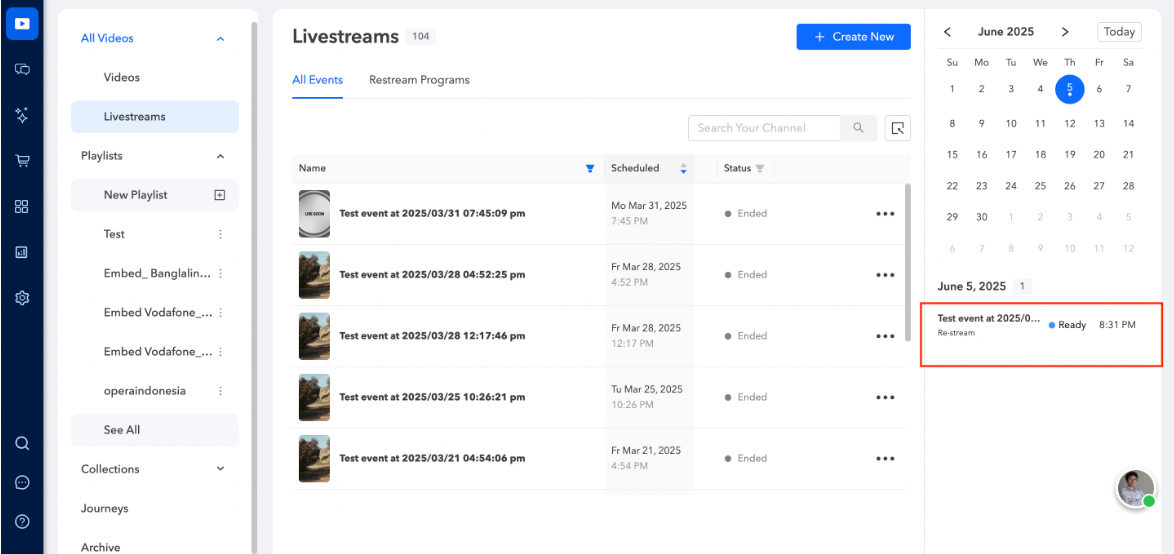
Consultez l'état des événements en les sélectionnant dans la liste des événements à venir, en cours ou déjà terminés et accédez directement au mode Assistant en cliquant simplement dessus.

Planificateur de diffusion intelligent
Utilisez le Planificateur de diffusion intelligent pour programmer facilement la diffusion de votre contenu vidéo existant. Automatisez le processus, sélectionnez plusieurs diffusions en direct originales, définissez des plages horaires et configurez les options AI Copilot pour améliorer l'engagement du public.
Vous ne pouvez ajouter une diffusion simultanée que cinq minutes avant le début de l'événement en direct