ライブストリームイベントの設定方法
新しいライブストリームイベントの作成方法をご紹介します


ライブストリームイベントを設定する
ステップ1
ビジネスポータルに移動し、「動画を追加」をクリックして「ライブストリームイベントを作成」を選択します。

ステップ2
イベントモードを選択し、ライブストリームイベントのタイトル、日付、時刻、タイムゾーンを入力します。また、動画を直接プレイリストに追加することもできます。

ステップ3
ライブストリーム動画をイベント中にどのように表示させたいかに応じて、表示の「向き」(縦向きまたは横向き)を選択します。
ステップ4
ライブストリームイベントの「メディアソース」を選択します。サードパーティのアプリケーションや機材を使って撮影する場合は、Fireworkカメラアプリの代わりに「外部ソース」を使用してください。事前に録画した動画を再生したい場合は、「メディアアセット」を選択することもできます。イベントで使用したい動画を選択し、「動画を選択」ボタンをクリックしてアップロードします。完了したら「作成」をクリックします。
ステップ5
メディアアセットの場合、開始タイプで「手動開始」を選択すると、画面右上の「ライブ開始」ボタンをクリックしてストリームを開始できます。「自動開始」を選択した場合は、ストリームがスケジュールされた時間に自動的に開始されます。

ステップ6
イベント詳細ページでは、説明とアナウンスバナーを追加できます。また、時刻の横にある編集アイコンをクリックして日時を変更し、「更新」をクリックして変更を保存することもできます。完了したら、「変更を保存」をクリックしてください。

ステップ7
次に、画面左側の「商品」タブをクリックして、ライブストリーム用の商品を追加します。ストアを選択し、イベント中に紹介したい商品を追加してください。ストアの設定に関する詳細なガイダンスについてはこちらをご覧ください。
ステップ8
「チャット」セクションでは、チャット設定をオンまたはオフにしてカスタマイズできます。
トレーラー中に視聴者がチャットできるようにしたい場合は、「トレーラーでのチャット投稿を許可」オプションを有効にしてください。
カスタムブロックリスト
ライブイベント配信中にチャットに表示させたくない特定の単語やフレーズを入力できます。設定を変更したら、「変更を保存」をクリックするのを忘れないでください。
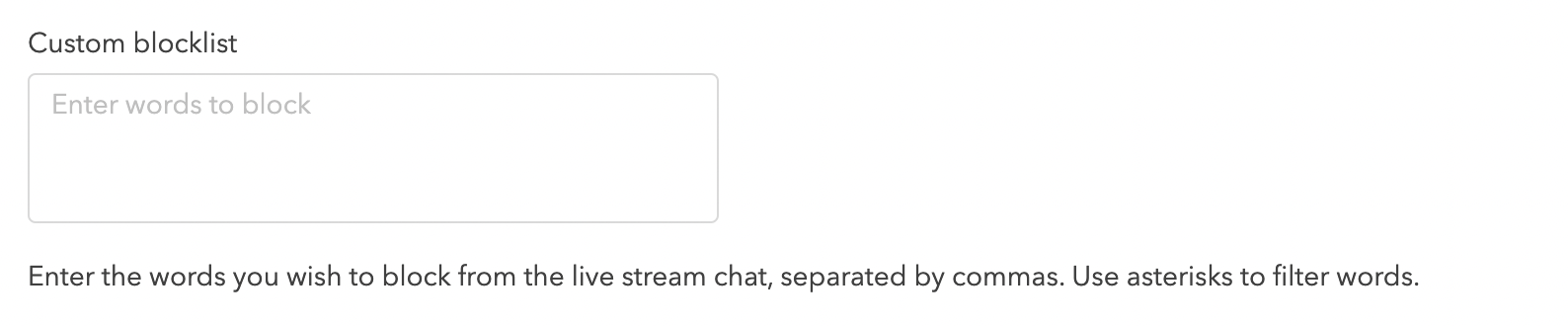
不適切なチャットメッセージを非表示にすることもできます。モデレーションが作動すると、モデレーターは該当メッセージを検閲済みとして表示する代わりに、チャットから完全に削除することを選択できます。
有効にするには、「チャンネル設定」→「ライブストリーム設定」→「検閲された単語を含むコメントを非表示」をオンに切り替えます。

ライブイベントとリプレイでは、チャット設定を個別に設定することもできます。
ライブストリームのチャンネルレベルでブロックワードを設定することもできます。詳しい設定方法については、ライブ配信のチャンネルレベル禁止ワードの記事をご覧ください。
インタラクション
イベントに様々なインタラクションを追加し、ライブ配信中に固定表示することができます。
質問カード
視聴者に尋ねたい質問を入力し、回答を収集します。また、「回答者のメールアドレスを収集」ボタンをオンにすると、質問に回答した視聴者にメールアドレスの入力を促すことができます。
投票
「ここに質問を入力」ボックスに投票の質問を入力し、続けて各選択肢ボックスに回答の選択肢(例:選択肢1、選択肢2)を入力します。「+選択肢を追加」をクリックすると、最大5つまで選択肢を追加できます。
「プレゼント企画」を設定するには、「名前」と「説明」を入力し、該当する場合は「利用規約」へのリンクを追加します。入力が完了したら「保存」を選択してください。追加したインタラクションはすべてここに表示されます。

リンク(ベータ版)
チャットメッセージを繰り返すことなく、ライブストリーム中に視聴者が重要なリソースに簡単にアクセスできるようになります。設定方法の詳細については、こちらをご覧ください。
トリビアプレゼント(ベータ版)
ライブストリームでのトリビアプレゼントインタラクションの設定方法については、こちらをご覧ください。
予告編
今後開催するライブストリームのプレビューを視聴者に提供するために、予告編を活用しましょう。この予告編は、ライブイベントが始まる前、視聴者がストリームに入る前に再生されます。新しい動画をアップロードするか、既存のショート動画から選択して、魅力的なプレビューを作成できます。

ライブストリームイベントの予告編には、メールリマインダー、ボタン、または商品カードを追加してカスタマイズすることもできます。
- 「メールリマインダー」:買い物客はメールアドレスを入力し、イベント開始前にリマインダーをリクエストできます。
- 「商品カード」:Fireworkアカウントにストアがリンクされている場合、ライブストリームイベントの予告編に商品情報を含めることができます(OMSからFireworkアカウントに商品をインポートするを参照)。「ストア」ドロップダウンメニューでストアを選択し、追加したい商品の横にあるチェックボックスをオンにして、「追加」をクリックします。
- 「ボタン」:CTA(Call to Action)は、ユーザーにクリックを促すボタンです。RSVPフィールドにリンクを入力すると、ユーザーがそれをクリックしてライブストリームイベントにRSVPできるようになります。
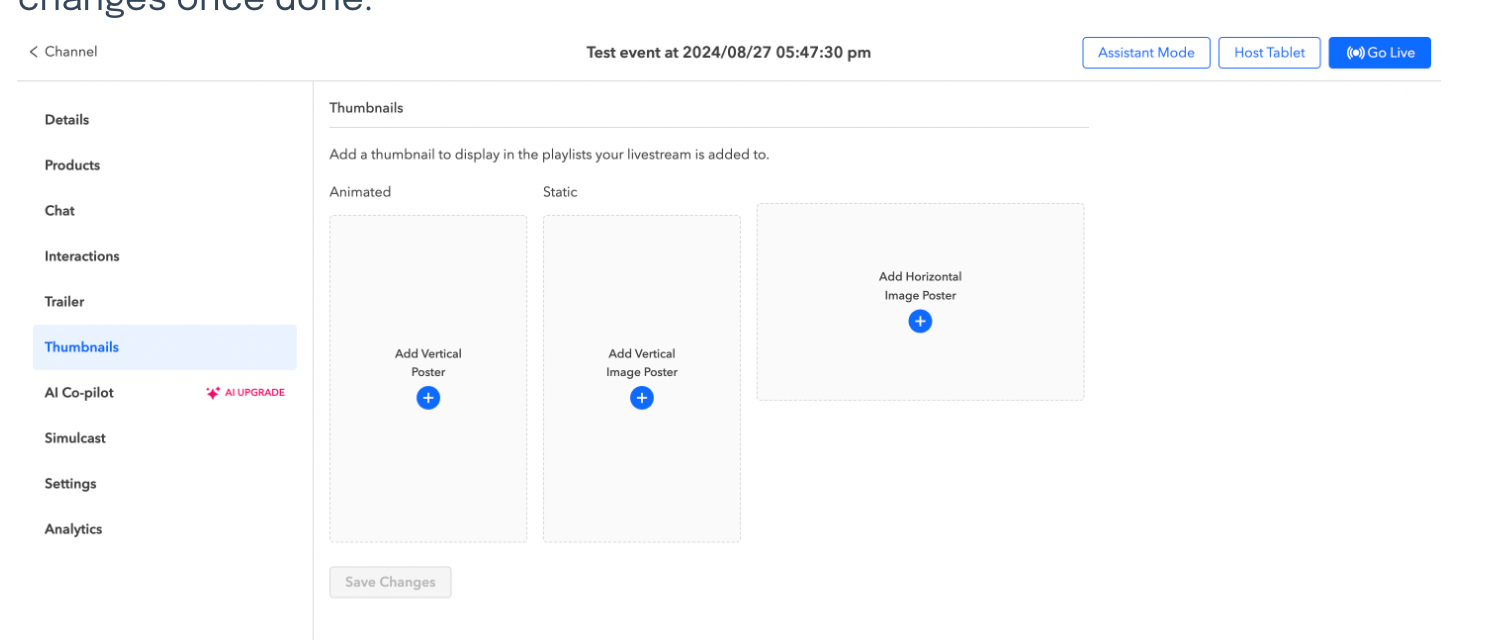
サムネイル
ライブストリームイベント動画のサムネイルとして、カスタマイズした画像(縦長の場合は9:16、横長の場合は16:9)をアップロードできます。アニメーションポスターはライブストリームの予告編から選択できます。設定しない場合は、Fireworkのデフォルトポスターがサムネイルとして表示されます。完了したら「変更を保存」をクリックしてください。
AIコパイロット
ライブイベントのモデレートや視聴者とのリアルタイムなやり取りにAIコパイロットを活用したい場合は、このオプションを有効にしてください。設定手順についてはこちらをご覧ください。
サイマルキャスト
複数のソーシャルプラットフォームで同時に配信することで、イベントのリーチを拡大できます。以下のリンクから、マルチストリームの設定方法を確認できます。
- YouTubeライブストリーム同時配信
- Facebookライブストリーム同時配信
- Instagramライブストリーム同時配信
- TikTokライブストリーム同時配信
- Twitchライブストリーム同時配信
- Amazonライブストリーム同時配信
「設定」タブでは、ライブストリーム用の「プライマリURL」を入力できます。これは、ライブストリームイベントを埋め込むページです。
このストリームを自社のチャンネルに追加している他のウェブサイトがある場合、このURLによってポスターをクリックしたユーザーが指定のURLへ遷移します。これにより、アナリティクスが一元管理され、商品の購入もすべて自社のストアから行われるようになります。
ハッシュタグ
動画に付けたいハッシュタグを入力します。ハッシュタグは、動画をキャンペーンやトピック、レポートごとにグループ化するために追加するメタタグです。ハッシュタグは最大150個まで追加できます。
自動アーカイブ
アーカイブされた動画はプレーヤー上では非表示になりますが、プレイリストから削除されるわけではありません。アーカイブは、選択した日付の午前0時01分に実行されます。この機能の詳細については、こちらをご覧ください。
ディスプレイ
表示設定のオン・オフを切り替えて調整します。完了したら「変更を保存」をクリックしてください。

ライブ配信終了後のリプレイ
有効にすると、ライブストリームが終了した直後から視聴者がリプレイを視聴できるようになります。
視聴者数を表示
現在ライブストリームを視聴している視聴者の総数が表示されます。この数値はリアルタイムで更新されます。
いいね数を表示
CMSで「いいね数を表示」オプションを有効にすると、動画プレーヤーにライブストリームが獲得したいいねの総数が表示され、この数値はリアルタイムで更新されます。
ライブ文字起こしを表示
ライブ配信中にリアルタイムで字幕を表示できるようになり、視聴者のアクセシビリティが向上します。
インサイト
ライブストリームの分析データは、「インサイト」タブで確認できます。「ライブ配信」をクリックしてください。
ホストタブレット
画面右上のタブをクリックすると、アシスタントモードやホストタブレットにアクセスできます。
共同ホストを表示
ライブストリームの共同ホストに招待メールを送信すると、アカウントを作成しなくてもブラウザから直接ライブストリームを開始できるようになります。
ライブストリームスケジュール
今後予定されているライブストリームをすべて確認するには、画面左側の「ライブストリームイベント」タブをクリックします。新しく作成したイベントはカレンダーに表示され、ライブストリームやスケジュール済みの再配信を簡単に把握・管理できます。イベントをクリックすると、詳細ページが開きます。
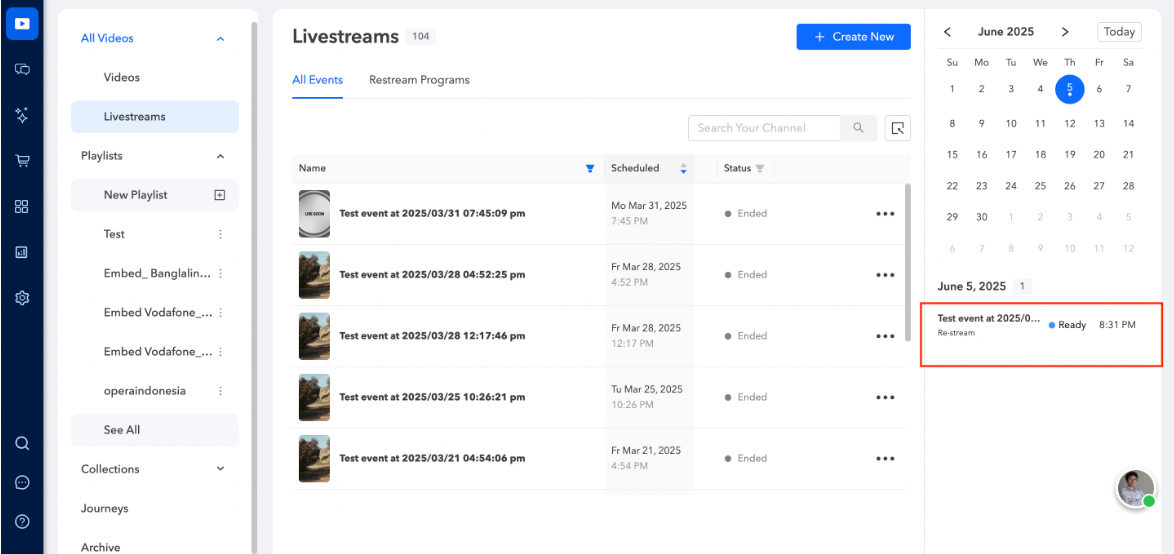
開催予定・配信中・終了済みのイベント一覧からイベントを選択すると、そのステータスを確認できるほか、クリックするだけでアシスタントモードに直接アクセスできます。

スマートリストリームスケジューラー
既存の動画コンテンツの再配信を簡単にスケジュールしたい場合は、スマートリストリームスケジューラーをご利用ください。プロセスの自動化、複数のオリジナルライブストリームの選択、タイムスロットの設定、AIコパイロットオプションの設定を行うことで、視聴者のエンゲージメントを高めることができます。
同時配信を追加できるのは、ライブストリームイベント開始の5分前までです。