1対1のバーチャルショッピング:どこから始める?
1対1を導入し、オンライン販売を始めるために必要な5つのこと!


スクリプトの追加
ステップ1
1対1ワークスペース内で、設定に移動します。
ステップ2
外観をクリックし、次に連携を選択し、埋め込みスクリプトを選択します。

詳細な手順
- 1対1バーチャルショッピングスクリプトの実装 - カスタム開発サイトの場合は、1対1のバーチャルショップの実装をご覧ください。
- Shopifyでの1対1バーチャルショッピングの実装 - Shopifyで1対1のバーチャルショッピングを実装するをご覧ください。
- WooCommerceでの1対1バーチャルショッピングの実装 - WooCommerceに1対1バーチャルショッピングを導入するをご覧ください。
- 1対1バーチャルショッピングのトラッキングを実装する - 1対1のバーチャルショッピングでトラッキングを実装する方法をご覧ください。
開発チームをお持ちで、ウィジェットのカスタマイズオプションや他の連携方法をお探しですか?開発者向けドキュメントはこちらをご覧ください。
チームを編成する
訪問者のリクエストに対応するのは誰ですか?
- ビジネスポータル(管理者またはメンバーアクセス)からエージェントを追加し、メールで1対1ワークスペースへのサインインを招待します。手順はFirework ビジネスポータルにチームメンバーを追加をご覧ください。
- ビジネスポータルで「プロフィール」にアクセスしてください。エージェントはここに画像をアップロードでき、新しいメッセージに表示されます(240x240ピクセル)。プロフィールへのアクセスはこちら:https://business.firework.com/profile


ウィジェットの外観を設定する
訪問者が電話をかける前、または電話をリクエストする前に、エージェントのGIFや利用可能なエージェントのアバターをプレビューに表示できます。
ステップ1
まずは、設定 → 外観 → 構成に移動します。ここで、アニメーションGIFをアップロードするオプションがあります。最適な結果を得るには、5:7形式で、最小解像度625x875ピクセルを使用し、GIFが3秒以上再生されるようにしてください。さらに、主要な被写体が中央に配置されるようにし、視覚的なバランスを保つために周囲の余白を最小限に抑えてください。変更を保存する前に、ウィジェットをプレビューして表示を確認できます。

ステップ2
最後に、一番下までスクロールし、ウィジェットカバーテキストとウィジェットメニューテキストを挿入します。
ウィジェットカバーテキスト
クリックされていないときにウィジェットに表示されるテキストです。例:「当店で買い物」「専門家と話す」「会話を始める」

ウィジェットメニュータイトル
クリックしたときにウィジェットに表示されるタイトルです。例:「テキストまたは片方向ビデオ通話で専門家にご相談ください!ご安心ください、カメラはオフになっており、お客様の姿が見えることはありません」

ウィジェットの説明
タイトルの下に表示され、そのタイトルを補足するテキストです。
ヒーロー画像
ヒーロー画像をアップロードして開いたウィジェットに添えることもできます(推奨サイズ:720x500px)。視覚的な要素が加わり、ブランドアイデンティティとの整合性をさらに高められます。
エージェントのアバター表示
ステップ1
1対1ワークスペース内で、「設定」をクリックします。
ステップ2
下にスクロールしてアバターを選択します。ウィジェットのサイズ、カバー、メニュータイトル、説明を選択し、「保存」を選択します。
ヒント
- 常に手を振ったり動いたりし続けるGIFは避けてください。訪問者の閲覧体験を過度に妨げる可能性があります。
- 以下に示すように、画像の周囲の余白を少なくし、中央に配置されていることを確認してください。

ウィジェットの配置
ビデオウィジェットを固定したい画面の隅を選択してください。デフォルトでは、ウィジェットは右下隅に配置されますが、必要に応じて配置を調整したり、下部のパディングを変更したりできます。

データプライバシー/法的声明とリード獲得
訪問者が通話やチャットを開始する前に確認・同意できるよう、法的声明と、以下に記載されている項目のURLを提供できます。これらはチャットウィンドウの上部に表示されます。
- プライバシーポリシー
- 利用規約

例

リード獲得:リードを獲得したい場合は、このオプションを有効にしてください。有効にすると、訪問者はリクエストを送信する前に氏名とメールアドレスを提供する必要があります。この情報は、Zapier連携を使用してサードパーティプラットフォームと統合できます。
ユーザーセグメントとフィードの追加
ユーザーセグメントは、エージェントが監視・対応するフィード内の訪問者を定義するのに役立ちます。これは、特定の要件やカテゴリで買い物客をセグメント化したい場合に便利です。
設定には管理者アクセスが必要です。
ステップ1
1対1ワークスペース内で、設定に移動します。
ステップ2
ユーザーセグメントをクリックし、次にセグメントを追加を選択します。
ステップ3
名前を付け、URLまたは国というオプションから選択して、訪問者をセグメント化します。さらに、グループをすべての条件または任意の条件に適用することもできます。

ステップ4
3番目のボックスに、検索対象となるセグメントを入力します。
ステップ5
「+グループを追加」を選択して、さらにグループオプションを追加することもできます。完了したら、「作成」をクリックします。
ステップ6
フィードに移動します。ここでは、現在アクティブなフィードと非アクティブなフィードが表示されます。「フィードを作成」を選択します。
ステップ7
フィードの内部表示名を入力し、作成したセグメントを選択します。次に、「保存」をクリックします。

トグルを使用することで、1対1ワークスペース内でこのフィードの表示を制御できます。エージェントは、自分のワークスペースから関連するライブフィードを確認できます。
セグメントを設定する際の例をいくつかご紹介します。
URLセグメント

国別セグメント

テストする
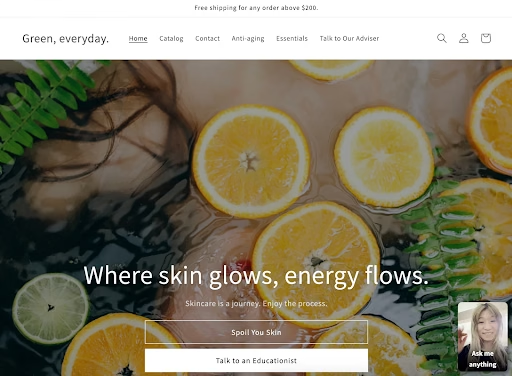
1対1スクリプトを追加したら、1対1ワークスペースの「顧客」の横にあるボタンをオンに切り替えて、ウィジェットを表示させます。
*練習のため、また操作の流れを把握するために、他のエージェントまたは社内従業員との通話テストをお勧めします。その他ご不明な点がございましたら、お問い合わせください。

追加のオプション設定
ウィジェットの利用可能性
ウィジェットの利用可能性を設定できます。これには、エージェントの勤務時間の定義も含まれます。詳細な手順については、提供されている1対1のエージェント勤務時間を設定する方法を参照してください。
ウィジェットの表示設定
ウィジェットの表示設定方法と、顧客がアクセスできるようどこに表示されるかは、こちらをご確認ください。
ウィジェットのキャパシティ
受信する会話リクエストごとに待機リストのキャパシティを設定できます。
- 設定から外観、次に表示設定をクリックします。
- 待機リストのキャパシティを有効にします。「条件」については、キューの制限を設定し、その制限に達した場合に以下のオプションから選択できます。

スケジュール設定
コールバックソフトウェアを利用している場合、エージェントがフォローアップできるようにカレンダーのスケジュール設定URLを挿入してください。
- 設定から外観、次に埋め込みをクリックし、一番下までスクロールします。
- 「スケジューリング」の下で、「カスタムランディングページ」を選択し、スケジューリングリンクに従ってURLを挿入します。
- Calendlyでのスケジューリング:Calendlyを使えば、会議のスケジュール設定や管理が簡単になり、訪問者も手軽に予約・参加できます。詳細はCalendlyでの1対1スケジュール設定をご確認ください。

カメラの許可
お客様がカメラのオン/オフを選択できるようにしたい場合は、カメラ設定を制御できます。
- 「設定」から「外観」をクリックし、次に「詳細設定」まで一番下までスクロールして、「カメラの許可」を探します。
- 訪問者がカメラのオン/オフを選択できるようにするオプションがあります。
